Hi everyone! Making pixel UI art and then turning it into a Godot theme has always been one of the slowest (and boring) part of a
project for me, so I made a tool for it: Bevelsmith.
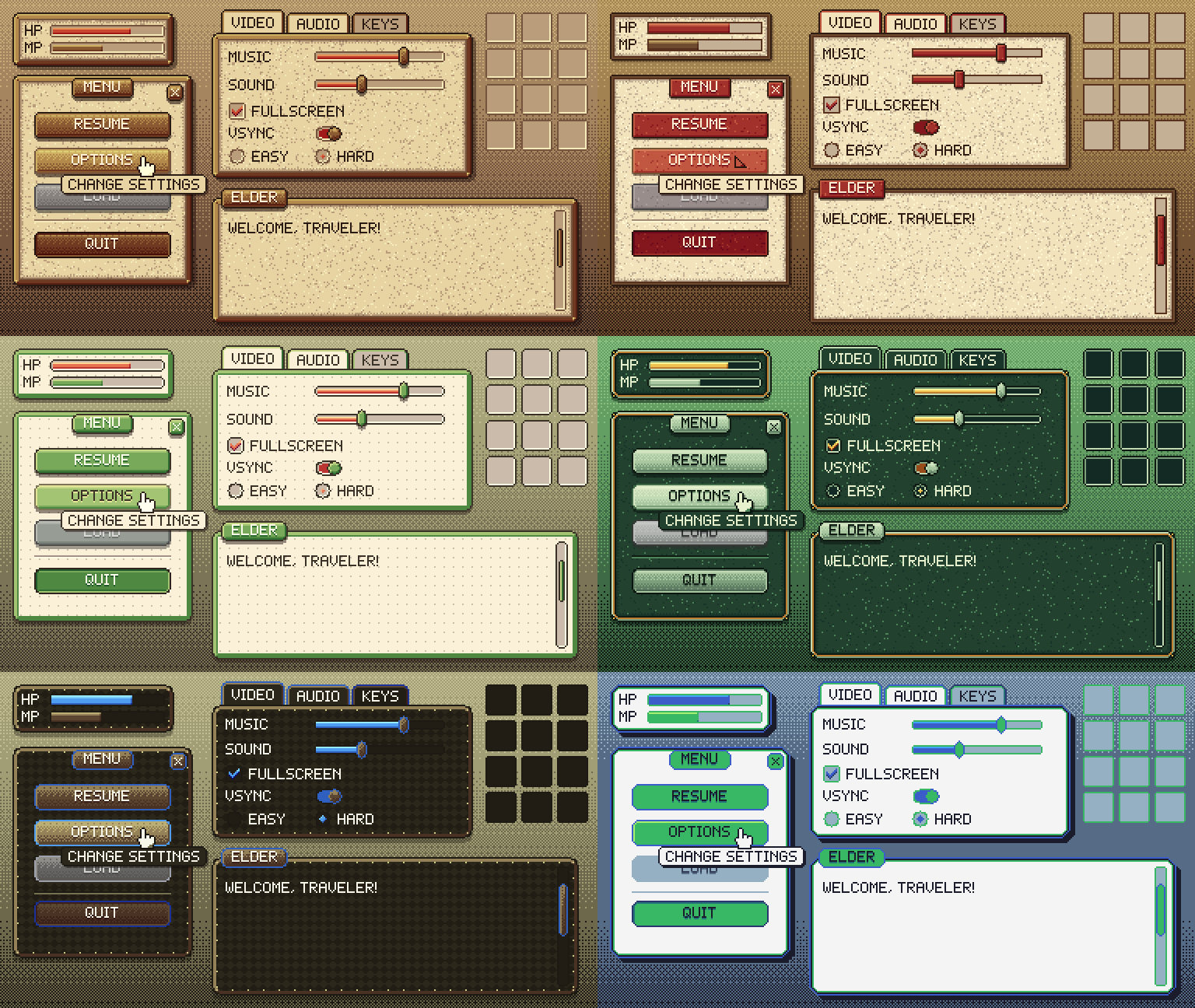
You pick one of the styles, or drop in a screenshot of your game so the UI uses your own palette, then tweak
borders, bevels, shadows, 19 textures and the mouse cursors. When you export for Godot you get:
- a ready theme.tres with every Control styled: buttons in all states, panels, tabs, sliders, checkboxes,
toggles, radio buttons, progress bars, scrollbars, tooltips and line edits
- a matching pixel font (BMFont), already set as the theme’s default font
- 9-slice margins set on every piece, with textured middles that tile instead of stretching, so dithering
doesn’t smear
- a small demo project you can open and run right away

this tavern wood preset inside the editor
To use it: just copy the theme folder into your project and set it in Project Settings > GUI >Theme > Custom
(or on any Control). Two tips that keep it pixel-perfect: set the default texture filter to Nearest, and keep
font sizes at whole multiples of the kit’s font size (the README lists them).
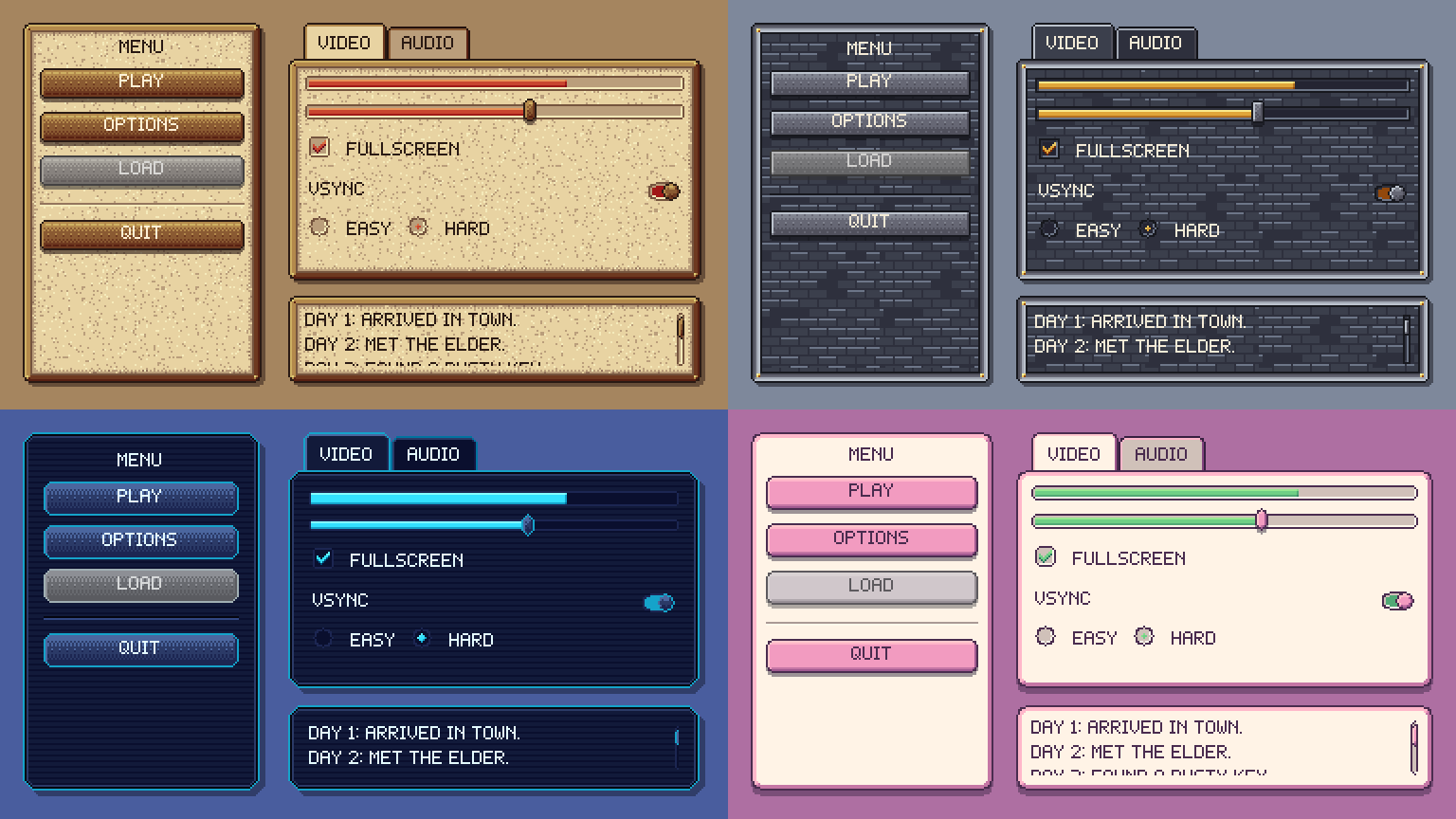
These are exported themes running in Godot 4.7. I’m using it for the UI of my own Godot game too.
Free to try:
- a free demo of the tool that runs in the browser: Bevelsmith — Pixel UI Kit Generator by denizlabs
- three free UI themes made with it, each with the Godot theme and demo project, free for any project:
Starship Hull UI by denizlabs (sci-fi) and Cozy Harvest UI Pack by denizlabs (cozy)
The full version ($7.49 , 50% off this launch week) also exports to Unity, GameMaker and RPG Maker, and can
round-trip your kit through Aseprite (export/import .aseprite files ) so you can hand-polish pieces.
I’m working on the next update (a native Linux app and more are on the way), so I’d love to hear what
you find most painful about building UI in Godot.