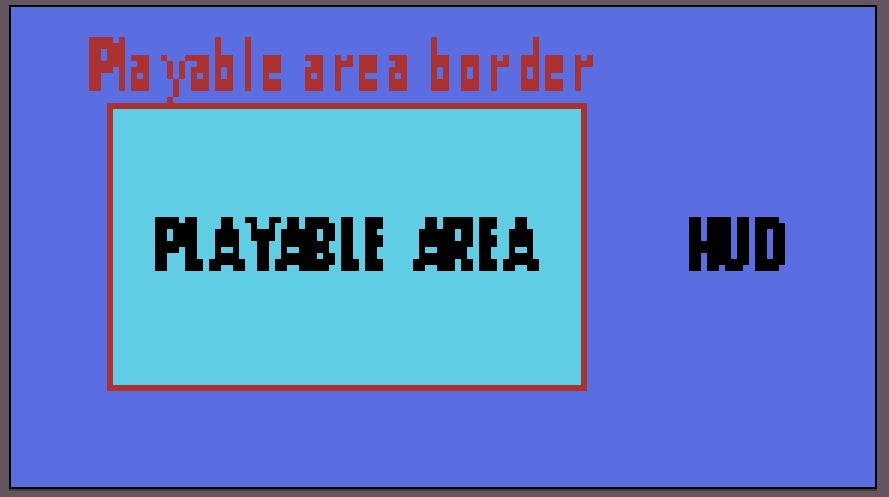
I’m doing a thing where Camera2D shows entire playable area, and it never changes. I want to freely build the user interface around it, without covering the camera.
I want to ask what is the best approach for it. On my own I have figured out that there is a thing called SubViewport.
The advantage it has is that I can render the game inside the HUD, and I will not be losing any pixels for the HUD itself (I’m running it at low resolution).
The disadvantage is that it’s extraordinarily complex, and it ignores all project settings. For example I’m using canvas_items scaling instead of viewport, so rotated pixel art won’t be distorted. SubViewport ignores that and enforces viewport scaling, so all visuals get screwed up. For now I couldn’t figure out how to convince it to change scaling, so I also wanted to ask how to fix it if SubViewport is the way to go.
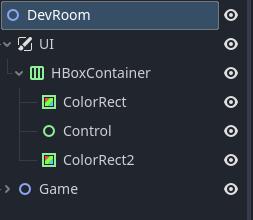
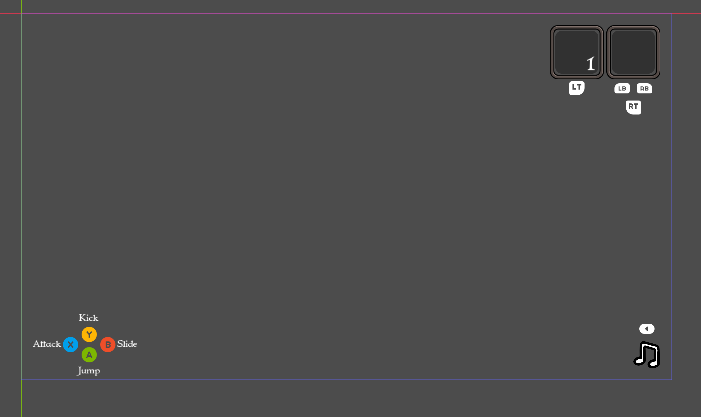
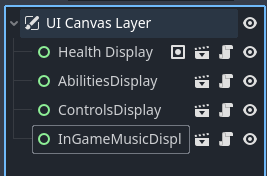
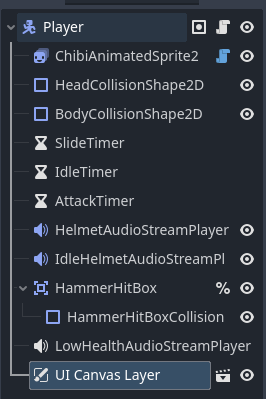
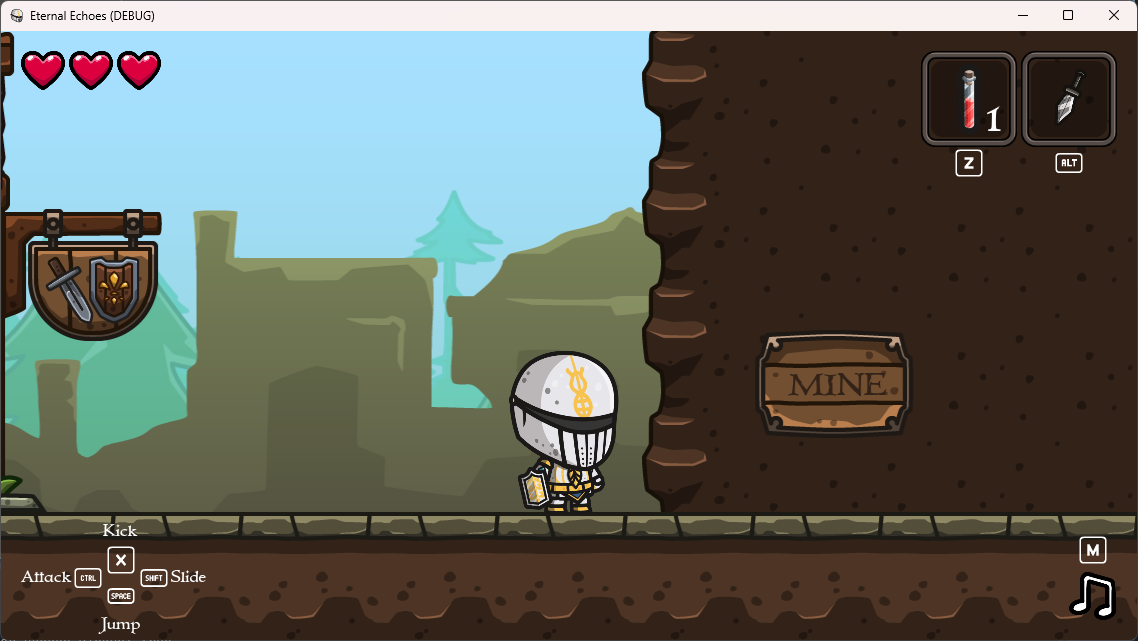
If you want an evaluation on whether you’re doing it wrong, gonna need some screenshots. Need to see the node tree as well as what the game looks like without the SubViewport because I don’t get what you mean by “it covers the camera”.
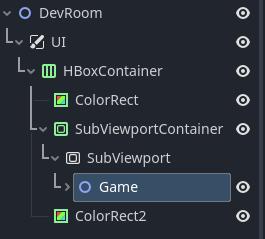
ColorRect1 and 2 are covering left and right part of the camera (Camera2D under Game node), which means left and right part of the stage/map is covered.
I don’t know how to properly configure SubViewport yet (as I said, it’s extremely complicated element), but in theory the Camera2D would be then inside the HUD, without HUD covering the playable area.
I can’t visualize what you’re describing. The best advice I can give you is to go watch some tutorials on YouTube on HUDs. Here’s an example of a 2D HUD I did for a game:
What I don’t understand is why you don’t want the HUD to show up. The player can’t see it otherwise. Perhaps your issue is they are not transparent? Also, why do you have two ColorRect nodes as your HUD? I don’t get that.
I have Camera2D in a scene and world boundary at the edges, which means camera shows entire playable area at once. But when I start to add UI, it starts to cover the playable area, and to state the obvious user does not see what is going on. And I can’t wrap my head around solution.
I also could make playable area smaller to give room for the HUD, but it’s very “slippery” way of doing it, because if I want to resize the HUD down the road, I will have to move the objects inside the scene to adjust for it.
So, what you have shown is the default way of doing it - HUD inside the camera. I need HUD outside of the camera.
Yeah you need to use a SubViewport So what you want to do is add a SubViewportContainer in your HUD. Then you place the SubViewport as a child of that, and the whole Game node is a child of the SubViewport.
Ok, so I wasn’t trying to overengineer this. I’m not sure where to place camera though, it either shows only what subviewport sees, or shows nothing. But I will watch some more videos and try to figure this out.
But what I really need to know, is how to change stretch mode. I need canvas_items stretch mode, but the subviewport is using viewport or disabled (judging by distorted pixel art). I don’t know where to change it, I can’t find any setting for it in subviewport.
Normally, a game can only have one active camera. A SubViewport shows what the active camera inside of it sees - therefore allowing you to have multiple active cameras. However, in your case you only want one active camera. Since you don’t want it to display to the entire screen, you need to put it inside a SubViewport.
Camera2D is under Game node, and UI still covers the playable area.
There aren’t a lot of detailed video tutorials about this, so I will have to dive in into documentation, but documentation doesn’t always show examples.
Well you are also either being unintentionally opaque about what you’re building or very secretive so it’s hard to give you alternative solutions. For example, if this were a card game and you wanted green felt around the edge, I’d recommend you just get rid of everything that’s a Node2D and build it all with Control nodes.
Either way, you’re right - you are doing something that maybe no one else has done. So you’re going to need to blaze a new trail and then document it for those who come after you.
Top down bullet hell, playable zone is within that smaller Camera2D and never changes (the background can in theory move, but this is entirely different topic), the HUD around it is supposed to look like you are sitting over control panel with monitors, buttons, and stuff.
I have no idea how well it will work in practice and I have emergency plans, but I won’t know how it looks like if I won’t try something.
I have restarted Godot and now HUD is gone, and again only game (playable area) is visible.
For reference, Star of Providence also has smaller playable area than the actual screen, but I think they might have achieved it by simply building very small levels (idk if they used Godot in the first place). I can do it the same, but I want more flexibility in case I need to change HUD size.
I’m still trying to figure this out, trying different node placement, etc, nothing works. I’m starting to suspect this is simply not doable in Godot, which is quite problematic, but I don’t really want to switch to Unity.
I will do it the “slippery” way of building the UI in the scene itself (like you would usually do) and just place world boundaries inside instead of at the borders. But if it’s actually solvable the “real” way, let me now.
I’m still learning about subviewports myself, but in the tree you collect them in a subviewport container. I think as a child of the camera works, but you have options. You’ll want a seperate camera 2d in your main scene as well. The lone camera will display the root viewport by default, and you set your subviewports to display the ui. To do this, make an instance of a subviewport with your ui attached to it. Scale the ui and the subvieport to the same size, and instance it to the subviewport container. Then using the containers settings, anchor the subviewports to the various points on the screen around your camera displaying the root viewport.
Ive been reading the information provided here as i learn, and i think you’ll benefit as well.