I recently came across a nice Blender plug-in called Rigodotify that makes the process of rigging meshes for use in Godot just a little bit easier. It’s a good plug-in, as it takes just a few minutes to install and just a few more to rig a basic character so it can do things like walk, dance, and die dramatically.
Rigging slightly less basic characters, however, requires more expertise. If your humanoid has wings, an extra pair of arms, or something truly preposterous like a ponytail, you can’t simply add a few bones to the rig and expect everything to work. And that’s a bit of a problem, because I couldn’t find a short but comprehensive guide that shows how to do this anywhere on the internet. It took me a day and a half of futzing around in Blender and reading scattered bits of information to come up with a solution that works for me. I’d like to share my findings in the hope that someone might find it useful. (And if not, then I at least have a reference for myself that I can use.)
Step-by-step procedure
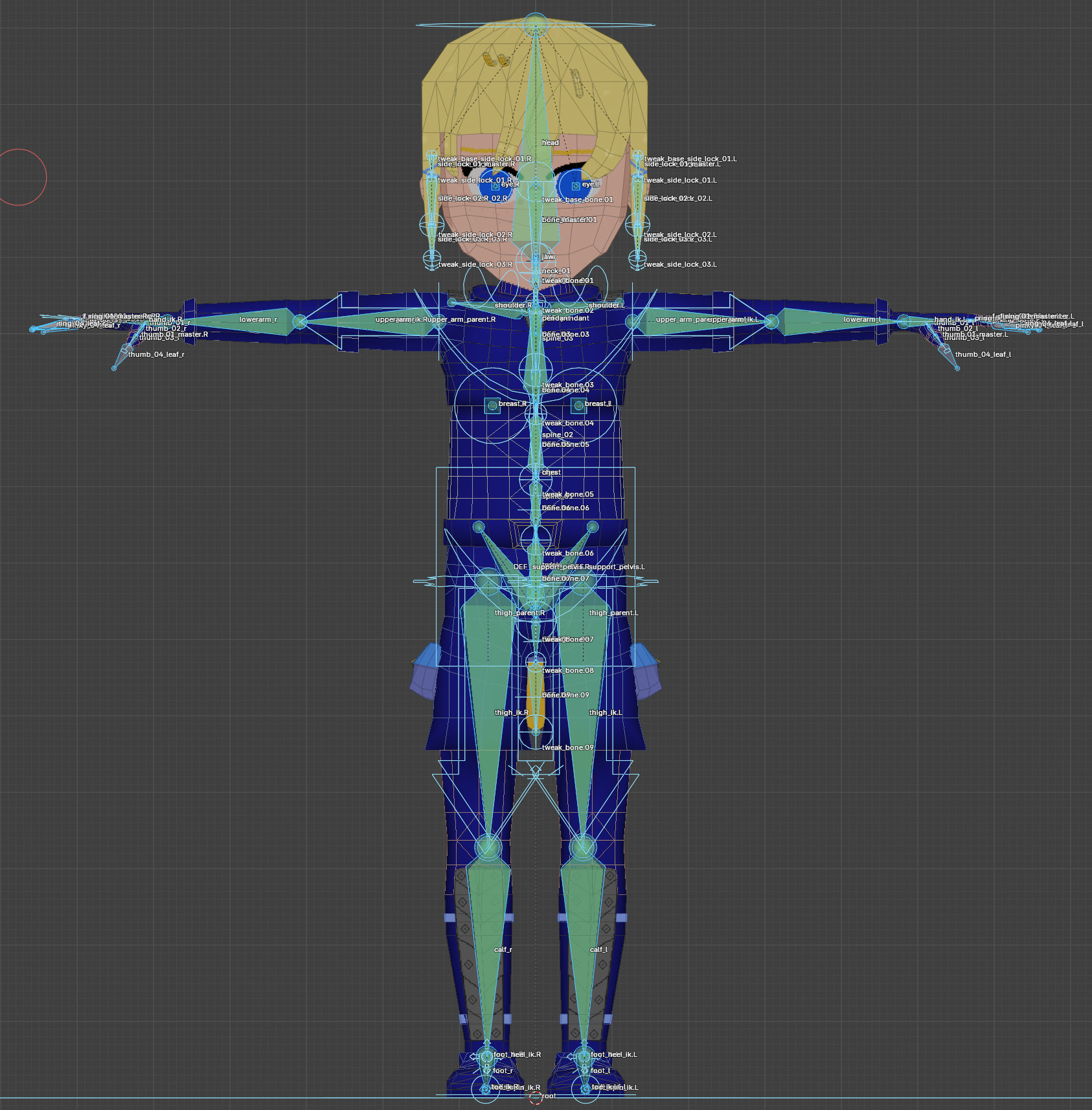
I’m going to assume you already have a mesh that’s parented to a control rig. The result will look something like this:

Except, of course, you’ll have your own mesh. In mine I already have a ponytail and one side bang (the one on the character’s left side) fully rigged. I’ll show you how to rig the other bang.
You’ll want to select just your metarig and enter edit mode. Then, in the properties window, click on the ‘data’ tab. (The one showing a green stick figure.) Scroll to the bottom and open the samples box.

Click on basic.copy_chain (that’s the name of something called a rig type), then Add sample. A three-bone structure will appear.

Depending on your needs, you may need more bones or fewer. Right now, it’s immaterial what rig type we’re using. (We’ll change it later.) All that is important and matters is that the basic.copy_chain has deformation bones and no bendy bones. Place this three-bone structure on your mesh anywhere you please.
Rather than changing scale, you should only lengthen or shorten bones by clicking on one of the spheres at either of the bone’s ends and pressing
gto move that end.

Keep in mind that the sphere near the thick end of the bone is the part around which the bone will rotate. As you can see, in order to make my character’s side bang I had to rotate the bones 180 degrees around the x-axis. You may or may not have to do something similar, depending on what sort of body part you’re adding to the rig.
Next, parent your new bones to the rest of the metarig. (Select the body of the bone to parent first, then shift click one of the spheres attached to the bone that should become the parent. Now press ctrl + p and select ‘keep offset’ . Your workflow might differ if you’re rigging something other than a side bang like I am.)

Optional step, but now is a good time to rename the newly parented bones. My character’s mesh has two side bangs that are identical. I already have the other bang set up, but if I hadn’t, I could make my new bones have a name that ends in
.R. This would then let me right-click and choosesymmetrizeto automatically create the bones for the left bang. I’m still choosing to pick a name ending in.Rbecause it’s a good practice.
We now have to regenerate the rigify rig and convert to a Godot-compatible rig. (Click the Re-regenerate and Convert to Godot buttons again in the data tab of the properties window. The one with the little green stick figure.) There’s no need to parent the mesh to the control rig again.
Now is a good time to fix the bone roll of the newly added bones. If you go back to the picture where I placed them on the mesh, you can see a set of xyz-axes for each bone. The bottom two bones have their axes in the exact same orientation, but the top bone’s axes differ from the others. When you tell all three bones to rotate around their own x-axis, the resulting movement will look very strange if their xyz-axes don’t point in the same way.
Rotating bones can be done by selecting the metarig, going into edit mode, selecting a bone by clicking it, then rotating it with
r. There’s also a keyboard shortcut for aligning with the global axes:shift+n.In case you don’t see the axes, select your metarig, go to the data properties window, click on
viewport display, then tick the boxaxes. Regenerate and convert your rig after changing the bone roll.
We’re nearly there, but have yet to complete the most crucial step. If you were to use the converted control rig right now, you’d see that the mesh does not respond when the control rig changes. This is because we have yet to define vertex groups that will be influenced by the deformation bones.
Go into object mode and select your mesh. Then in the properties window, press on the ‘data’ tab (the one with the green inverted triangle icon.)

New groups can be added by pressing the little ‘+’ icon on the right side of the window. Make two groups for each of the bones you added. (My side bang has three bones, so I add six.) Each vertex group must have the exact name of one of your newly added bones and its corresponding deformation bone. If you named one of your bones side_bang_a.L, you would name your vertex groups side_bang_a.L and DEF-side_bang_a.L.
Once your groups have been named, it’s time to weight paint them. Select your mesh and enter weight paint mode. Click on DEF-side_bang_a.L in your data tab, then weight paint the relevant area.
Regenerate and convert the rig, then enter pose mode and try rotating the control bone. The side bang should now move.

But we can do even better. Go back to object mode. Select your metarig (not the control rig), and enter pose mode. Select the top bone of the chain, then go to the ‘bone’ tab of the properties window (the one with the green bone icon.) Scroll down, and change the rig type to spines.basic_tail. Regenerate and convert the rig, and…
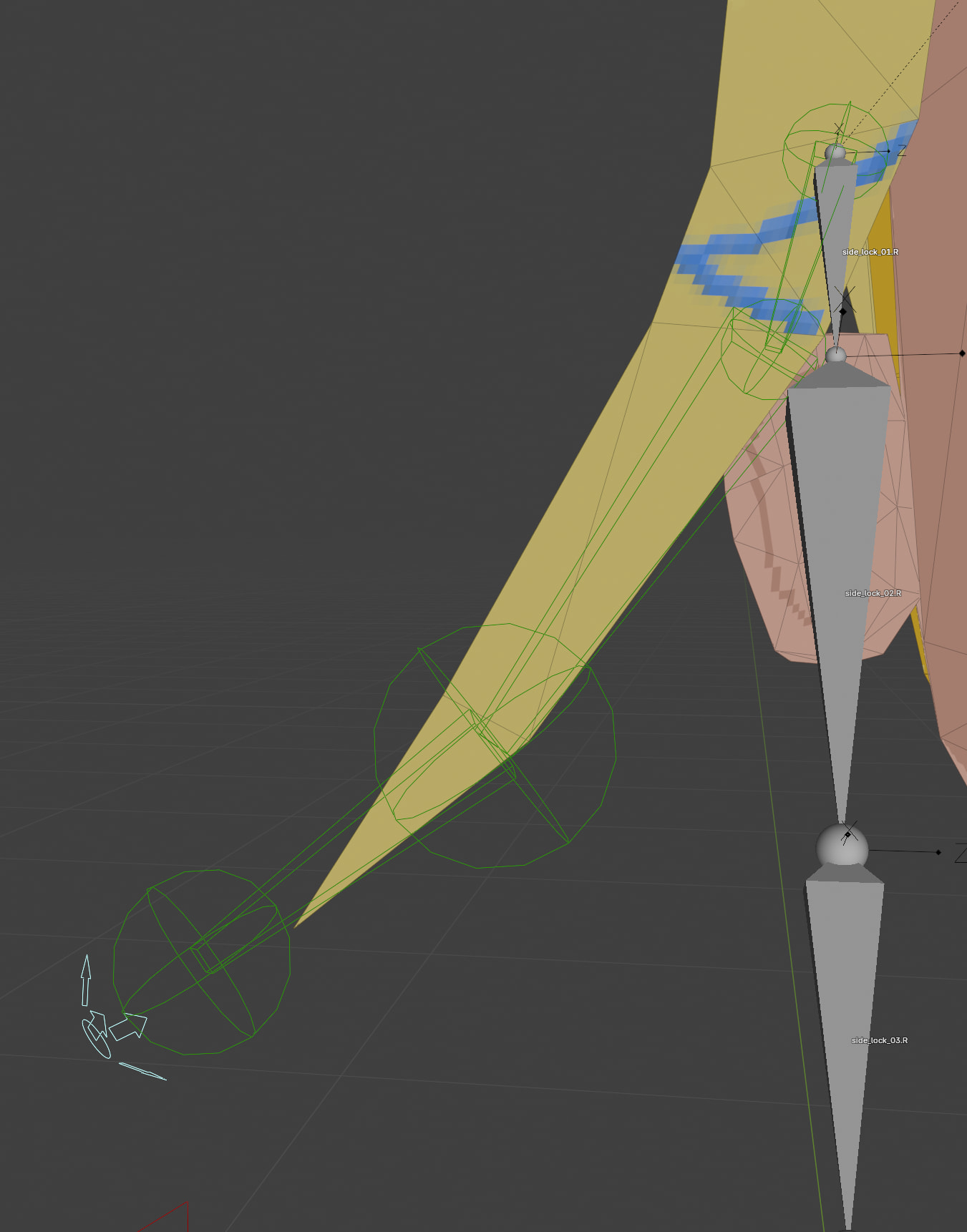
You get a much nicer control. That little blue crown thing in the bottom left corner lets you move about all bones in the chain.
Maybe your side bang rotates, but in an unexpected direction. It’s a good idea to go back to the ‘bone’ tab in pose mode and check which axis in ‘options’ is checked:
Here, ‘x’ is checked. Bones in the chain will only roll around this axis, so check your bone rolls again. If the x-axis points in an unexpected direction, then that explains the weird motion you see.

Now you can animate to your heart’s content.
Final thoughts
This how-to errs on the side of over-explaining if for no other reason than to properly reflect the ten-thousand rakes I stepped on while learning how to rig characters.
I’ll admit that this guide has more to do with Blender than Godot, but I don’t really frequent any Blender forums and doubt anyone there would have much of a use for this guide.
I’m not much of a rigger or even 3D modeler, so if you find any errors or know how to simplify/improve the workflow, please do drop a comment. It’s much appreciated.
This guide was written for Blender 5.0, which is the most current release.