One of the things I love about Godot is that if there’s something you want to implement then there’s probably a node for doing that. One of the things I sort of dislike is that there are so many nodes it’s very easy to accidentally try and re-invent the wheel. Until yesterday I hadn’t realised that ColorPickerButton existed.
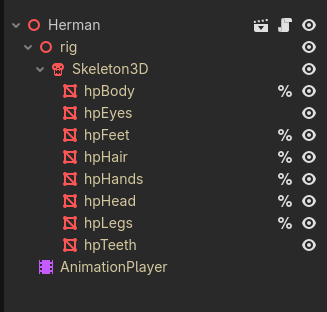
My current project will have repeat instances of some human models and I don’t want them to all look identical. My Blender model of a generic human has a number of mesh instances with simple procedural colours, no exotic material definitions, and is exported as a .glb file. I have inherited a scene from this .glb file and this gives me the following structure:-
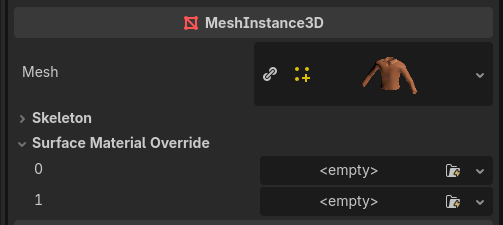
Because the scene is inherited the Surface Material Override slots can now be accessed and you can poke in new colour values. The attached script has a dictionary of meshes and their colour values along with property setters to manage them and put new colour values in the override slots. Again I am using simple materials with just an albedo colour.
# pointers to mesh objects
@onready var hp_body: MeshInstance3D = %hpBody
@onready var hp_feet: MeshInstance3D = %hpFeet
@onready var hp_hair: MeshInstance3D = %hpHair
@onready var hp_hands: MeshInstance3D = %hpHands
@onready var hp_head: MeshInstance3D = %hpHead
@onready var hp_legs: MeshInstance3D = %hpLegs

# a dictionary of things/colours that can be changed at this level
var ColourDictionary: Dictionary = {
	"shirt_colour": Color(0.71, 0.42, 0.27, 1.00),
	"shirt_trim_colour": Color(0.90, 0.90, 0.90, 1.00),
	"trouser_colour": Color(0.54, 0.52, 0.60, 1.0),
	"shoe_colour": Color(0.38, 0.33, 0.31, 1.00),
	"shoe_trim_colour": Color(0.38, 0.38, 0.37, 1.00),
	"hair_colour": Color(.32, 0.26, 0.18, 1.00),
	"face_colour": Color(0.80, 0.64, 0.60, 1.00),
}

var shirt_colour: Color:
	set(value):
		shirt_colour = value
		OverrideMeshColour(shirt_colour, hp_body, 0, "shirt_colour")

var shirt_trim_colour: Color:
	set(value):
		shirt_trim_colour = value
		OverrideMeshColour(shirt_trim_colour, hp_body, 1, "shirt_trim_colour")

var trouser_colour: Color:
	set(value):
		trouser_colour = value
		OverrideMeshColour(trouser_colour, hp_legs, 0, "trouser_colour")

var shoe_colour: Color:
	set(value):
		shoe_colour = value
		OverrideMeshColour(shoe_colour, hp_feet, 0, "shoe_colour")

var shoe_trim_colour: Color:
	set(value):
		shoe_trim_colour = value
		OverrideMeshColour(shoe_trim_colour, hp_feet, 1, "shoe_trim_colour")

var hair_colour: Color:
	set(value):
		hair_colour = value
		OverrideMeshColour(hair_colour, hp_hair, 0, "hair_colour")

var face_colour: Color:
	set(value):
		face_colour = value
		OverrideMeshColour(face_colour, hp_head, 0, "face_colour")
		OverrideMeshColour(face_colour, hp_hands, 0, "face_colour")

func OverrideMeshColour(new_colour: Color, mesh: MeshInstance3D, surface: int, dict_key: String) -> void:
	var material: StandardMaterial3D = StandardMaterial3D.new()
	material.albedo_color = new_colour
	mesh.set_surface_override_material(surface, material)
	ColourDictionary[dict_key] = new_colour
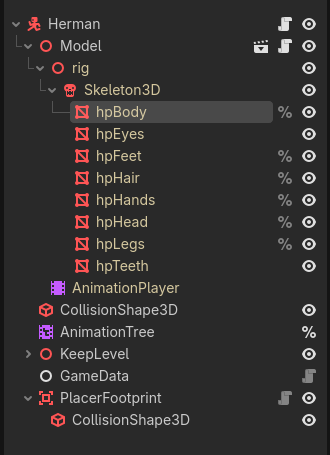
My CharacterBody3D scene uses this inherited scene and adds collision shapes, an animation tree pointed at the animation player coming from Blender and some other game-specific stuff like a billboard with the character name. The attached script at this level is mostly controlling the animation tree.
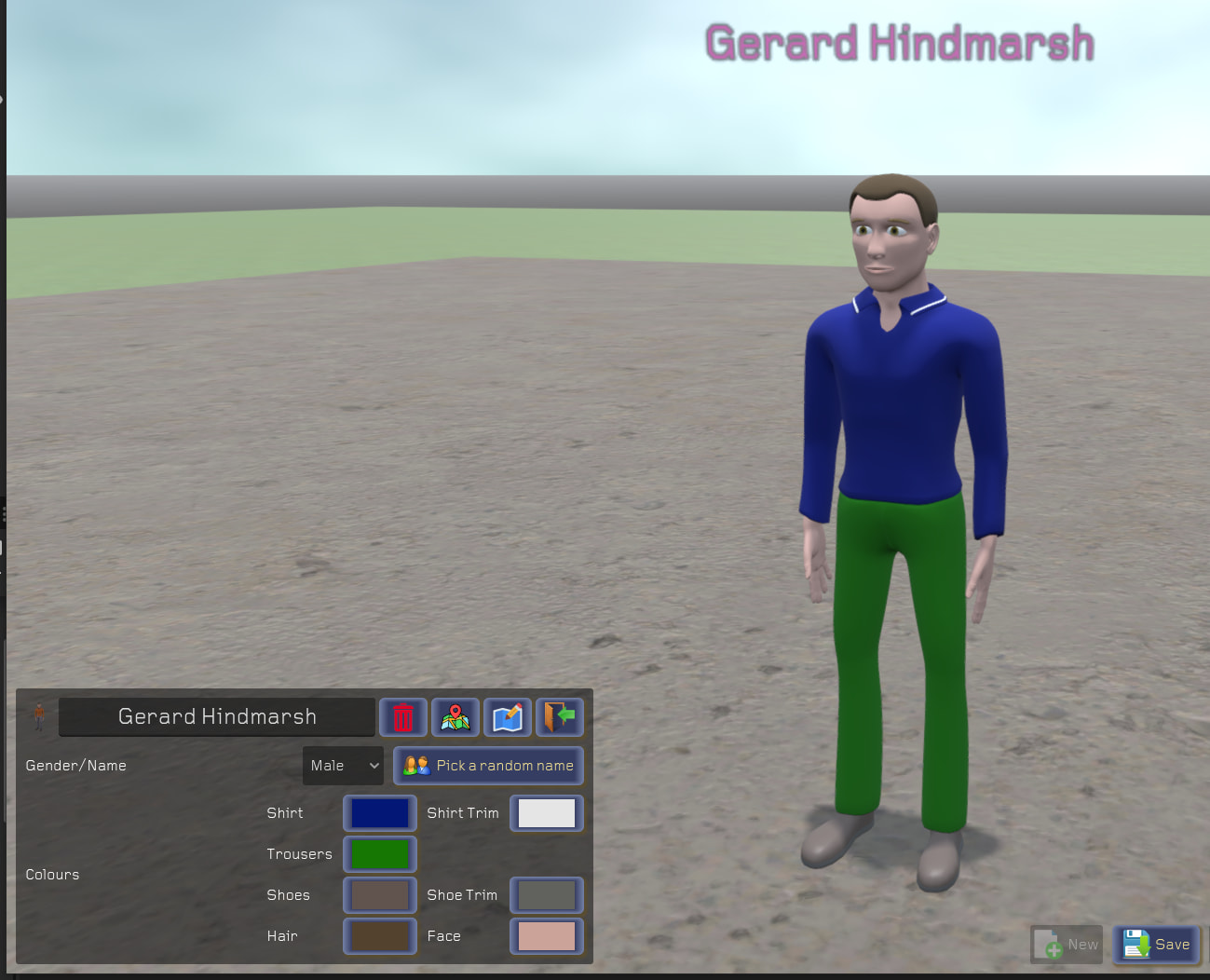
Which finally brings us to the, for me, newly discovered ColorPickerButton. During game play I want the player to be able to modify colours of individual instances of the human character. Clicking on a character instance brings up a panel that include a set of ColorPickerButtons with the current colours being fetched from the clicked character. Choosing a new colour value sends that colour back through the inherited scene script to put into the relevant override slot.
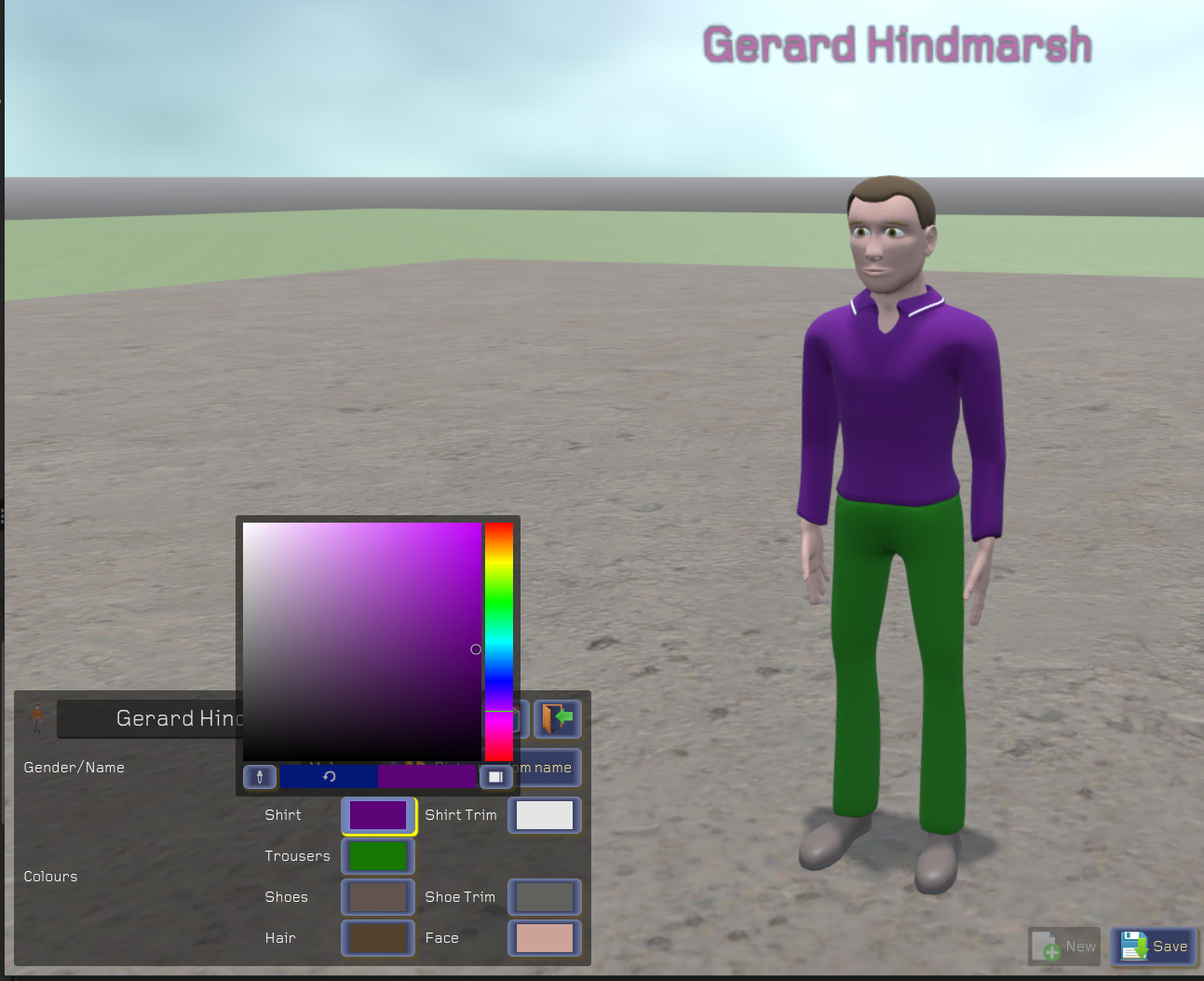
I have tried to be consistent in naming nodes within my scenes so having selected any game object I can safely use statements like :-
current_object.get_node("Model").shirt_colour = new_color
The colour dictionary attached to the inherited model may seem redundant during use but it is what gets saved at the end of level design and when saving game progress. My save file is essentially an array of resources containing a scene path reference, the colour dictionary and some other game-specific dictionaries such as the character’s location and current state. Loading a game reads this array, creates an instance from the scene path and pokes in all the saved dictionary values.
I hope this is of interest, what it taught me was to read the available node documentation more thoroughly.