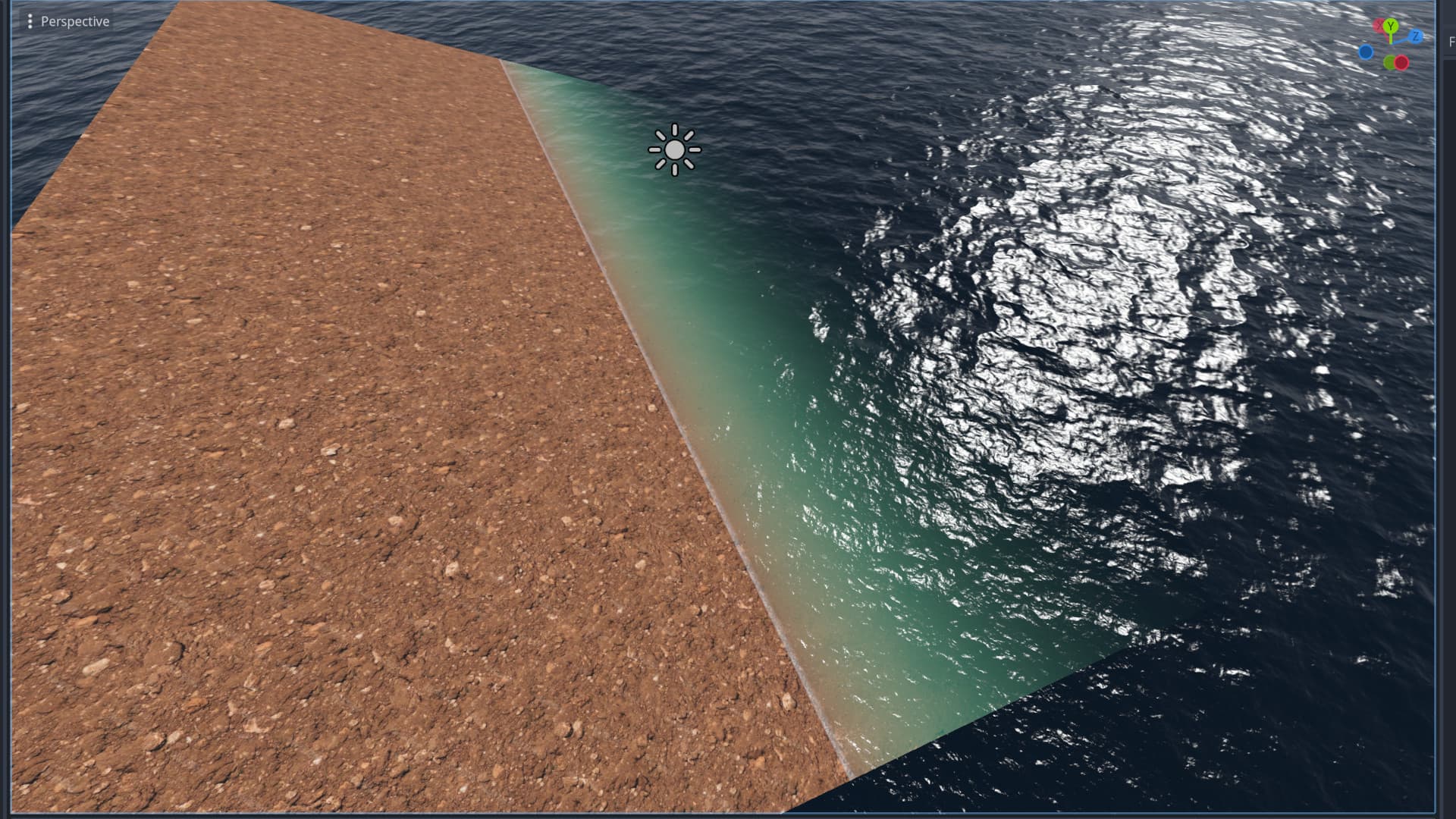
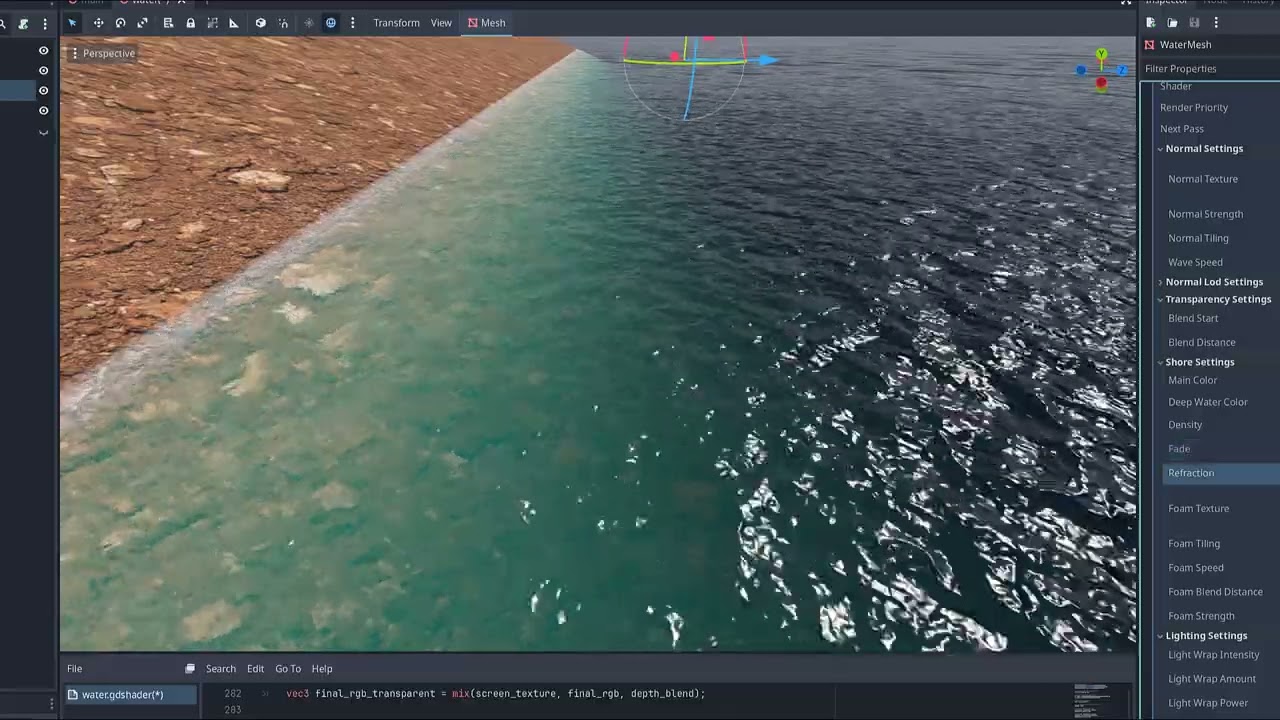
Thank you very much for the feedback everybody! 
So I’ve been working on 2 things these past few days, the first is visible tiling and the second is the surface looking like molten plastic.
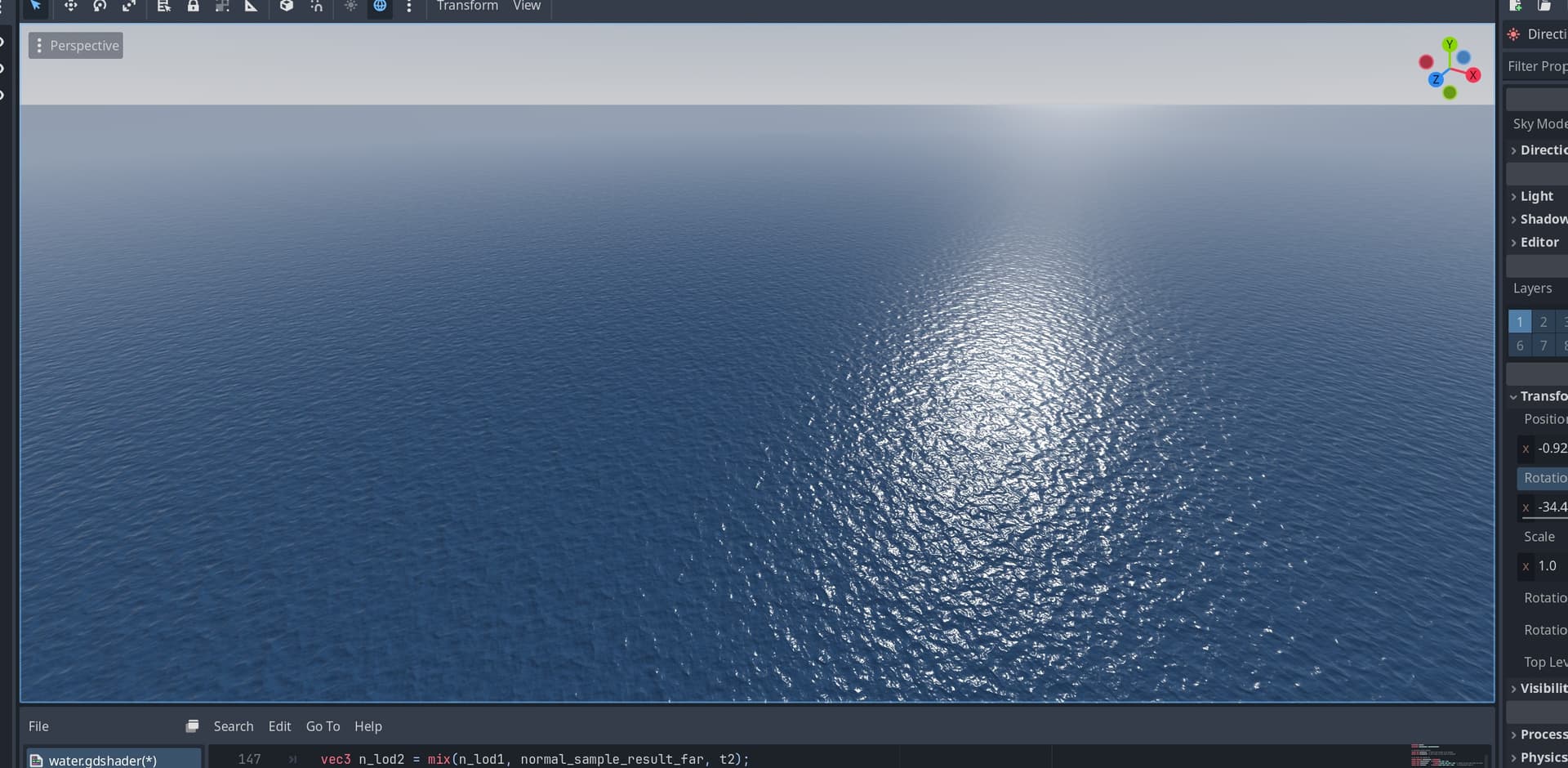
The visible tiling doesn’t usually become a problem unless the water is observed from farther away, but if one wants a large surface, it has to be adressed. To deal with this, I sampled the normal map 3 times with different tiling values based on how far away the camera is. The samples ‘distance-blend’ smoothly into each other.
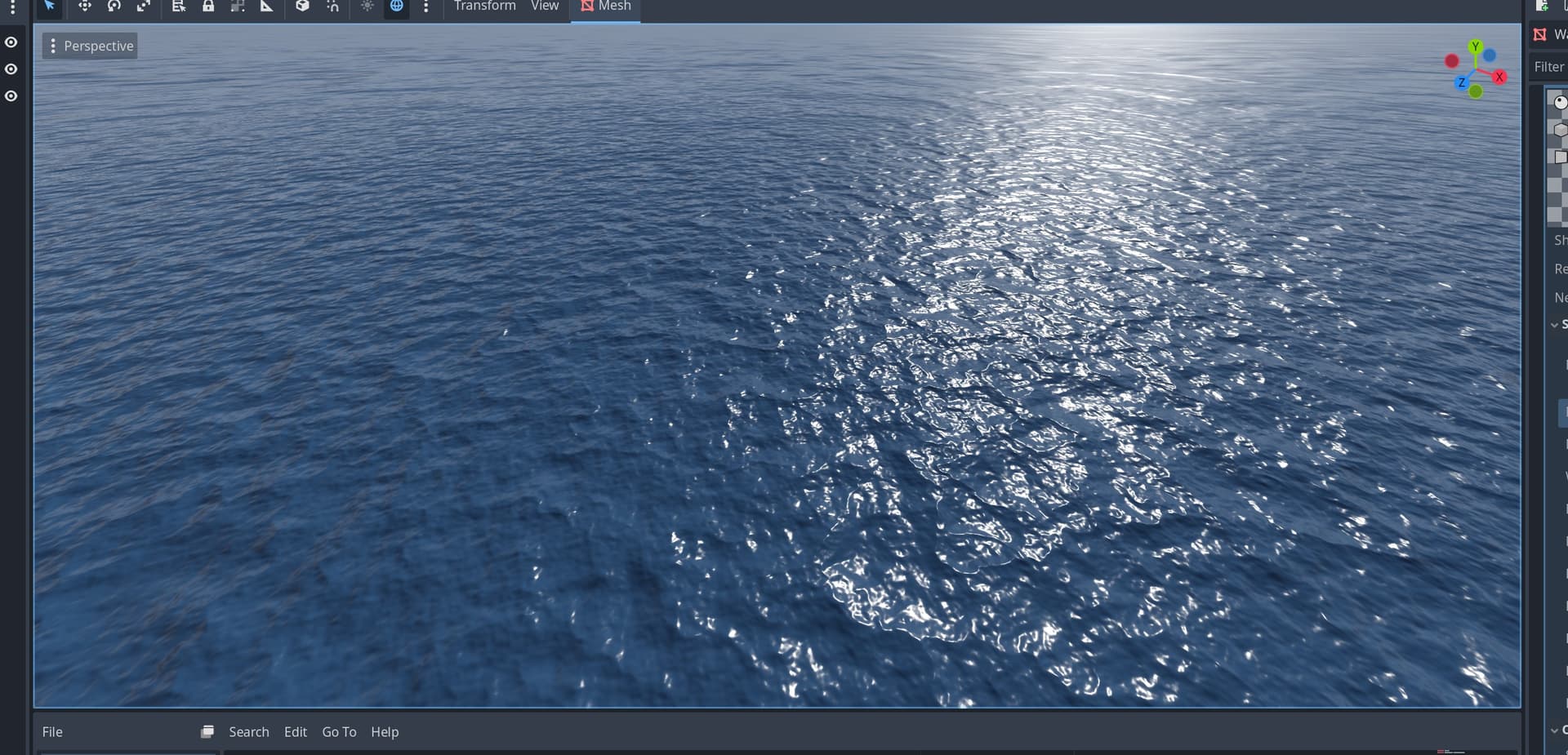
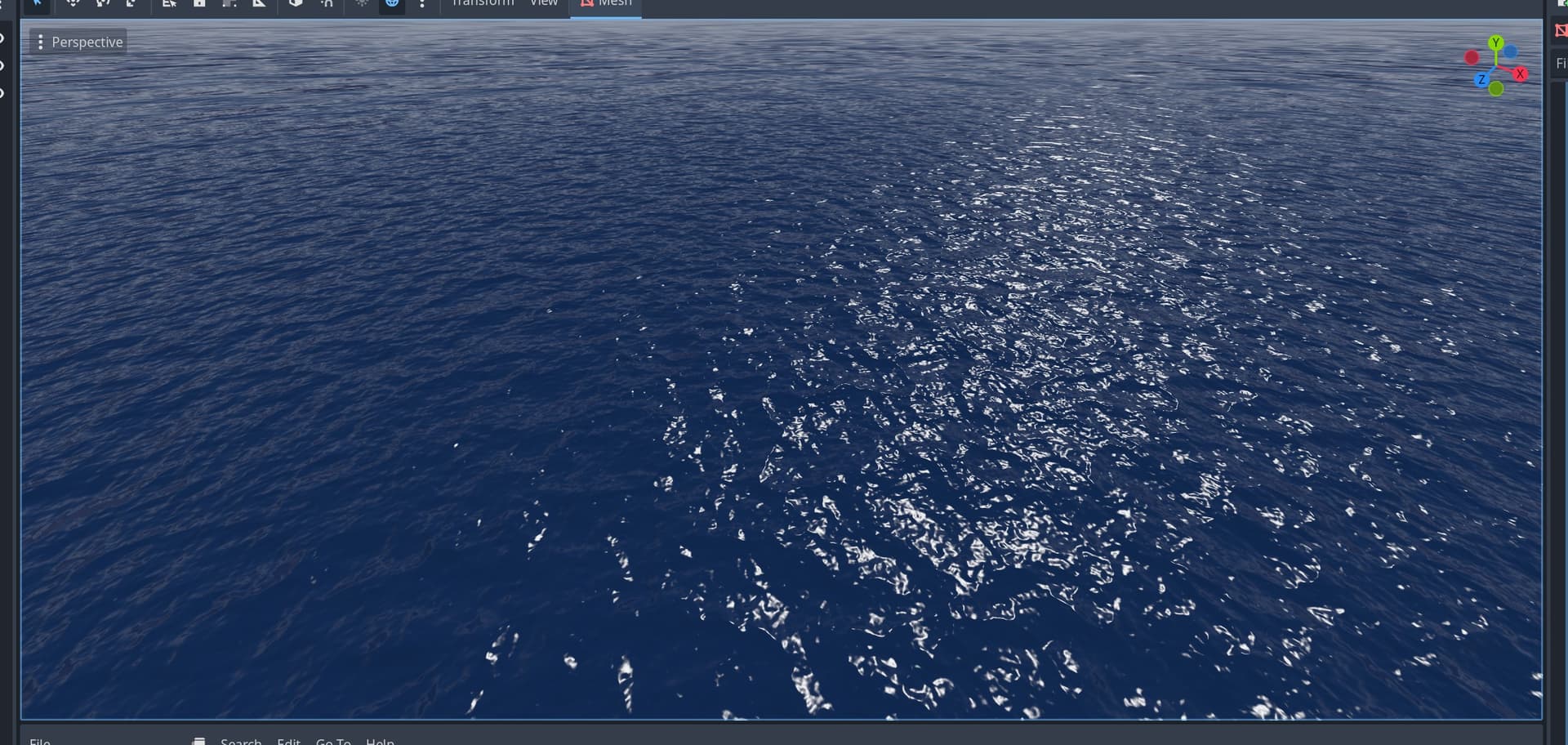
Distance-based tiling off
Distance-based tiling on
It doesn’t eliminate visible tiling completely (you can still see it if you go ridiculously far away), but it’s much less apparent and intrusive and more difficult to spot so it doesn’t take away from what else is going on in the scene.
The second thing I’ve been working on is that the surface looks a lot like plastic. So for molten plastic this would already work because it’s fully opaque. Water interacts with light differently in that surface areas that point away from the sun aren’t usually darkened all that much because water is translucent.
I didn’t want to get into translucency before I have any transparency feature in place, so I opted for light wrapping. It’s a cheap screen-space only way to approximate the same soft look.
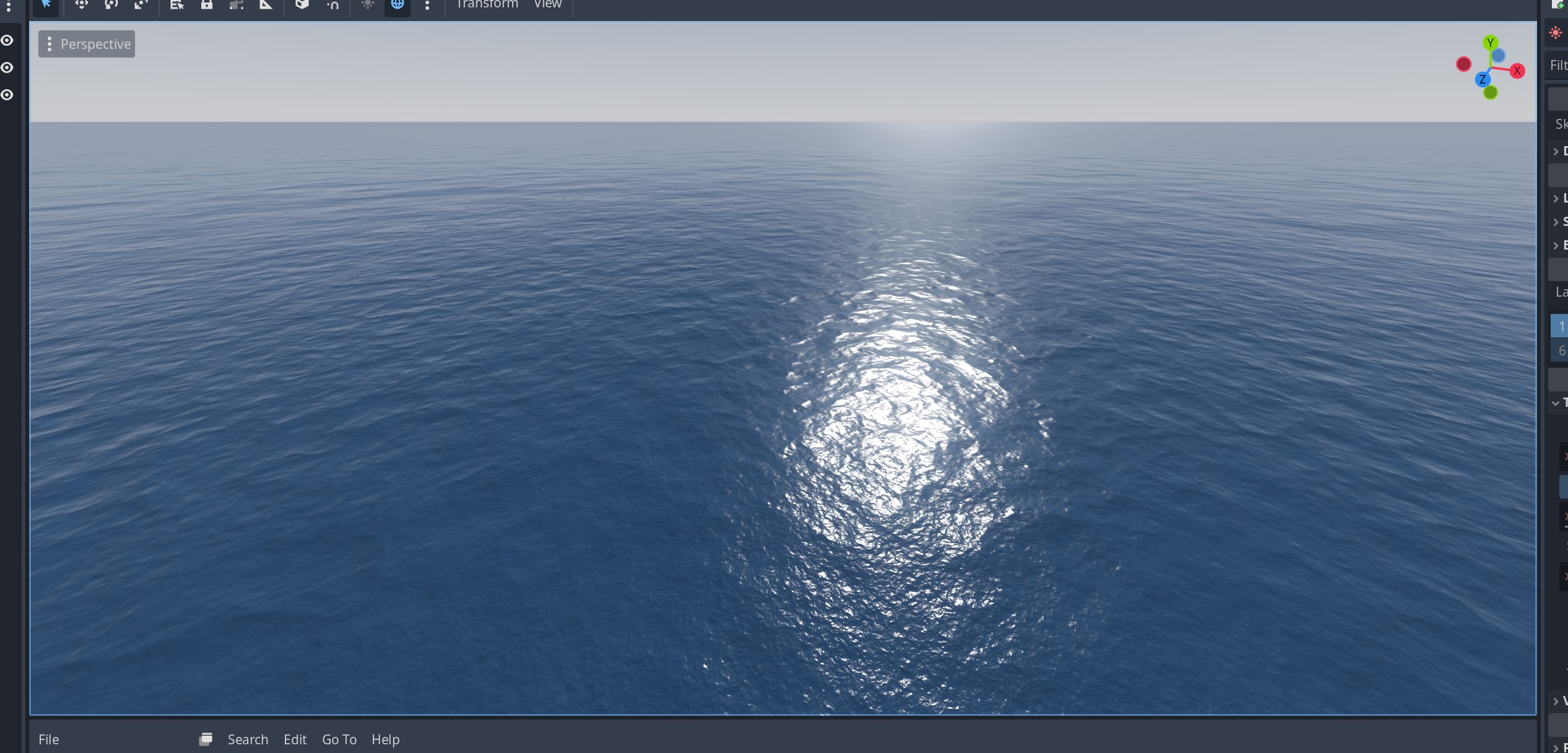
Godot’s PBR model without translucency
Custom lighting with light wrapping
Unfortunately, Godot shaders don’t have a built-in material parameter for light wrapping, so I had to override part of the lighting model in light(), to modify the diffuse term and preserve specular highlights.
I’m pretty sure, this will get me into trouble down the road when I dive deeper into the lighting calculus, but it’s easy to revert from. Maybe it becomes unneccessary, once translucency works.
Anyway, here’s a little showcase video to sum it all up.
@carmxdev weeell, I’m not really familiar with the engine yet - shaders are probably the one thing that is consistent across almost all engines so not much learned yet.  However I want to see if I can get realtime reflections working, so I’ll have to get deeper into Godot’s scripting architecture eventually. As for shader programming, I know it’s difficult at first because you need to look at the code a bit differently, than you would for cpu-code in that all it does is run once for every vertex/pixel and outputs a color. It’s a bit harder to debug, but in the end it’s just that cou write code that computes a color.
Agan thank you for the feedback everybody, and I’ll keep this posted.
 So I started with a simple water shader - as one so often does. Anyway here’s my progress.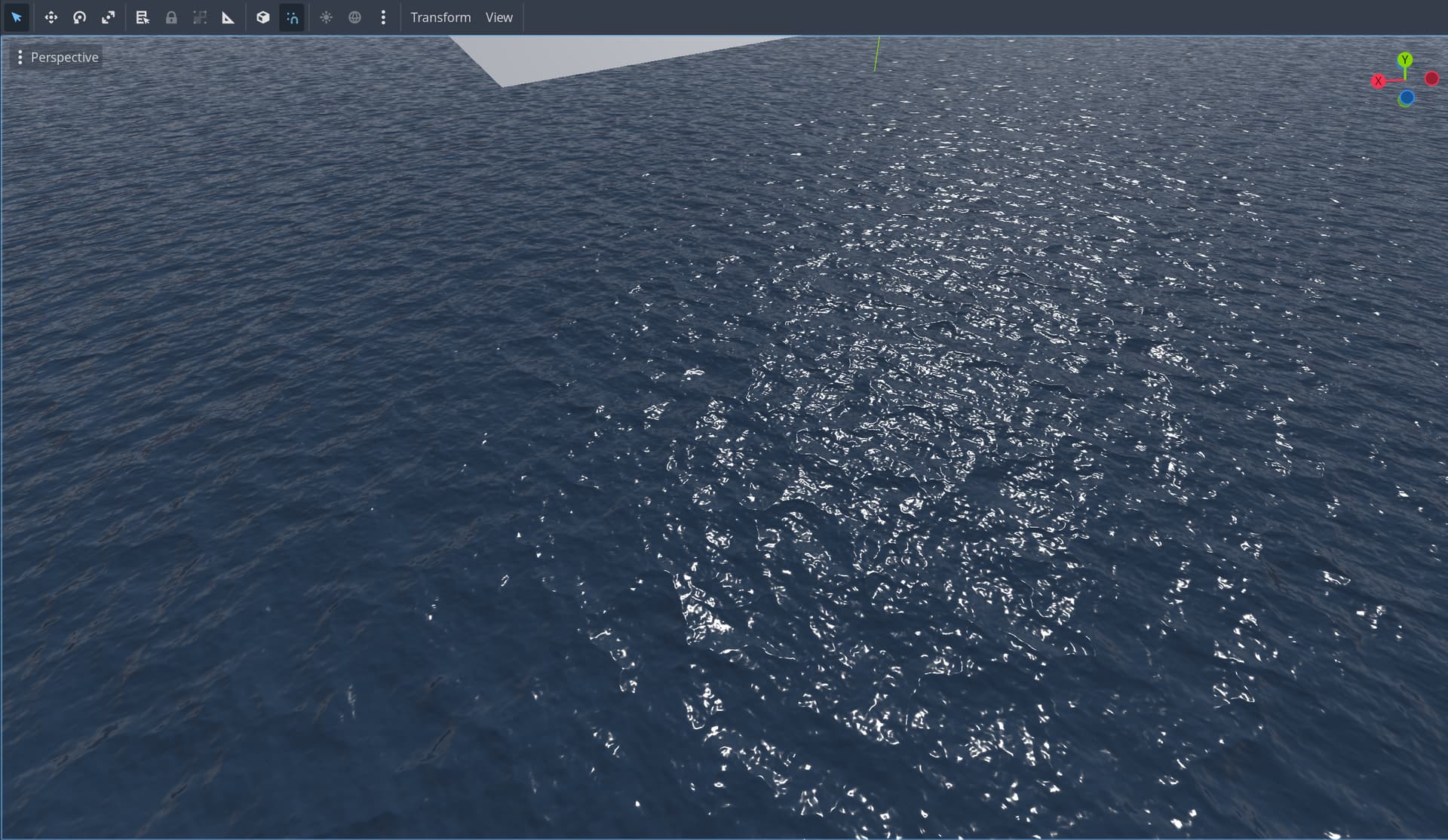


 ) as part of the approach: