I was wondering if the map from the Terrain3D node (after importing through the importer option) could be moved, I’m doing a kinda ambitious map for a possible game in which the map is 24km long x 24km wide (from the 24km only 20 are playable, the other 4km is out of bounds) and the terrain that appears isn’t at the center of the map but in one of the corners (which could be bad for physics). I can’t modify the transform position from the inspector scene of the Terrain3D node, it allows me to select and put a number but after hitting enter no change is made. I don’t know what can I do, I would appreciate any type of help.
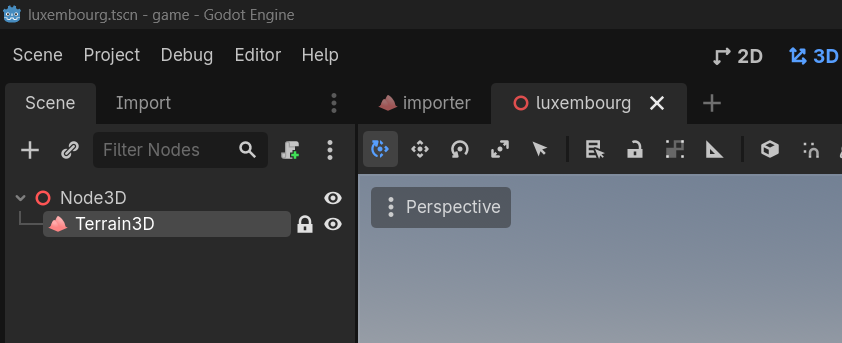
It looks very simple for now, just a Node3D and the Terrain 3D. Once the map is on the center I’ll do the rivers and the roads first, if it helps the height of the terrain is 380 meters in total
It won’t have a camera, at least not in this. I’ll post more in showcase when I have more models and a proper map to show, but basically my idea is a WWII sandbox set in an early part of the conflict. There would be 3 maps to choose from (2 on the first release), so there would be a main scene in which can load or unload maps and that one would have a camera. A map scene like this Luxembourg map for example wouldn’t have one (They would only provide environmental data), I think that by only having one camera it would make the menu and map transitions be smooth.
See that lock icon next to your Terrain3D node? It means the node is locked, which prevents it from being moved or otherwise modified. Try clicking on the lock to unlock the node.
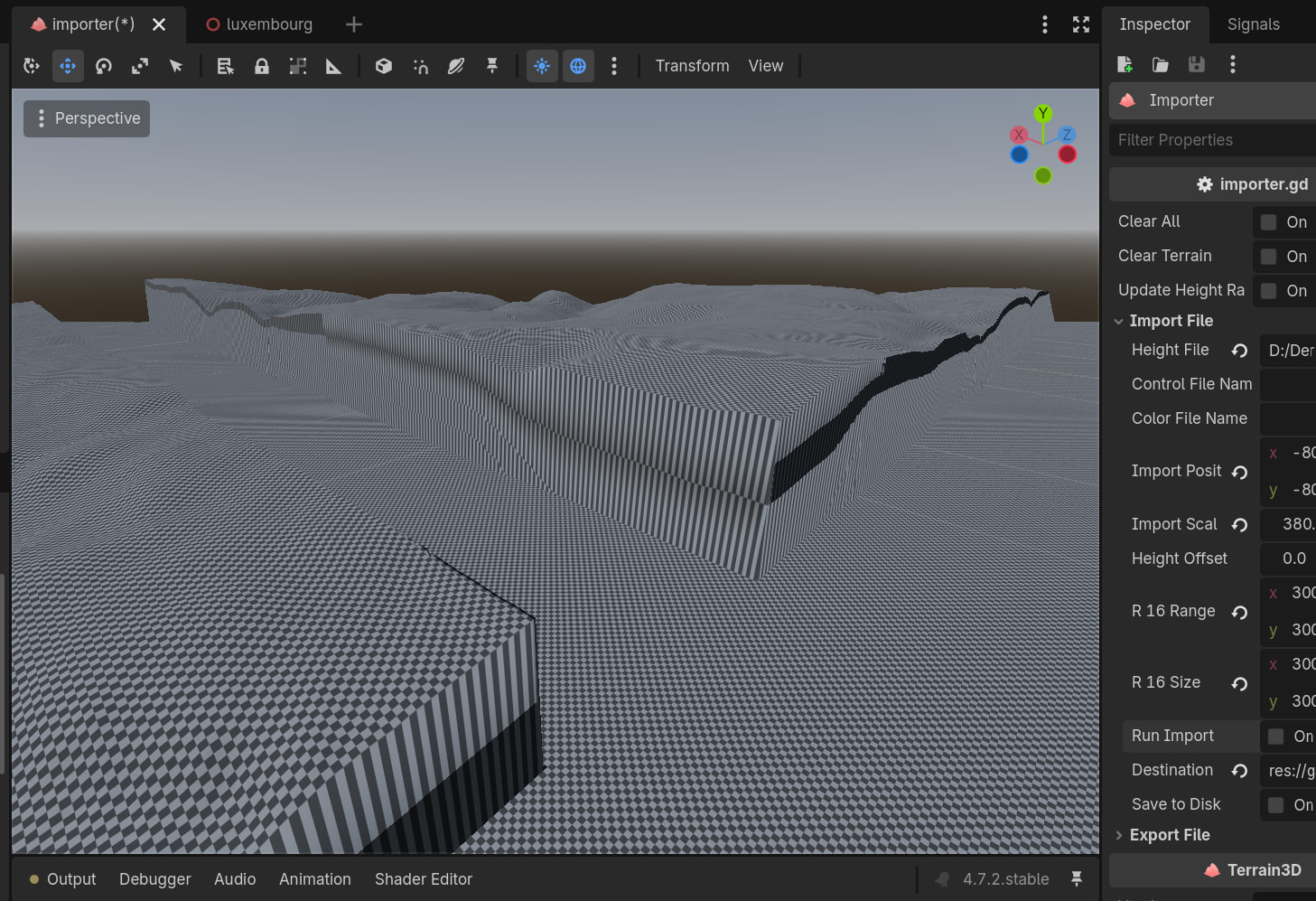
One thing that I forgot to mention is that while importing would have fixed the map with the import position it actually makes it worse, yes I can move it close to where the center of the map is (with a difference of 4km, -8km vs -12km that I need on X and Z axis) but the terrain will suffer bugs like having separated parts and even “chunks” being taller than what they should be. And the same “bouncy arrows” thing happens on the importer despite that I unlocked it.
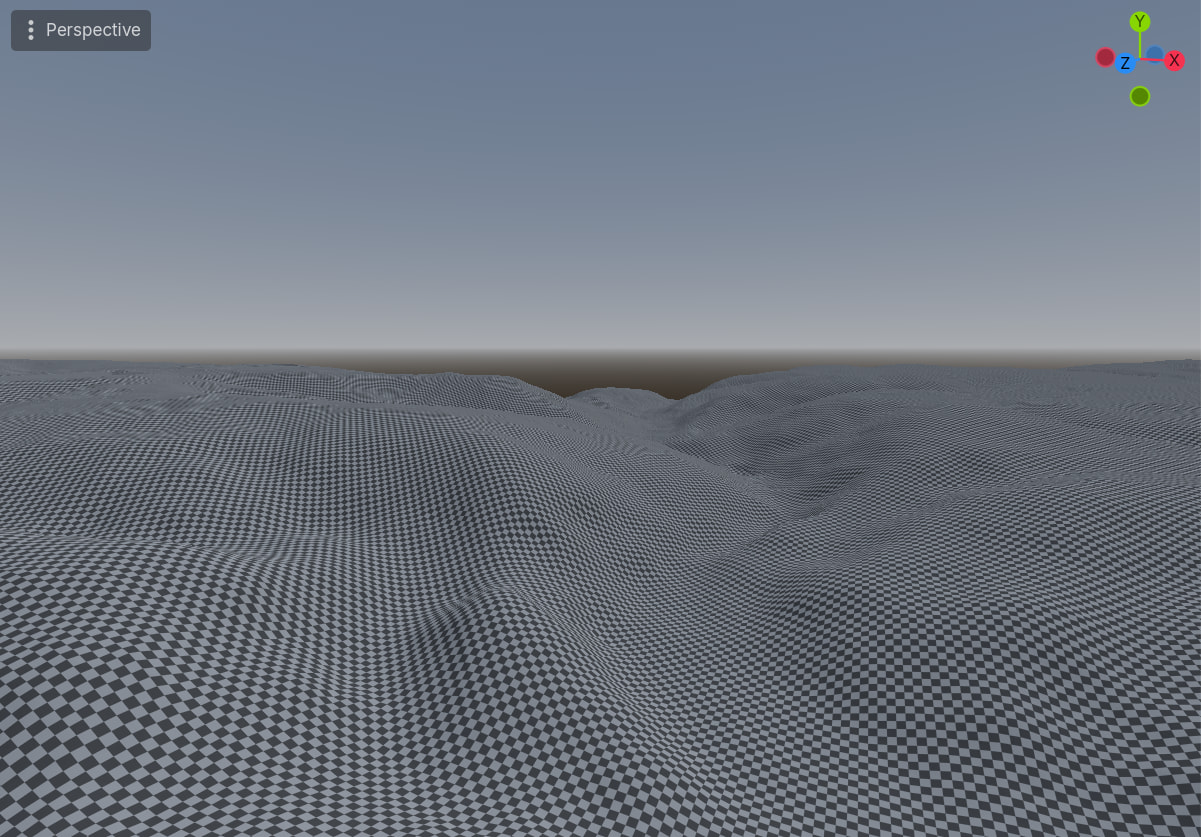
This is actually the combination of two problems/bugs, the terrain is separated in two and the terrain at the right is taller than the terrain at the left.
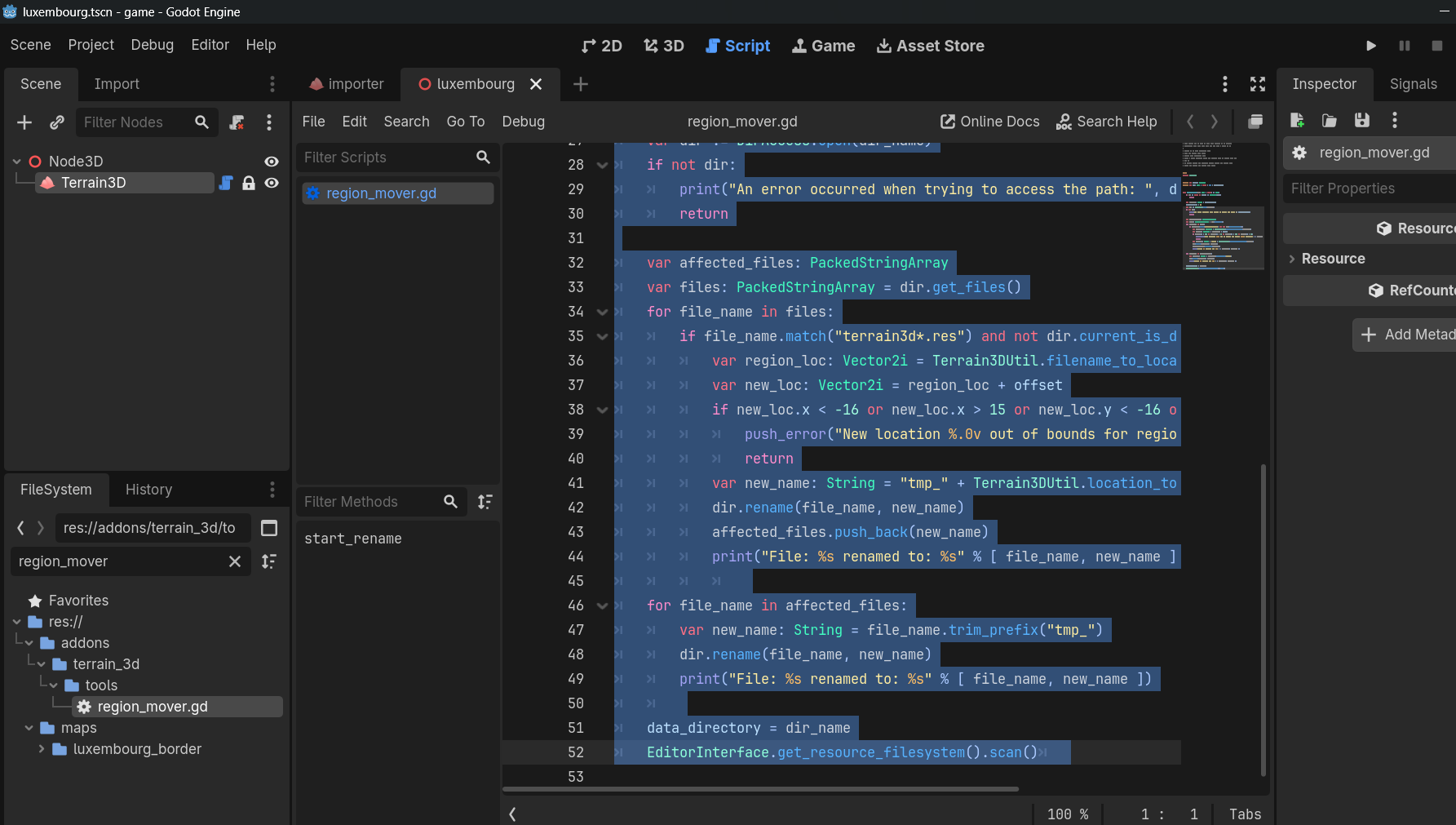
I solved it by myself, I searched and I found through github that TokisanGames already had a feature for this so this can also serve as a tutorial for people that may also have the problem.
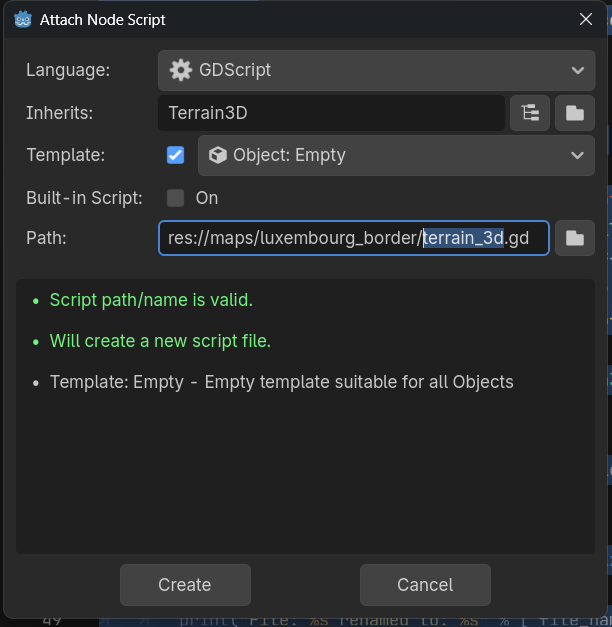
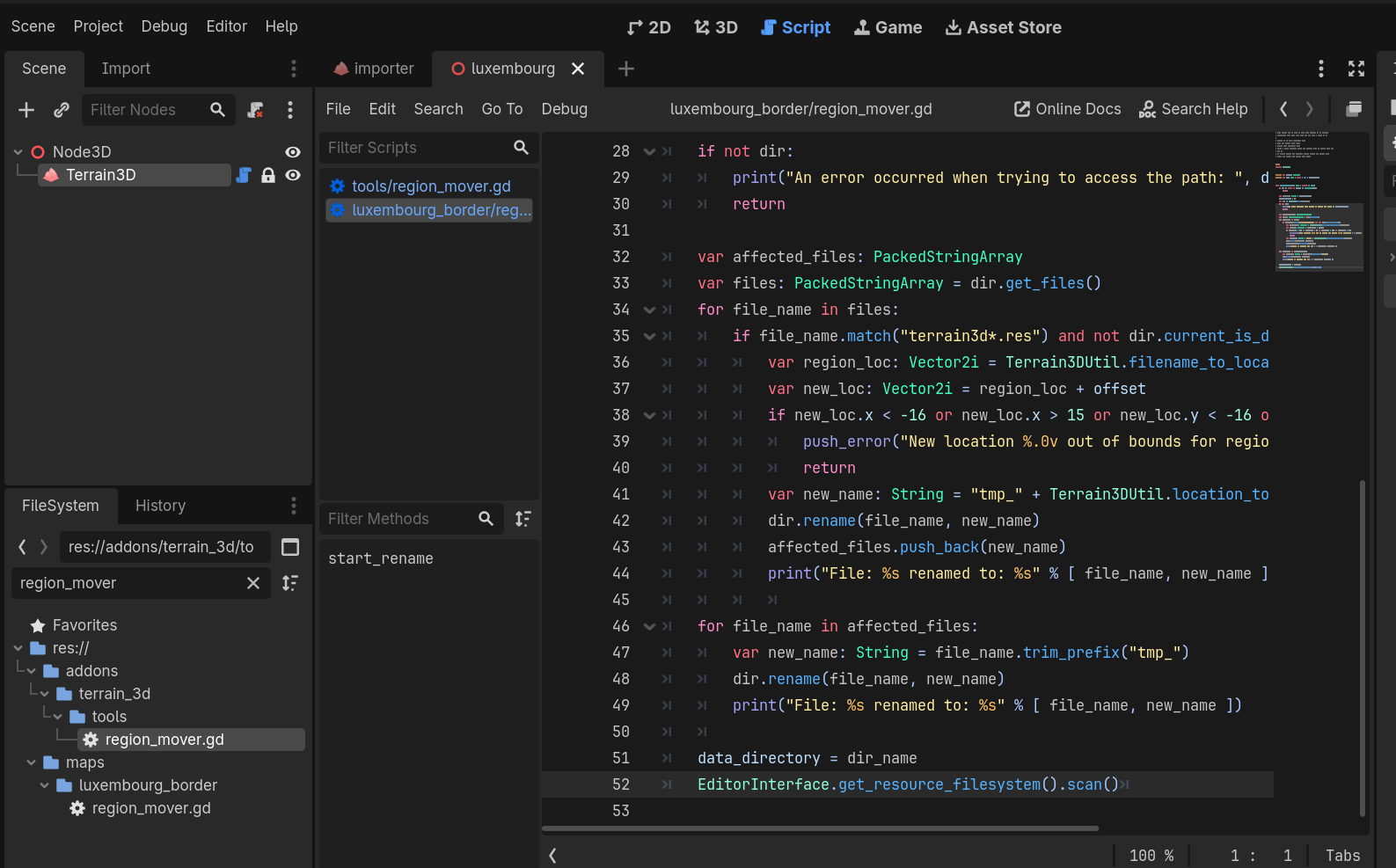
Now go to the 3d tab and click Terrain 3D in your map scene (If you don’t have a mouse a single tap with two fingers will do it) and click attach script, the template will appear as node but change it to object since you are copying and pasting code. Make sure that the script name (In path) is region_mover with only one .gd at the end, now it should look something like this.
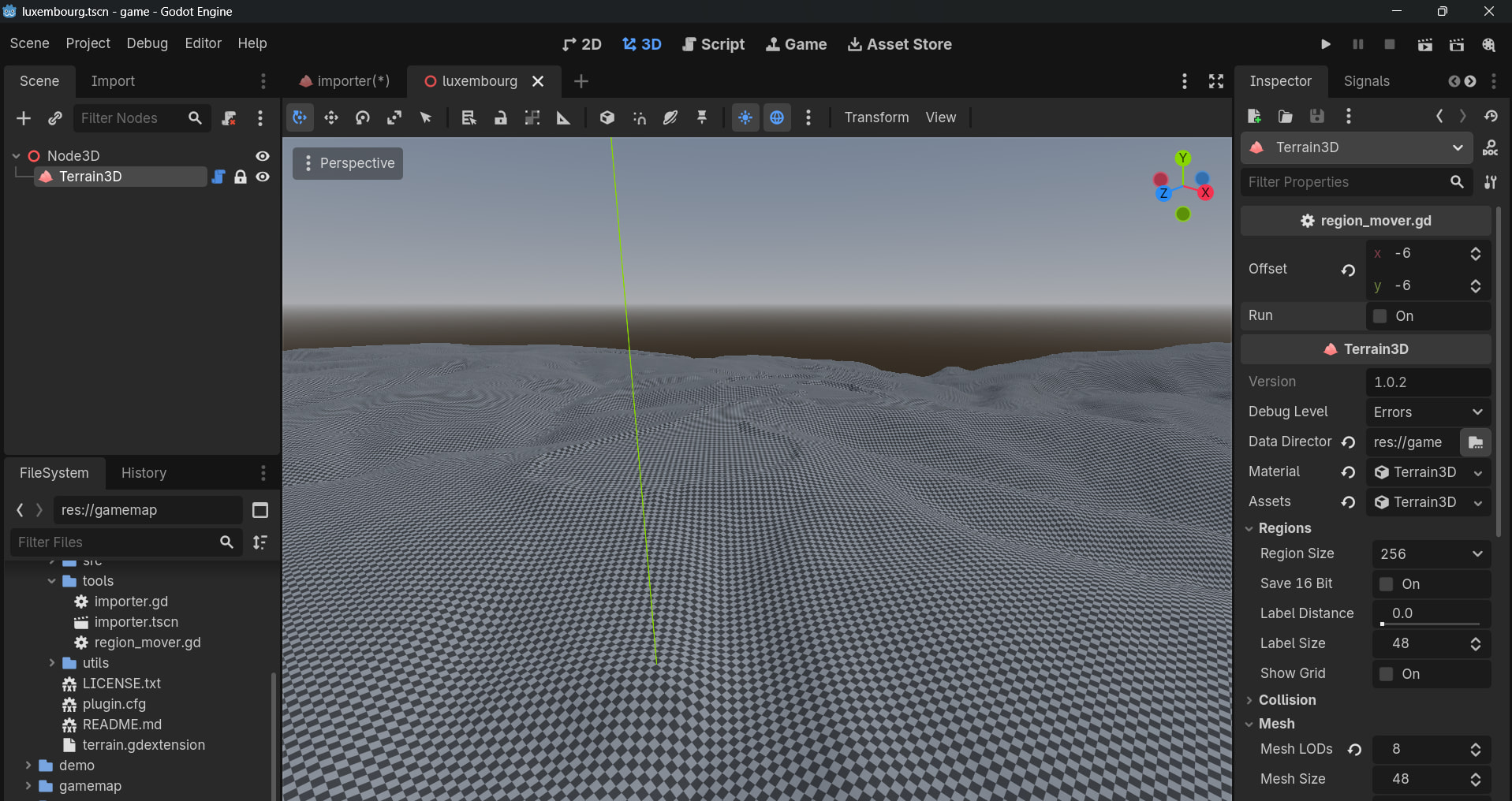
Now go back to the 3d tab and click only the Terrain3D, now you’ll see a new tab has appeared at the top labeled region_mover but don’t change anything for now since there’s an important step you have to do. In the inspector go and search your region size, in my case is 256. Now search the vertex spacing, for the image that I “made” is 8 since it comes from a 3000x3000px res image so 8 meters equal one pixel.
If anyone is doing 24km x 24km maps or a number arround 20km-30km with 3000x3000px res is ok and can work specially if it’s low poly like mine’s, it can give you good details despite it’s not 1 pixel for each meter.
But let’s not lose focuss, you’re close to finish it. After you got the region size and the vertex spacing grab a calculator and multiply them together, in my map 256 × 8 = 2048 meters per region. Now divide your total map size by your region meters, for me 24000m map ÷ 2048m ≈ 12. Now divide it by 2 to find your center shift, for me is 12 ÷ 2 = 6. Put it on the offset in negative and voilà, now you have your map centered.
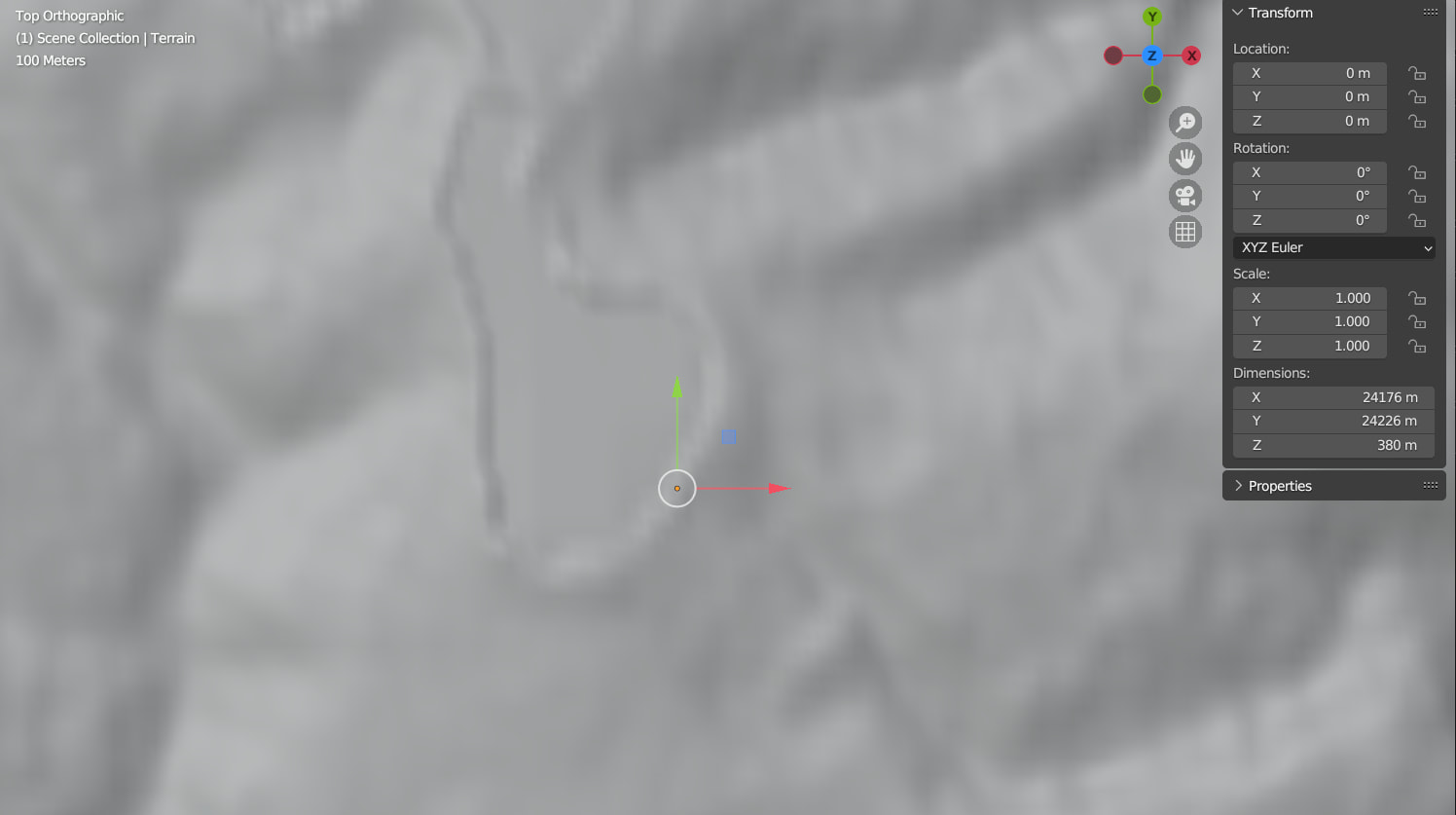
While it solves the map problem of not being at the center it’s not perfect, in my case I imported that map through a blender OSM addon (Blosm if anyone wonders, is free but very useful if you want to have a layout for cities and has a donation box if you want to do it) so I can check easely where the center of the map is (For this only import the terrain, don’t import anything else because a big map will cover a lot of terrain and there will be a lot of data like buildings and roads to import).
As you can see by comparing the last two images is that the terrain on Godot is very close to Blender since they’re near the lake, but there’s an error margin. The offset can’t accept nor it will change the terrain center if you add decimals, for example my true terrain map offset is -5.86 on both sides so when I put it in godot the addon chooses integers so the closest one is -6. It’s not perfect but hey, at least the map is close to the center which can make physics bug less the farther you are (That doesn’t mean there won’t be physics bugs, and even in big maps like mine) so I won’t comply about it.
Thanks to hexgrid and rainerdeyke for showing some care and github for giving me the answer without even asking, I’ll post the other two links so you can read it by yourself if you want. I hope that it helped you and good luck with your project. Good morning, and in case I don’t see ya, good afternoon, good evening, and good night.