Godot Version
Godot 4.5
Question
Let’s say that I want to block some (baked-in) light on one object using another object. The light closest to the edges would be diminished, while the light further from the edges is gone entirely.
How would I go about creating that effect? It should allow for multiple objects of different shapes to block the light in the same manner.
Put the object in the way and re-bake the light.
My apologies: “baked-in” in the context of what I’m trying to do means “part of the texture”.
Here’s an image that demonstrates what I have in mind:
I guess I don’t understand why you want to do this. Objects will create shadows if you put a light on them. In both 2D and 3D. Have you tried that and it isn’t working for you?
1 Like
While I haven’t tried that, I don’t think that’d result in something similar to the demo image.
How about going one step back and explaining what are you actually trying to make. What do you need this for in practice? Describe the exact use case.
1 Like
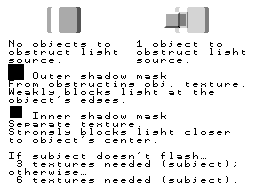
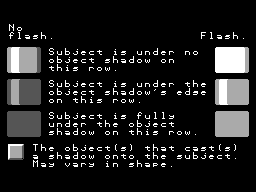
I’m trying to make a shader that uses texture data from Object A as masks for Object B, displaying darker similar-looking textures to create a shadow effect. Object A’s main texture is the first mask, intended to show a darkened variant of Object B’s texture with only the highlights; and a smaller sub-texture for Object A is the second mask, intended to show a variant of Object B’s texture obscured in shadow.
The idea is to create a pseudo lighting system, where the main object textures are cut away by scenery and other objects to give a sense objects are in shade.
Yeah but that’s not the use case description. It’s your attempted solution. Give an actual in-game example of an existing game or a visual mockup of how it’s supposed to look and behave. So far you haven’t even mentioned if this is 2d or 3d.
In general you can render everything twice; fully lit and fully shaded version, render an alpha mask and then composit the two passes in a post processing shader using the alpha mask as a mixing factor.
1 Like
Uh whoops, probably should’ve mentioned this is in 2D only.
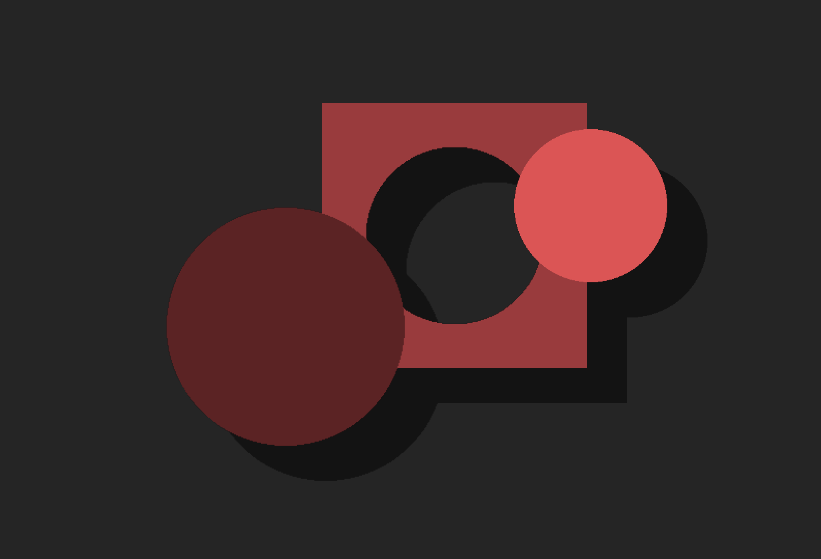
Here’s a visual mockup of this effect:
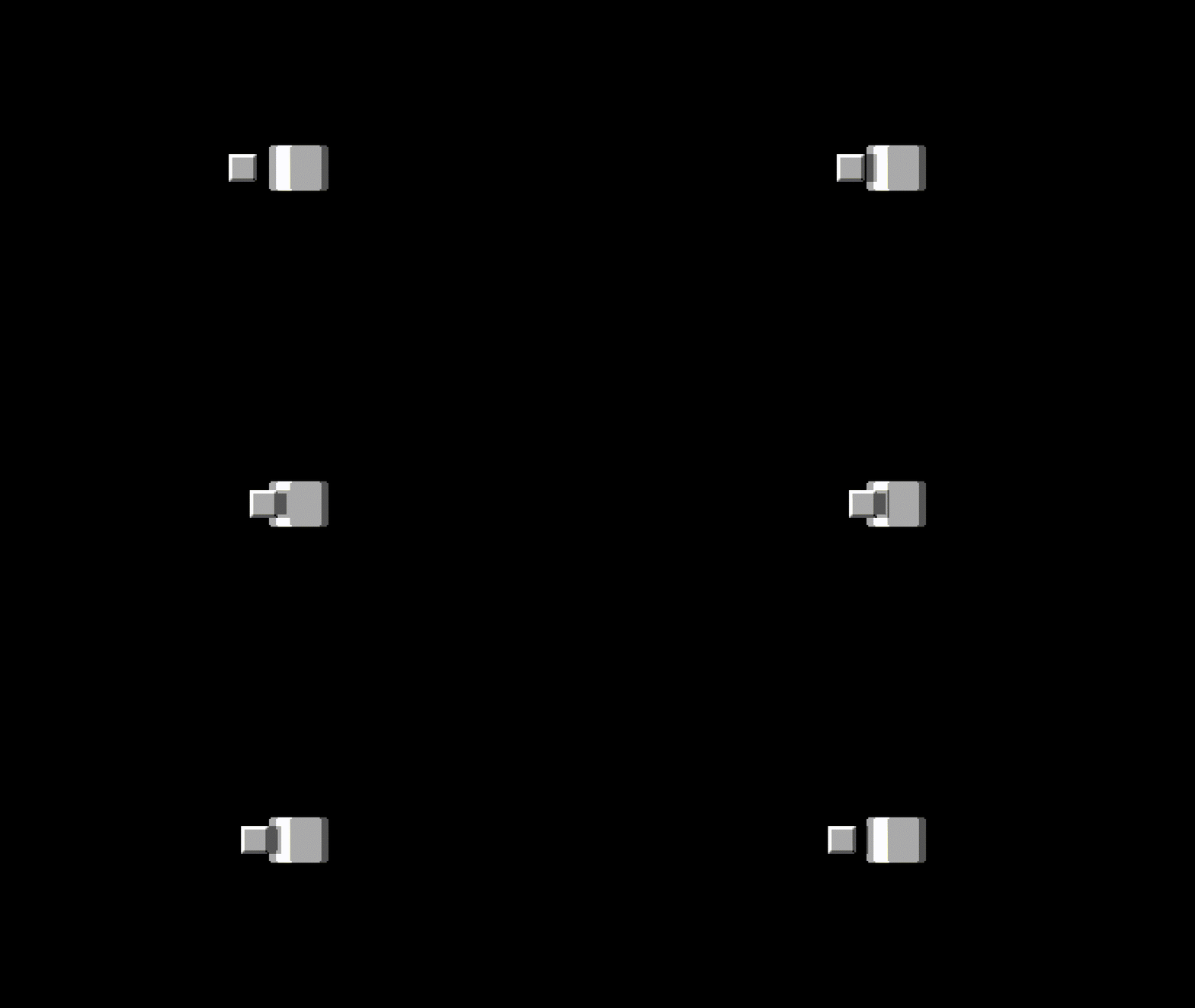
So it’s basically a 2d cast shadow.
You can try the approach I described in my previous post. If your color transformation for the shaded area is simple, like just darkening, then you won’t need to render twice. Just darken the same pass in the shader depending on the mask value.
1 Like
Could I try to render everything thrice?
You can separately render shadow receivers and shadow casters. Then put them together in a post processing shader. The alpha of shadow caster’s render can be offset and used as a shadow mask.
Unless you’re creating something for low-end hardware, you could also go the 2.5D route. In this case, use a fixed camera on a 3D scene so it looks 2D. You can even use 2D objects in the 3D scene, so if you have assets they can still be used.
1 Like
How would I go about using shadow receivers and shadow casters?
2.5D sounds neat, but unfortunately that’s out of scope for my project.
As @dragonforge-dev hinted, with today’s hardware it’s simpler in many respects to go 3D mimicking 2D route for this kind of thing, if possible.
If you must stick to 2D here’s a quick example:
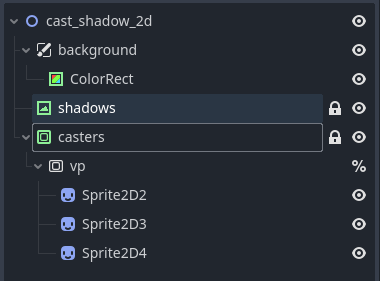
Put all your shadow casters into a contained viewport. Plug viewport’s texture into a texture rect sandwiched between background and casters and run a shader like this on it:
shader_type canvas_item;
void fragment() {
	COLOR.rgb = vec3(0.0, 0.0, 0.0);
	COLOR.a *= 0.5;
}
With couple more interventions you can even get soft shadows.
The neat thing with this setup is that it previews in the editor.
2 Likes
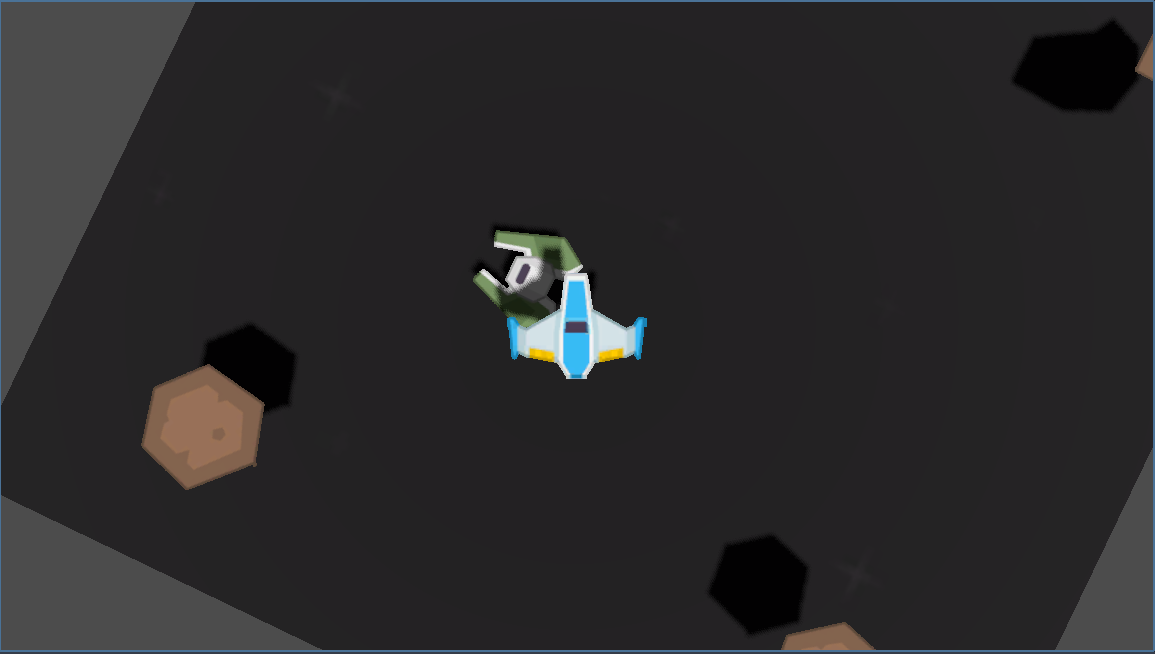
I like @normalized’s solution. However there is an easier one IMO. I had to test it before I could make sure it would work, but it’s actually quite easy. I’ve made a test project Example Casting Shadows to showcase it so you can see the shadows change in real time.
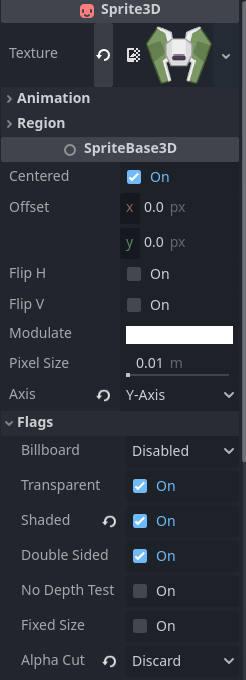
- Add a Sprite3D node.
- Add a texture (or AtlasTexture if you have a spritesheet) to the Texture property.
- In the Inspector find SpriteBase3D and expand Flags.
- Check the Shaded checkbox (for textures you want the shadows to be cast upon.
- Change the Alpha Cut to Discard (for textures you want to cast shadows.)
- Optionally change the SpriteBase3D → Axis value to Y-Axis (like the asteroids and other ship) or the Node3D → Transform → Rotation (x) value to -90.0 (like the player ship).
It’s 3D though. Mine is strictly 2D. Doing it 3D will always be easier as we already concluded.
1 Like
Sure, but it was fun for me. Spent most of the time on the player controls. And I wanted to show @anchovisauce that it’s not as hard as they think.
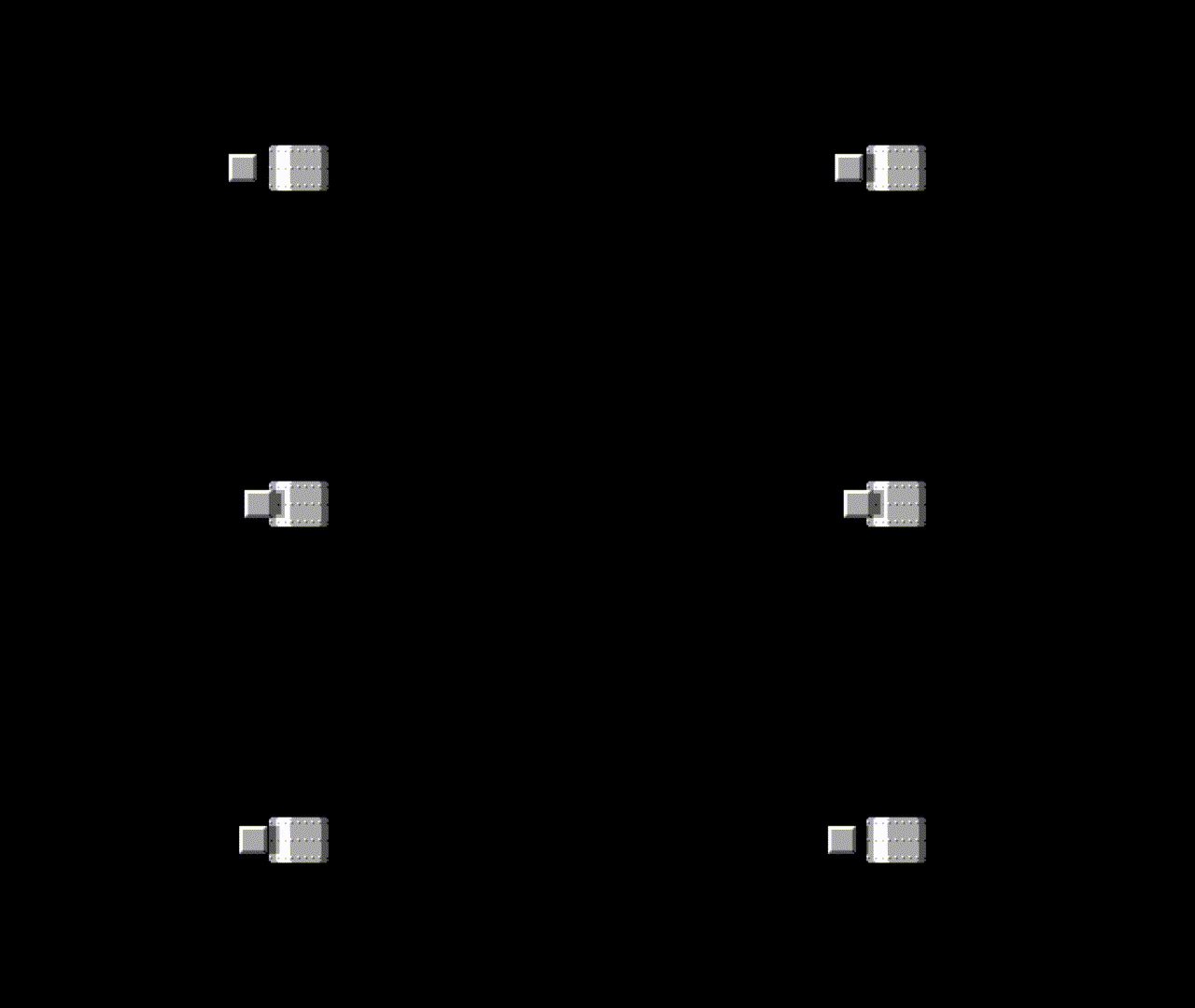
I added some extra details to the mockup.
2 Likes
That’s a proper mockup! 
Now try to implement that using one of the suggested approaches. I’d try the 3D thing first, but it’s your choice.
2 Likes