Hey there! I’m pretty new with Godot, trying to wrap my head around the best workflow for 3D
When importing .glb files from Blender into my Godot project I get all materials, normal maps, .glb files etc in the same place. That works just fine for 1 import.
But when I have many meshes that share the same materials in Blender and I export each as a .glb file, I end up with a ton of duplicate materials when importing it to Godot (png images, normal maps etc).
How do you avoid having these duplicate materials? *
I imagine each .glb file should be able to share the same material , but I cant figure out how.*
Let me know if I need to explain better, thank you so much in advance!
I have many Glb files imported into Godot, into a ‘Sources’ folder, which all use a common texture. I create a ‘Textures’ folder in the Project, into which I move the first ‘Png’ from the Sources folder to the Textures folder. For every Glb subsequently imported, I change its texture to the unique one in the Texture folder. If I update this common texture, all the models using it benefit from this update. I do this manually, once the object has been imported and saved as a ‘Scene’. It’s not difficult, nor long, to do. If there is an automated way of doing this, I’m not aware of it, but it’s not an issue for me to do this by hand.
Hope this helps.
When you import a glb file and the materials are already in your project (as StandardMaterial3D), you can directly assign them to the file.
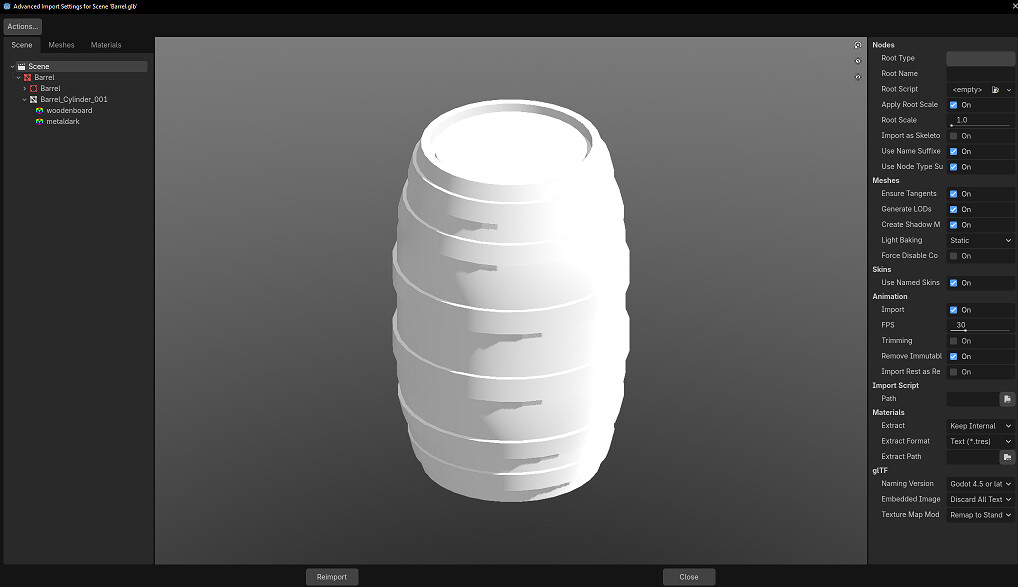
Navigate to your glb file in Godot and double-click it to open the Advanced Import Settings. Then click on the Materials tab. You can then click on each material for that object, enable 'Use External’ and assign a StandardMaterial3D of your choice.
Then click on ‘Reimport’.
Additionally, you can then go back to the ‘Scene’ tab of the Import Settings go to the glTF options on the right side of the window and set ‘Embedded Image’ to 'discard all textures’.
This will prevent any future image duplicates for that object, should you ever reimport it.
After that, you can delete the duplicate images from the object import.
If you want to use the materials of one of the imports, to get the materials as external files you can use the Actions … → Extract Materials in the Advanced Importer (reimport). For the following imports the workflow @mac_deth has suggested.
Heyoo! Thank you so much for the help! I tried it out and almost succeed with it. I imported the glb file and extracted its materials to get the standardMaterial3D files as conz3D suggested.
Then I used the advanced import settings where I enabled “use external” and assigned a standardMaterial3D to each material slot. Each standardMaterial3D is also connected to its 2D image file in another folder. I also set the embedded image to discard all textures as suggested.
Then I deleted the images from the object import so I only have those in my main image files folder
BUT (dun dun dunnn)
The moment I delete the images from the project import all textures in the .glb are now white. The game also crashes on load. I doubled and triple checked that all materials in the .glb has the correct path to their standardMaterial3D files which they do, but they all appear white. I then checked the standardMaterial3D if they are pathing correctly to their respective image files and they are. So far I havent been able to figure out why this happens
*(I also tried a second time where I kept all the standardMaterial3D files from the glb import, but deleted everything else. Then I imported the glb file again, did the exact same but without extracting its materials since the standardMaterial3D files are now already in the project, but with same result)
After setting the materials to external, the textures appear as white for me too when I open the glb file, but when putting that object into a scene, it shows everything correctly.
Hey again! It works!
I went through the dependencies and fixed the errors i found and now everything works exactly as it should, organised and all! Thank you so much for the help, I really appreciate it!


 I tried it out and almost succeed with it. I imported the glb file and extracted its materials to get the standardMaterial3D files as conz3D suggested.