I just exported 2 object door and door frame as one .glb file,then i open the scene on godot, but now door and door framebecome one scene, how to separate them? because i want to change the door material, of course i can export the door and door frame one by one, so I have 2 .glb file, but i like the position that i make on blender, so please let me know if there is a way to separate them
You can create a “New Inherited Scene” by right clicking the glb file in the filesystem panel, from this new scene you can override any setting you’d like and use that new scene instead.
Hello! For your case scenario you have two solutions:
1.Because you stated that you just want to change the door material. I believe you have already applied atleast some different materials to the door frame and the door itself in Blender.
Just select the MeshInstance3D in your model scene → go to the “Inspector window” → in this window go to Surface Material Override → from it find the material you need to replace and create a new Material.
NOTE: This method requires you two have atleast some materials exported in the .glb model from your Blender. Otherwise it will not work.
2.You can export 2 .glb models in Blender that they will still stay at the same positions.
For that you are required to have the model to position at the exact x: 0; y: 0; z: 0 coordinates with the origin of the model being set at the exact same coordinates.
If your model is a whole object. Just select the Door frame in the “Edit Mode” with “L” or anything else to press “P” and then select “Selection”. Now your Door frame and the door are 2 different objects. You can hide door frame if you want to export door. Then in your export .fbx settings select two export only visible objects.
Thanks to that you can now export door frame and door as two separate models without having two .blend files.
Actually, the more I read your post I realize that you have a whole different problem…
In Blender you can apply two and more different Materials to the same object.
In “Edit Mode” of your Door object select your Door Frame. Then create new Material in the properties window. In the same properties window in which you created the Material you can press button “Assign” while you have selected the Door Frame. Now your door frame have a material specifically for that door frame.
In “Edit Mode” now select your just Door part itself. Create new Material and press “Assign” while you have selected the “Door”.
Now your Door model have two materials assigned to it.
I assume that in Blender you have the door and the frame as two separate meshes. If not, switch to Edit Mode, select all faces belonging to the frame, and use P > Selection. Then, in Object Mode, select the frame and, during export (File > Export > glTF 2.0), set the switch Include > Limit To > Selected Objects. This will give you a .glb file that contains only the frame. Repeat the same process for the door.
It’s simple, but not entirely obvious. Create a New Inherited Scene. Then click on the scene icon and select Open Anyway. Now you have a scene that you can edit. All you have to do is save it.
so the solution i got is, right click on “.glb: and “New Inherited Scene” after that just save as “.tscn” if want 2 separate scene select the object in my case the object is “frameDoor” righ click and “Save Branch as Scene”
Quite complicated. And to be honest I would not recommend this as a solution. Adding two materials in Blender on a single door mesh and then being able to Surface Override Materials after importing to the Godot Engine is way better practice.
But if your solution really works for you and it doesn’t cause the problems then you can go on.
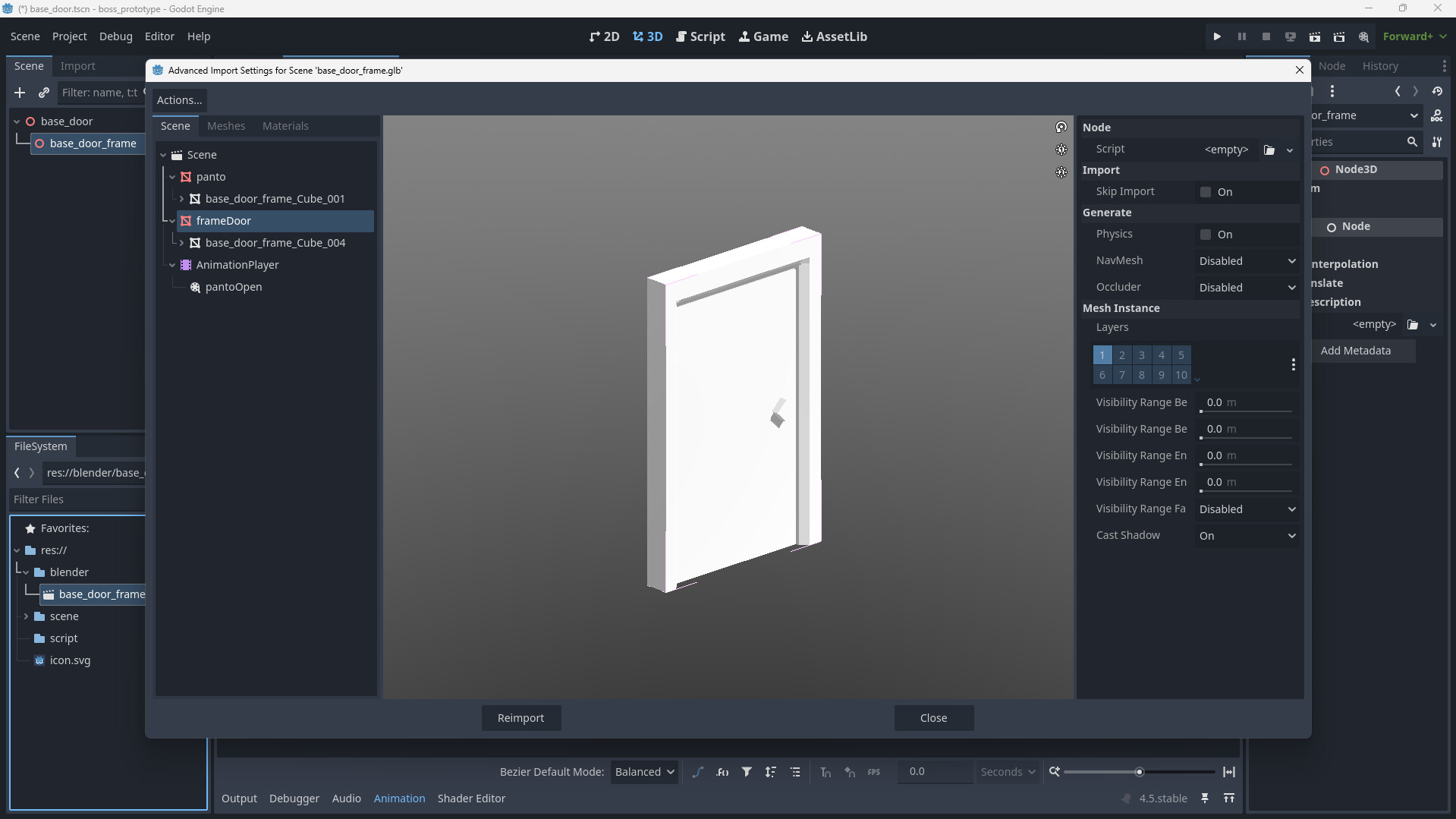
 and select