I did consider having “How to set up One-click Deploy to deploy builds in one click” as the title, but it seemed a little too… descriptive. Not that I think this one is any better at showing what One-click Deploy is, or why it would be useful to anyone, so we’ll start with that.
What is One Click Deploy?
A misnomer, as it actually requires two clicks. It’s this little button next to Run Current Scene, called Remote Deploy:
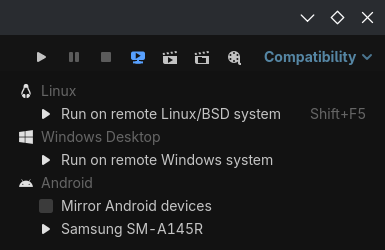
What it does, provided you have the export templates set up, is export the project, send it to the selected computer/phone, run it, and connect it back to the editor’s debugger.
You can use it to test your project on multiple machines from the comfort of your editor. No longer will you have to go to the corner store and burn a CD every time you want to transfer your game to another computer!
But wait! There’s more! Sometimes an exported project will behave differently than one running in the editor. It’s always a good idea to test that everything works correctly, even if you’re only using a single computer. You can use One Click Deploy to save you the time it would take to manually go to Project > Export > Export Project (and then having to click it like a caveman, eww), while getting the added bonus of being able to use the debugger and check the monitors and the profiler:
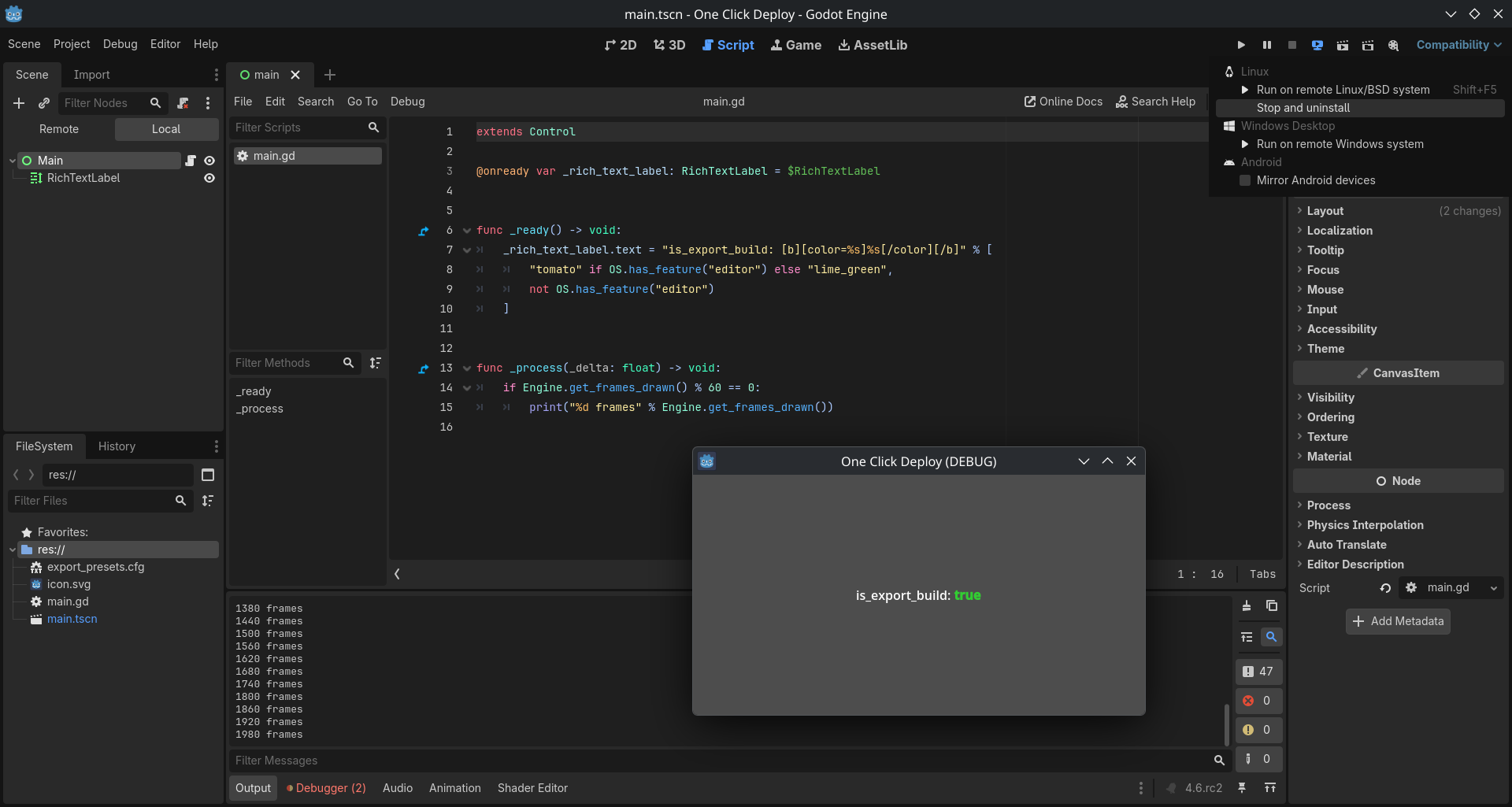
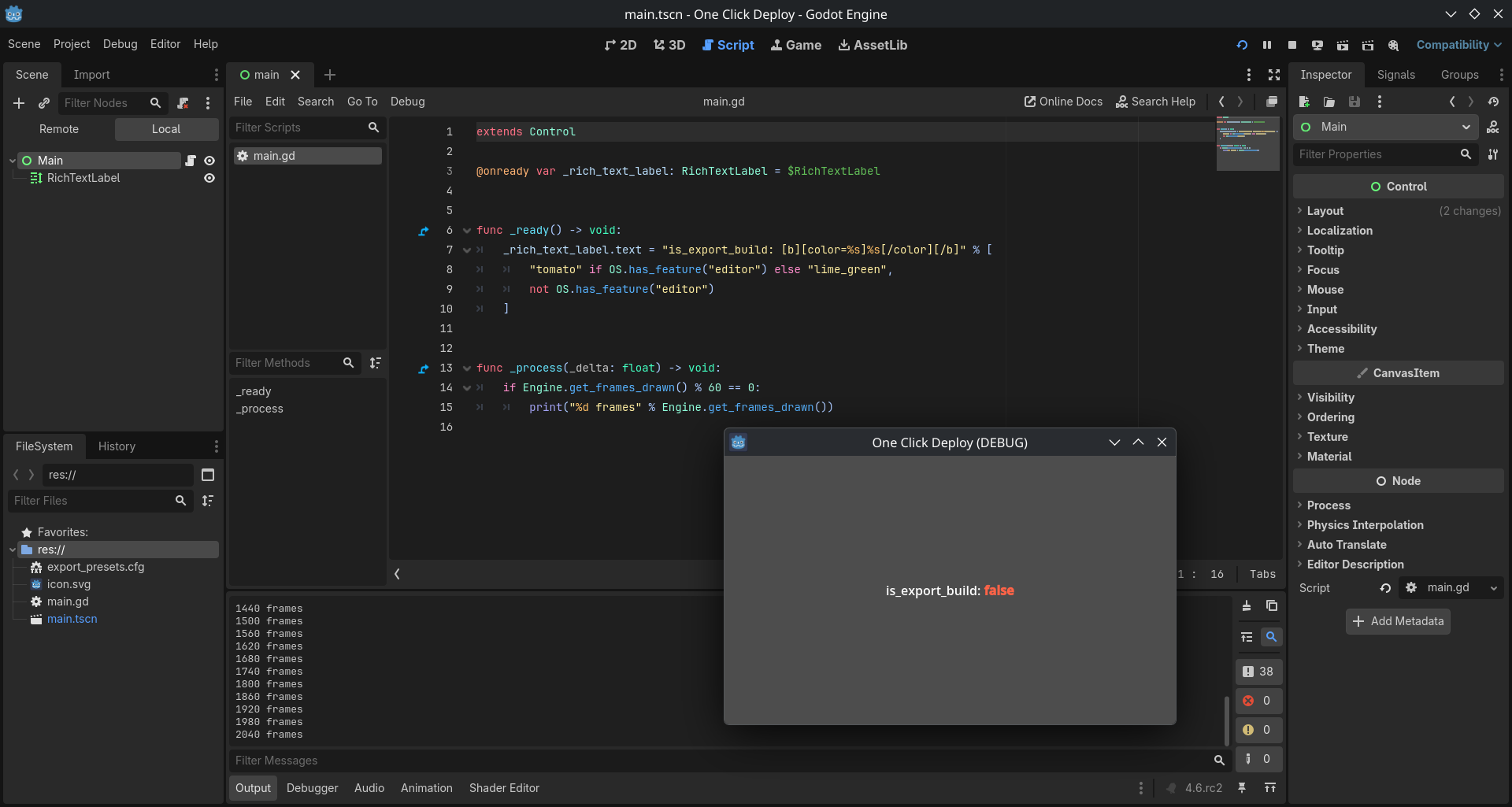
The first example shows how an exported project will generate some errors that you wouldn’t have known about if you only tested the editor version. In this case, they are harmless errors you probably don’t have to worry about:
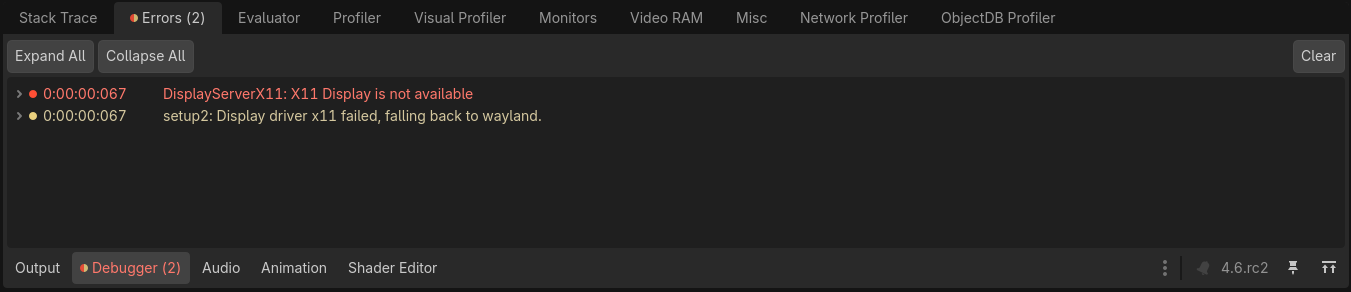
Nonetheless, you can see how easy it is to test the exported version once you set it up. It only takes two clicks to deploy!
How to set it up
You’ll first need to create your export templates. Android exporting is more involved: Exporting for Android — Godot Engine (latest) documentation in English
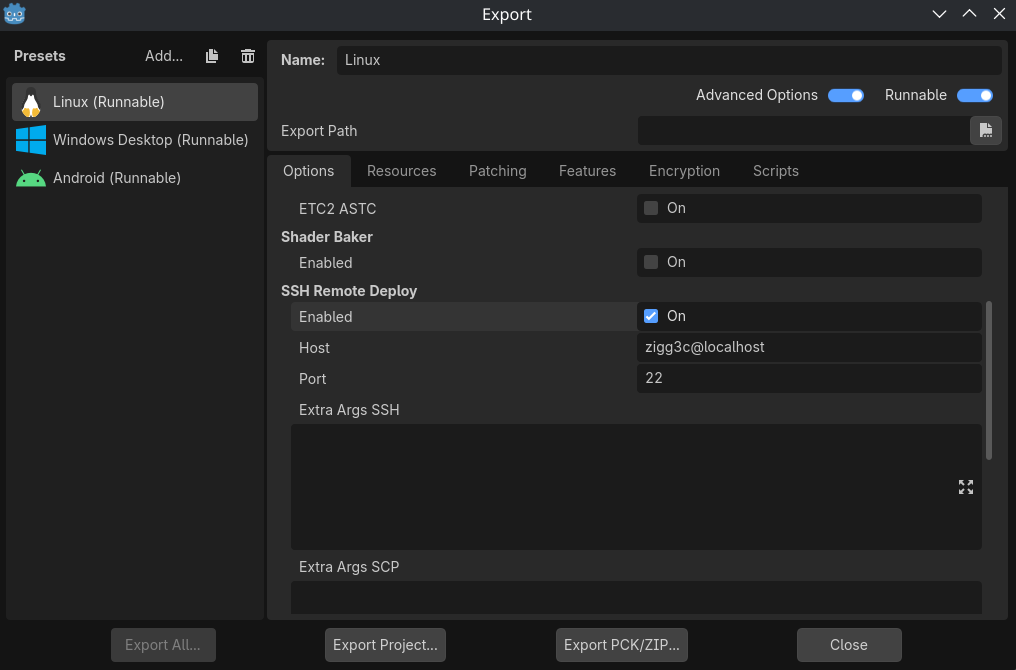
Windows and Linux (and MacOS, but I don’t have any experience with it) use ssh and scp. The only thing you have to do is enable SSH Remote Deploy and configure the Host. Everything else in this example uses default settings.
If you’re unfamiliar with ssh or scp, it might help to think of them as AnyDesk or TeamViewer, without the GUI. Godot will use them to connect to a machine (in this example the same one it’s currently running on), transfer files (the archived exported project), and run a few terminal commands to extract, run, and beam the output back to the debugger.
Connecting via ssh looks something like this: ssh user@address where user is generally the username you see when you log into your computer (or in the terminal/cmd), and address is the IP. You will then be prompted for the password. This step is incompatible with One Click Deploy, which is why we will be using keys to bypass providing a password (you might be familiar with this from GitHub).
So what we have to do for all the platforms that use SSH is:
- Install ssh/sshd/scp if it isn’t there.
- Generate a key-pair.
- Start the server.
- Authorize the key.
Android
Android uses adb. The simplest way to connect an Android device is via USB. You’ll need to enable USB debugging from the developer options. Once that’s done, plug in your device with the editor open. Your phone should ask you for confirmation, after which it will show up under the Remote Deploy menu (see the first screenshot).
Linux (Fedora)
-
ssh-keygen -
sudo systemctl start sshd(can optionally set it up so it auto-starts on login) -
ssh-copy-id user@localhost(replace user with your username)
Most Linux distros come with ssh already installed. Setting it up is as simple as generating a key-pair, starting the server, and authorizing your key.
Setting a passphrase on your private key could cause things to malfunction. I recommend leaving it empty.
That’s it. Assuming everything went fine, you can now go to your export template, enable SSH Remote Deploy and change the Host to user@localhost (replace user with your username).
Windows (PowerShell as Administrator)
-
ssh-keygen -
Start-Service sshd(can optionally set it up so it auto-starts on login) -
Get-Content -Path $env:USERPROFILE\.ssh\id_ed25519.pub | Add-Content -Path $env:ProgramData\ssh\administrators_authorized_keys(Windows doesn’t havessh-copy-idor an equivalent as of right now) -
Set-ExecutionPolicy RemoteSigned(the PowerShell script that extracts the archive and runs the project cannot be automatically executed with the defaultRestrictedpolicy)
Newer Windows versions come with everything already installed. Still, if you get an error after trying ssh-keygen or Start-Service sshd, go to Settings > System > Optional features and make sure OpenSSH Client and OpenSSH Server are installed. If not, you should be able to install them from there.
Setting a passphrase on your private key could cause things to malfunction. I recommend leaving it empty.
That’s it. Assuming everything went fine, you can now go to your export template, enable SSH Remote Deploy and change the Host to user@localhost (replace user with your username).
Running a project on multiple machines (local network)
If you want to run your project on another computer, you need to start the server on that machine, and add the main computer’s public key to the list of authorized keys. That is assuming all machines are on the same network. Otherwise, you’ll probably have to look into port-forwarding, as well as disable password authentication on the server (after you authorize your key). Security becomes more important when the server can be accessed by anyone.
Between Linux machines, that’s ssh-copy-id user@address where user is the account on the computer running the server, and address is the ip address of said computer. If all machines are connected to the same network, the ip will be 192.168.x.x (x in range 0-255). You can get the IP by running ip address in the terminal.
Between Windows machines things are more complicated. The gist of it is that you want to get your public key, which is located somewhere like C:\Users\zigg3c\.ssh\id_ed25519.pub, into the administrators_authorized_keys file on the server, that’s located somewhere like C:\ProgramData\ssh\administrators_authorized_keys.
You’ll probably have to do this manually, as I’m not smart enough to give you a one liner that you can run in PowerShell, but I’ll update this if someone helps out in the comments.
The situation is much the same for Linux to Windows (the latter being the server), however for Windows to Linux you can have a look at this: Windows 10 OpenSSH Equivalent of ssh-copy-id | Christopher Hart
Troubleshooting
Here’s the PR that implemented One Click Deploy: [Export] Add one-click deploy over SSH for the desktop exports. by bruvzg · Pull Request #63312 · godotengine/godot · GitHub
You might find it helpful to go through the comments and the linked issues. As always, a few things you should check if something doesn’t work:
- Make sure you’re not using a VPN (although some VPNs have settings that allow local network access).
- Make sure the
sshdserver is on. Try restarting the server withsudo systemctl restart sshd(Linux) orRestart-Service sshd(PowerShell). - Make sure you are running PowerShell as Administrator on Windows.
- Try connecting directly with
ssh user@address -v(keep addingv’s until the logs make sense,-vvv). See what that tells you. - Make sure the firewall settings allow connections, especially on Windows. The network type should probably be Private network, and sshd should be allowed in the firewall rules.
- Make sure
cmdis the default shell on Windows.
Conclusion
I’d love if someone would include a section for MacOS, since as mentioned, I’ve no experience there. Suggestions and corrections are also more than welcome. Thanks for reading. Here’s the code from the project in the screenshots:
To be, or not to be, an export build...
extends Control

@onready var _rich_text_label: RichTextLabel = $RichTextLabel


func _ready() -> void:
	_rich_text_label.text = "is_export_build: [b][color=%s]%s[/color][/b]" % [
		"tomato" if OS.has_feature("editor") else "lime_green",
		not OS.has_feature("editor")
	]


func _process(_delta: float) -> void:
	if Engine.get_frames_drawn() % 60 == 0:
		print("%d frames" % Engine.get_frames_drawn())