How to structure a complex UI heavy game?

Godot Version

Godot 4

Question

Hey folks, I recently launched my first commercial project on Steam. Now I’m planning a new game. I’m thinking of making a mostly text-based, turn-based game with deep tactical gameplay and a story driven focus. Gameplay wise it’s like Caravaneer 2 with bird’s eye view movement and turn-based combat, but visually it’s in the style of NGU Idle. Buttons in the corner of the screen that you click to navigate between different menus.

I have a question. I’m not entirely sure how to properly structure dozens of nested menu systems in Godot. I can think of a few different approaches, but they all have different pros and cons. I’m uncertain which one would best fit my goals. Maybe there’s a better method I’m not aware of that you could share with me.

1) Building the entire game in one mega scene, menus top on each other: putting each menu inside a panel, and when switching menus, making all other panels invisible while making the current menu’s panel visible. This way I can manage everything directly from a single scene. The advantage is that shared variables between menus would be much easier to access through code. No need to save data when changing scenes and load it later or use singletons. I can just drag and drop or access via unique names. The downside is that if there are 20-30 menus, finding any specific object in the hierarchy window will be pretty painful. The deepest elements will probably be nested 10-15 parents deep and won’t even fit on my screen. Also, placing UI elements each other sometimes causes mouse input flow bugs.

2) Saving all different menus as separate scenes: This way I can work much more organized. When opening a new menu I can instantiate it and bring it into the scene with different animations. But the downside is the coding will be way more complicated. For example, if there’s a variable in one menu that gets modified or passively increases even when we’re not in that menu, I’d have to store that variable elsewhere or recalculate what it should be every time I open/close that menu. This feels like it adds unnecessary complication to the code.

3) Mega Scene but putting every menu on different space : Everything is still in one scene, but instead of layering and dealing with visible/hidden, I’d spread all the menus outside the camera’s view. Whichever menu is open, the camera moves to that location. The pros and cons are basically the same as the first method.

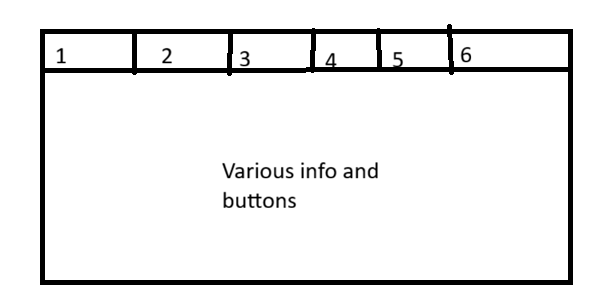
So what do you guys think? How can I implement a nested menu system most rationally without overcomplicating things? I’m attaching a UI sketch I made showing how the data on screen changes based on which buttons we press. Also, I drew this in Paint and it looks pretty janky. Is there a site/app where I can quickly design decent-looking UIs?
2 Likes

Hell! I can’t give you 100% straight answer to your question because I’ve never had experience in developing such WAY too complex system as you describe.

But I have my own opinion and suggestions on your ideas of implementations:

  1. Building everything in one mega scene - it’s pretty bad practice, don’t do that. In the future it will be painful for you to manage everything and you gonna be literally lost in 20-30 menus with their own attached scripts and their own submenus.
  2. Saving all different menus as separate scenes - it’s a good practice in Godot Engine.
    You describe that there might be a problem with too complex scripts. I don’t think so (or I think I have a solution for you).
    For main game scene (where all these menus appear during gameplay, y’know), create in the root of the scene the Node (yes just node, not Node3D and not Node2D) → Call it smth like gui_manager → Attach script to it gui_manager.gd and there you can store these variables and perhaps even @export thingies for customizations and your needs.
    Trust me, this is actually a GOOD practice. And most Godot Engine projects and game have this. In my experience, this is the best solution.
  3. Having layered submenus to be outside of the camera so they aren’t visible when not needed - it’s good idea and kind of good practice in some situations. But in your scenario and situation there is indeed same problem as in the first method… your scene will appear large, it will complex for you to maintain it and develop on it. Your scene file will also weight large which will cause some optimization troubles and etc.

To be honest I would go with my 2nd suggestion on my list. The best way is to create a special Node which has name of gui_manager with an attached script to it. But usually such Node is actually a scene which contains only Node and a Script attached to it. This way you would have specific gui manager in player’s game where all things are managed. And all the submenus are instantiated scenes.

You can have attached scripts to these submenus. But you actually could have multiple @export var submenu1 : PackedScene in the gui_manager.


Also a suggestion!
You can also for each submenu create something more special!

There is type of script called Resource. Basically, it’s a Script which extends Resource. You should give class_name SubmenuChoice to it at the top of the script. (in this example SubmenuChoice is like thing that y’know you select specific option and smth happens)
After creation such one you can have @export var choice : String and other @export variables.

In your File System window you can create resource SubmenuChoice by right clicking create node and searching for your SubmenuChoice. File will appear as .tres. You can name it… let’s say as submenu1_action_choice.tres.

Now you may ask yourself… why did I create that? Let’s go to the gui_manager.gd. As we noted above you can save all submenus as PackedScenes in there for more centralized approach (and not finding all your submenu scenes in various part of the game, especcially, when you plan to add 20-30 menus). In the same script you can have @export var submenu1_choices : Array[SubmenuChoice]. Now in your Inspector window you can select that gui_manager node we’ve created and you can see you can create action choices with specific name to your submenu.

And most importantly, this approach is not THAT complex. It let’s you make everything more organized in both terms of scenes and in terms of code. Trust me, it’s more easier and better approach. That’s what Godot Engine is for! Use all opportunities for 100%.

You could also instead attach scripts to your submenu’s Control nodes directly and have this @export var submenu_choices : Array[SubmenuChoice]… it doesn’t matter. But in your case scenario you plan adding 20-30 menus so it’s better to do more centralized approach with gui_manager so you would not need to find and scroll down between 20-30 menus with 10 more submenus inside of them just to find specific scripts in them with @export.

Have a good day! Ask me if you have more questions or you need me to specify some things more.

4 Likes

There is also nothing stops you from adding more to the Node with the name gui_manager. As from my example, it’s actually a different scene called gui_manager.tscn that was added to your main game scene. You can in that gui_manager.tscn create more nodes with their own scripts if needed for more organizational and functional purposes.

EDIT: Clarification on “functional” purposes. Let’s say your Node with the name gui_manager has another Node inside of it with the name of gui_module. Now this gui_module can have it’s own attached Script. That script can have it’s own functions e.g. func register_action(action_id : int, submenu_choice : SubmenuChoice): (this example shows that instead of relying on single @export var choice : String there is another variable called @export var choice_id : int for programming purposes because it’s better practice).

You can call this function that is in gui_module.gd from gui_manager.gd!
Like so:

@onready var gui_module : PackedScene = $gui_module;

# some other stuff y'know
# EDIT and NOTE: you may also ask yourself why there is underscore ("_") in this function name... according to the documentation style of gdscript writing the functions that start with underscord like this one below are meant for "private"/"internal" use. This means that function named like this will be used only in this specific script.
# This does not mean you can't call this method from another script. You can. It's just design and visibility of your code so you would not drown in billions of functions and you would not be confused when you try to understand if this function is called in another script or not.
func _some_function(some_argument : int):
	gui_module.register_action(0, null);
# you can call register_action that is in another attached script from this script! Only because it's part of a node and we have path to it and it's also children of this `gui_manager`. Amazing right?

Please look more into my suggestions and ideas. These may give you good organization in your game without complicating things and without havng headaches later on when managing your game.

Without a doubt, I recommend option #2. The harder part will pay off in the long-run because the design decisions you make to encapsulate everything and create communication will provide HUGE benefits when adding new features or updating things. Then, you can display each menu separately.

I strongly suggest you make Menu class or something similar to share features. I created by own UserInterface plugin and defined Screen and SplashScreen as the two base entities for my UI (except for HUD items). It does a number of basic things, like support a default button click sound that is linked to every button detected on a screen so that I don’t have to code that, and I can change the button click sound in one central location. If I wanted to have an override sound for certain buttons, I’d only have to change or override that one script.

Doing it this way also means you can decide later on how to group things. Want a tabbed look? Put all the menus into a TabContainer Decide you want to move a screen up two levels, just move it. One of the other things I made was an OpenScreenButton class. Attach the script to a button, and put the name of the screen to open in the exported variable. The Autoload named UI then handles tracking all screens and can link one screen to another. It also handles things like hiding the old screen and showing the new one.

This brings up the other question you have: Where to store data. Some data, like settings, it makes sense to store with the screen. For an example of how one can do that, you can take a look at my Display plugin which I just recently updated to use the UI plugin and the Screen class in particular. All the settings are saved to disk, and loaded when the game starts. (You can run the project to see it all in action via the test scene.)

Other things, like player stats, it makes sense to think about how to save them. TBH, it’s a problem I’ve been actively working on for the past few weeks with a more complex game than what I’ve worked on previously. Namely, I am tracking stats like how many times the player jumps, dies, slides, etc. Originally, I was storing that data with the player. But then I started storing skins, and I found that I needed to somehow load the skin itself for the menu for skin selection.

Right now I am leaning towards making a Resource object called PlayerStatistics and saving and loading that from a Game autoload. In that way, if I want to access any player data, even before the game launches, it’s in one place. Something like:

#game.gd autoload

var player_stats: PlayerStatistics 

## Save node called when exiting or anytime Disk.save_game() is called.
func save_node() -> Dictionary:
	var save_data: Dictionary = {
		"player_stats": player_stats.stats,
	}
	return save_data


## Load node called when game starts or anytime Disk.load_game() is called.
func load_node(save_data: Dictionary) -> void:
	if not save_data.is_empty():
		player_stats.stats = save_data["player_stats"]

Then a definition for the PlayerStatistics class:

class_name PlayerStatistics extends Resource

var stats: Dictionary


## Adds the passed value to the statistic named, based on the current level.
## If the statistic or level doesn't exist, a new entry is created.
func add(statistic_name: String, new_value: int) -> void:
	var category: Dictionary = stats.get_or_add(statistic_name, {Game.level_name: 0})
	var value: int = category.get_or_add(Game.level_name, 0)
	value += new_value
	category[Game.level_name] = value
	print(stats)


## Gets a list of all the categories in which statistics are stored.
func get_list() -> Array:
	var list: Array[String]
	for key in stats:
		list.append(key)
	return list


## Retrieves the aggregate value for a statistic across all levels played.
func retrieve(statistic_name: String) -> int:
	var category: Dictionary = stats.get(statistic_name)
	var total: int = 0
	for key in category:
		total += category[key]
	return total

And anytime I want a stat:

var num_jumps = Game.player_stats.retrieve("jumps")
# or
Game.player_stats.add("jumps", 1)

Conclusion

Ultimately, an approach that chunks the problem into smaller scripts will make the entire process MUCH more manageable in the long run. If you take the megalith approach you will have trouble finding things inside your scripts, and you will create interdependencies that cause a lot of rewriting when you want to change simple things. Smaller is better.

2 Likes

I’m currently experimenting with:

  1. Data-driven Menus in a Single Scene: I’m working on a game with a fairly complex hierarchical UI, but I want to keep it consistent and intuitive. I’ve got a scene with the basic menu framework in it, and I’m reconfiguring it based on tables of data to make it be whatever submenu it needs to be. I’m not done yet, but so far I’m liking how it’s working; adding something new is just a matter of adding stuff to the data tables.
3 Likes