Hi!
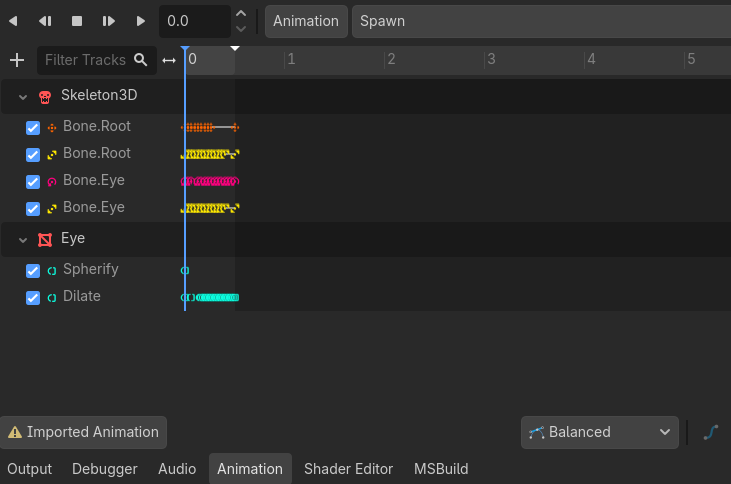
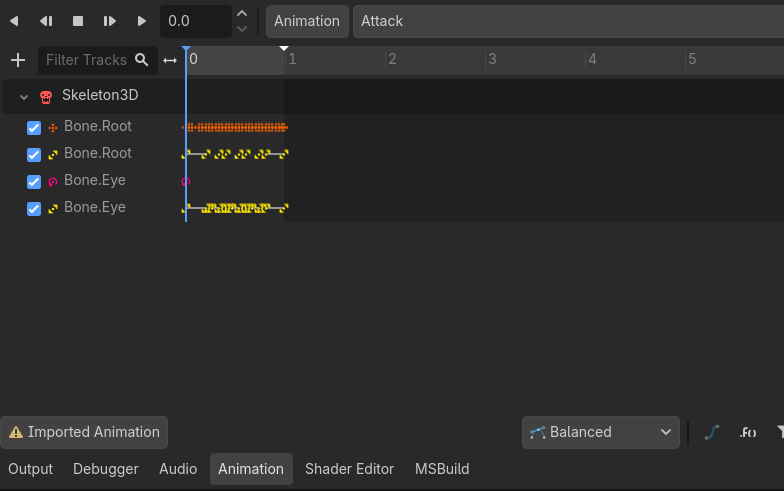
As for why the Shapekey Animations appear only in the Spawn Animation:
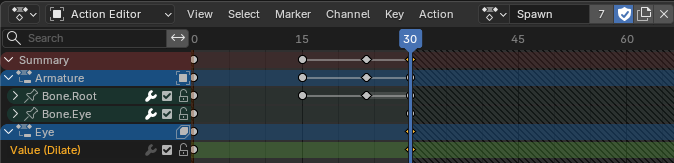
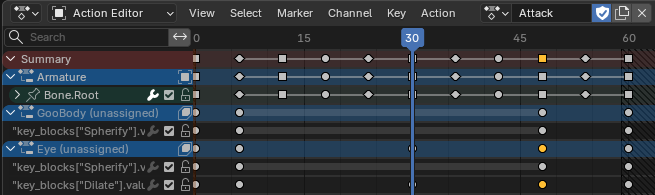
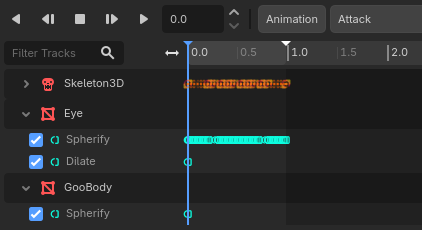
In Blender in the Action Editor you can see the difference on your Animations:
As you can see, the slots for GooBody and Eye are unassigned in the “Attack” Animation (and the other Animations). This is the reason why the Shapekey Animations are not are not exported.
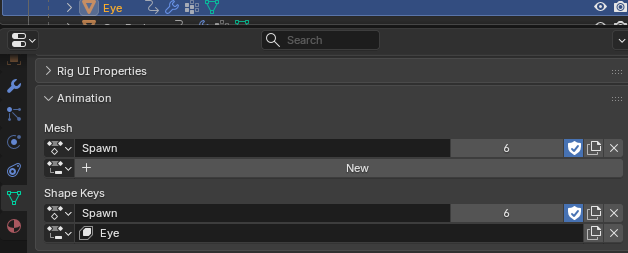
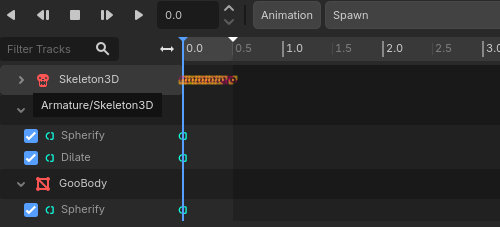
The Eye-Slot in “Spawn” is assigned in the Eye Mesh:
The Problem is, you can set only one Shapekey Animation…
What can you do:
You could make an blend file for each Animation, link you Armature and create your Animation there. So you can assign the Shapekey Animation to the correct Armature Animation.
But this solution is only preferable if you have many Animations, so lets not overcomplicate this.
In your case it’s better we use the second solution: Driver
With this you can can control the values of the Shapekey with bones.
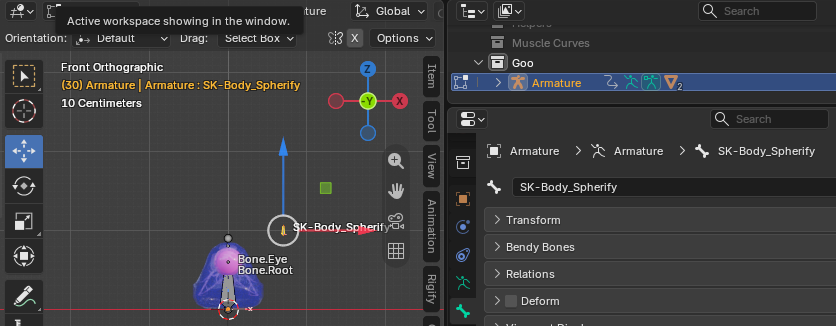
Create in your Armature new bones for each Shapekey (disable Deform for this bones), place and size them how you prefer. Turn on Show Name in the Armature.
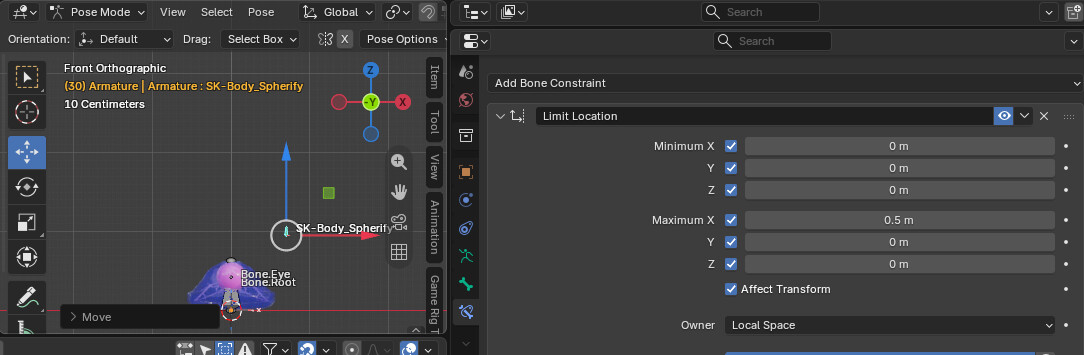
In the Pose Mode, add the Bone Constrain “Limit Location” and use the settings from the pic.
The most important settings are “Owner”, this should be “Local Space” and "Affect Transform. For the rest set them as you like.
Now setup the Driver.
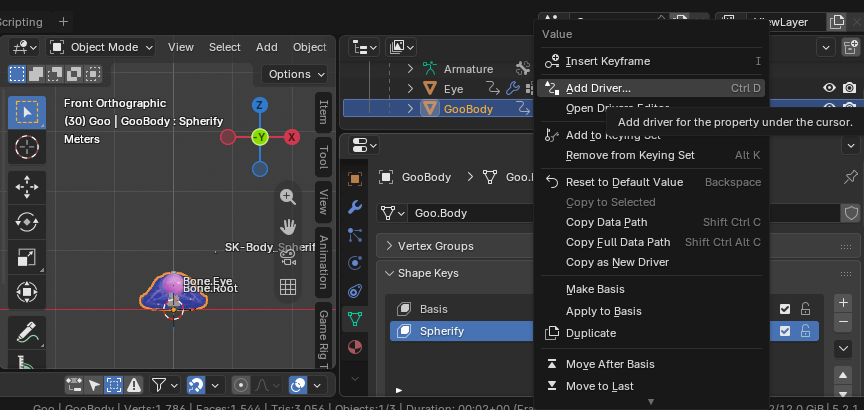
Select your Mesh, right-click on your Shapekey Value(!) and select “Add Driver…”
“Add Driver” will not show up if there’s an Animation active (background of the value is yellow or green)! The background of the value should now be violett.
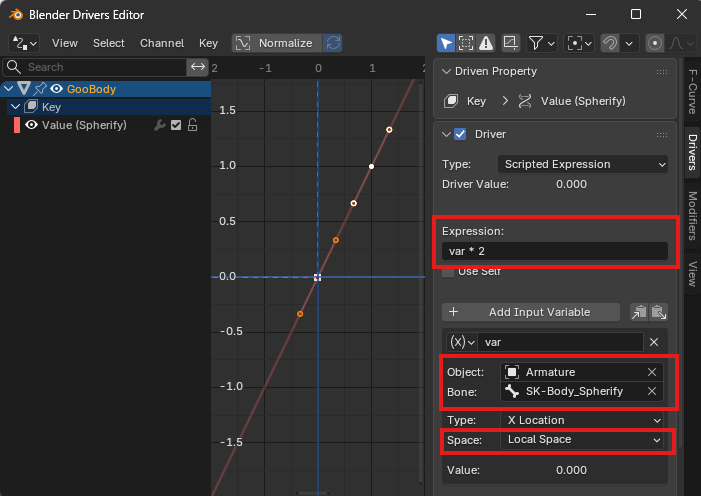
Again right-click in your Shapekey Value, select “Open Driver Editor”, set the Expression, assign your bone and set Space to Local Space. This must be done for each Shapekey.
For Expression: multiply the var based on your “Limit Location” Constraint. My “Maximum X” was 0.5, so i use “var * 2”. The result for this multiplication must be 1.
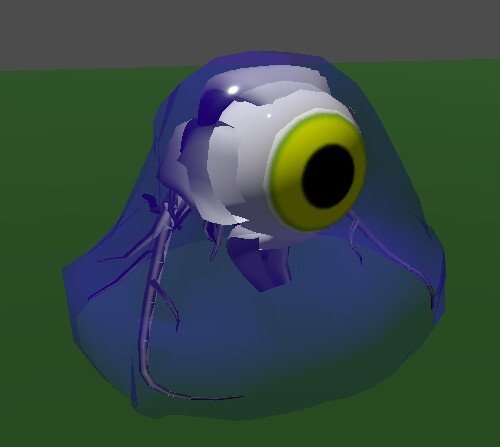
Now you can control and animate the Shapekey Values with the bones in your Armature and they will also be exported:
You can download the blend file which i prepared from here: