I am not sure but I’ve seen Cassette Beasts suffring with the same issue in some places.
So the whole setup is simple just placed some mesh using GridMap, attached a camera which is rotated -30 degree on the x-axes, nothing much. All the mesh’s texture’s sampler filter is set to Nearest Minimap. Also have set the Anti-Aliasing set to 4x for 3D MSAA.
Any suggestions? I think there should be something to fix this issue right?
All I can see is the normal nearest texture aliasing, and it’s there everywhere, not just in the outlined area. Notice that MSAA has no effect on textures.
it’s noticable too much when moving on the z-axes, is there a way to make it not do it? when the camera is totally -90 degree rotated it doesn’t do that anymore(probably expected), its just too much noticable and can look bad when moving a lot around the movie, and ye the wall flickring thing(seeing the floor which is behind it) its kinda my fault I got some gap/slightly small than the cell size, but the grass+path tile/model mesh isn’t small to its neighbour only grass mesh.
There isn’t a way to display things between pixels. The engine inevitably have to choose, which pixels to paint light green and which to paint dark green. When the details on the texture are moved further back they get smaller and appear to pop in and out, but really this happens with every part of your texture, and regardless of whether the camera is turned or not.
Make sure you don’t limit the games resolution and use all the pixels your display actually has. This should push the distance at which contrasted details begin to flicker further back. Otherwise, you might have to increase the resolution of your textures and actually enable texture filtering.
Did you mean to increase Viewport Size to something bigger to match the display resolution? And what do you meant by enable texture filtering, isn’t it the same thing as setting the Material Sample Filter to Nearest or something?
It didn’t help much, as you can see the txture looks blurry compared to previous video meaning the filtering is linear mipmap, it still feels like its popping in and out, and after noticing it you can’t just unnotice it anymore :")
ow damn after switching the stretch mode to disabled it helped! it was set to viewport previously. but is there a way to make the texture look crisp without increasing the texture resolution?
ah crisp i meant non blurry when using the linear filtering variant it kinda looks blurry, nearest one doesn’t look blurry, and nearest without no mipmaps acts like the original flickering/in-out issue
Yes, you will want the vport resolution to be as high as it can be. This isn’t going to remove the flicker but it should make it happen further back and that might be just enough.
If you want to remove it completely, you will have to use high resolution and also allow filtering on textures. By enabling texture filtering I mean set it to Linear or higher. Nearest is “no fitering” and it’s only good for flikery pixel games.
Except, using Linear on low resolution pixel textures will just blur the pixels and make them look fuzzy. You have to scale the texture up in the graphics editor.
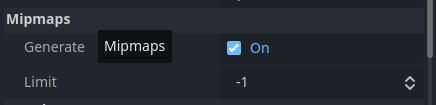
So, I am trying to increase my texture res, I need some suggestion, currently the texture size is 32x32 so clearly linear filter causes the blur effect but the in-out issue is no more, but when I increase the resolution to 1024x1024(I used aseprite interpolation method rot-sprite), reimport them normally now the linear filtering looks alright(non-blurry) but the pixel in-out issue returns, if I use linear mipmap then it looks blurry even if I am close to the mesh cell, any suggestion what should I be doing?