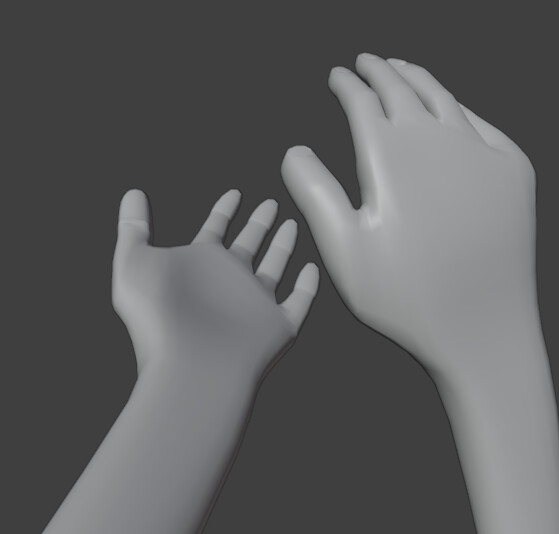
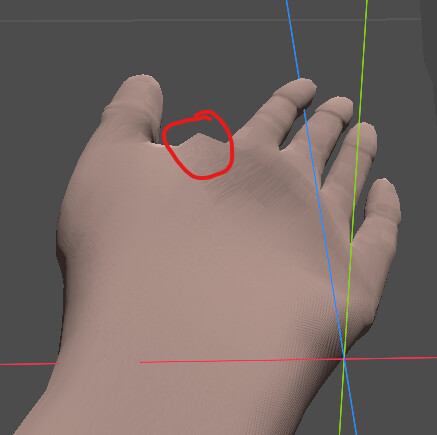
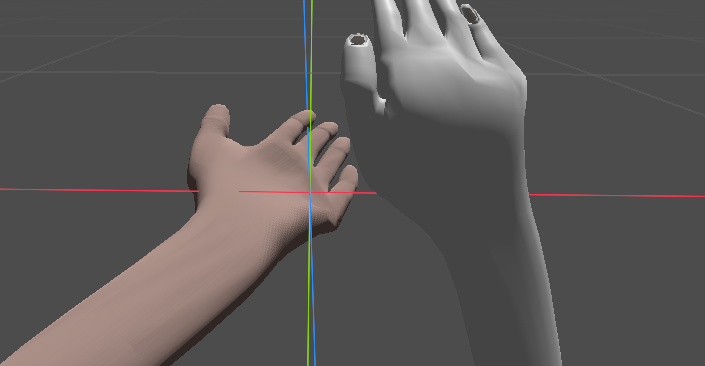
I have ran into a weird issue that I can’t seem to fix, screenshots attached. I have created some FPS Arms in Blender and Rigged them for animation purposes. I have created said Animations in Blender and when previewing everything looks to be good:
I tried Googling the issue and found that Blender and Godot don’t necessarily play well with each other. So I tried baking the Modifiers in Blender, disabling Godot’s “Generate LODs”, disabling “Ensure Tangents” and “Disable Force Compression”. None of these had any effect at all and I am not sure what could be causing this. Could this be an issue with the Mesh itself and how I created it? I just started with learning Blender like a month or two ago so my knowledge is very limited.
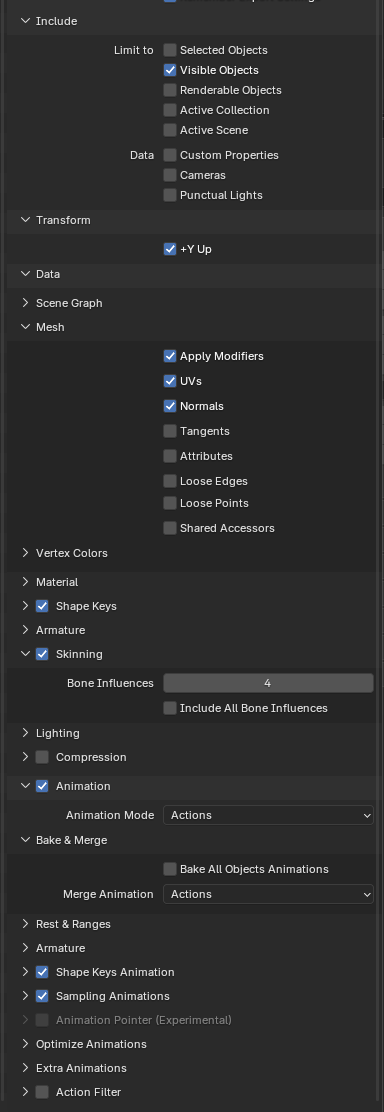
How are your export settings looking in blender? Particularly interested in the mesh, skinning and animation settings.
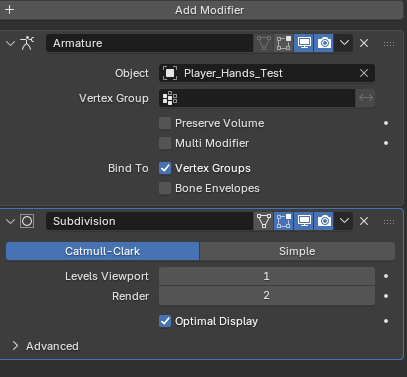
Also make sure that your mesh doesn’t have any modifiers in blender that might be going unapplied, other than the armature modifier it should be clear of modifiers.
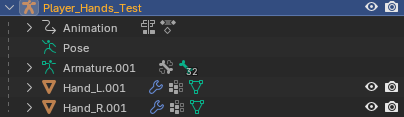
Also, are there any shape keys?
Here’s the export settings in Blender. Admittedly I only checked “apply modifiers” and the rest I believe are the default options. Incase it’s worth noting, it is an Armature with 2 meshes, one for the left and one for the right hand.
As for the modifiers, I only have an Armature that I don’t apply and a Subdivision Modifier that I do apply before exporting, but it doesn’t seem to make a difference.
I am not 100% sure but I think I don’t have Shape Keys, I am only changing the rotation and position of the hands/fingers. Here’s a screenshot if it helps:
It might have to do with the subdivision modifier, might be trying to smooth the weights and it doesn’t transfer well over to Godot, how does it look like if you apply the subdivision modifier in Blender, does the deformation appear any different after applying it? (Also make sure that the subdvision modifier is being applied to both the left and right hand meshes)
Other than that I can suggest trying this:
If you haven’t already, bake your animation in Blender, and then in export settings disable the options to optimize the animation. You can also attempt to enable exporting the tangents in mesh settings although I doubt that would make much of a difference.
Because the subdivision modifier is after the armature modifier, it can’t be applied after the deformation, so it applies before and the result ends up different.
It does appear so. Applying the Subdivision Modifier “breaks” the animation in Blender too. I suppose that means I have messed up when creating the Mesh? Out of curiosity if you know, why does it break only after applying the Subdiv and not when previewing?
I believe due to the nature of modifiers and subdivision in general, if it’s after the armature modifier it appears smoother with the modifier because it takes the existing deformation into account, after you apply it, it doesn’t.
After applying the subdivision go into weight paint mode and smooth out the weights, this should help to get rid of any harsh edges in the weights and smooth out the deformation.
In general it’s good practice to apply any modifiers before rigging and skinning.
@amarc and @marcythejinx Thank you both you legends, that was indeed the issue. I was about to scrap the Mesh and redo the whole thing before I decided to ask the forums.