Godot Version 4.5
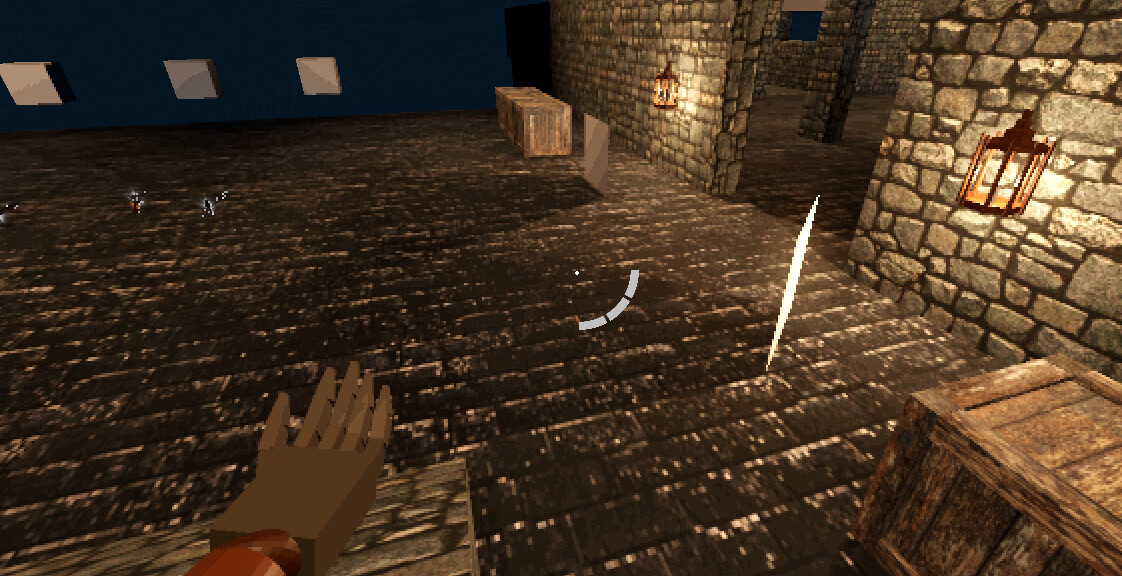
I’ve been putting off this issue for a while because I really don’t understand what to make of it. I have a 3D box object that instantiates a broken box object with many individual rigidbody3D pieces, and these meshes all have shadows set to double-sided. Whenever viewing any of these meshes in the editor and running the project, the shadows work. However if I click off of those meshes or close the scene, the shadows stop working entirely. I’ve tried to find issues similar to this but no luck. Any ideas what could cause something like this?
This is the code inside the box object that instantiates the broken box PackedScene:
#Spawn Broken Model
var broken_model_inst:Node3D = Broken_Model.instantiate()
broken_model_inst.transform = self.transform
get_parent().add_child(broken_model_inst)
This video shows how the shadows work the first 2 times when the box pieces scene is being viewed, but stops working once the scene has been closed:
What happens if you export the game and run it?
I did think to try this but was having trouble just loading into my testing scene so I’m really not sure. I assume if the shadows worked in the exported version it’s safe to assume it’s just an issue with the debugger?
1 Like
That was my thought. But either way, it’s a data point in debugging this problem. It could be as simple as your GPU is out or RAM.
Ok so after some debugging I was able to load into the test environment. I can confirm this is still an issue in the exported version, meaning this isn’t just an issue in the editor.
Also since you mentioned it, I’m using a 5060ti with 16GB of VRAM so I would assume a project as simple as mine wouldn’t take up that much? Checking task manager it seems to max out at about 28%
1 Like
Yeah I’m not sure what’s going on here then. What’s more concerning is that it’s not working on export - so the anomaly seems to be it working. It’s definitely not your videocard.
@gertkeno @normalized any ideas?
1 Like
Try to contain the problem. Put a two-sided casting mesh plane into the scene, at various places, and see how its shadow behaves.
Not sure if I understood correctly but I placed a few double-sided casting mesh planes into the scene and it seems like those shadows work without any issues.
Is it possible it has something to do with the box pieces scene using a collection of meshes exported from Blender?
Hard to tell without inspecting them. Again, try to contain the problem. Take one such piece, put it as a plain mesh instance into the scene and try to provoke it to show the problem.
I did some testing and I came across an interesting interaction. If I add the box_pieces scene into the testing environment, the shadows don’t work. BUT if I make the scene local, the shadows do work. This video showcases that:
And now for some reason the shadows are working without any issues on all of the boxes, even if I remove that local box_pieces node I added and don’t have the box_pieces scene open in the editor. I tested adding new boxes to the scene and restarting the project but it all seems to be working now. It also works in my main game scene so it’s not exclusively working in the testing scene. I’m not sure why this worked, if you have any insight I’d love to know why this was the solution lol. Hopefully it’s resolved for good.
Could be transparency related, as transparent objects don’t cast shadows unless they go into depth prepass, which itself can have glitches. How do you fade those pieces out and what’s their transparency mode?
2 Likes
That might be it. By default transparency is disabled, but when it enters the scene I use an animation player that sets the transparency to alpha after a few seconds in a surface material override that all of the pieces share. Then it reduces to alpha on the albedo to create a fade effect.
My only guess is maybe it was being set to alpha by default, but I didn’t change anything related to it so I’m not sure. I did switch between the actual Fade animation and the RESET animation in the editor, so maybe that’s all it took? I can’t seem to replicate the issue so I’m unsure. Could’ve been a combination of setting the animation back to RESET in the editor as well as making the scene local to somehow get everything set correctly? idk.
Do all pieces share the same material?
Yeah they all share the same material
Well then if this material is set transparent for one piece, all of the pieces will go transparent because they all refer to the same material resource object.
So each piece needs to have its own copy of the material, or if the whole crate fades at the same rate, a copy per crate. This can be done automatically by the engine if you enable resource_local_to_scene flag for the material. A copy will be created when the scene is instantiated. Whether this is adequate for your case would depend on how you organized crate’s scenes and how you do the fading.
2 Likes