Png Looking Weird on Import

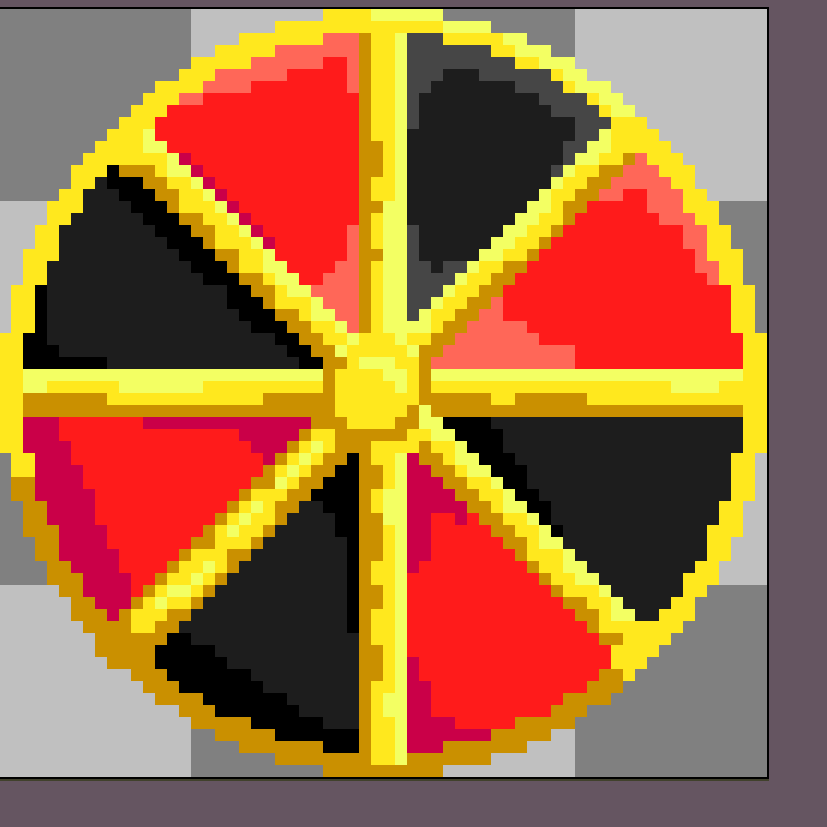
I have a PNG that I’ve exported from aseprite that looks weird in Godot. This is the image in aseprite:


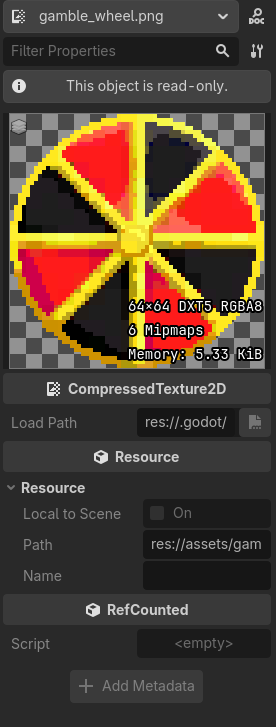
and this is what it looks like in Godot:

I’ve generally not had issues importing textures but for some reason this is the exception. The filter is set to nearest.

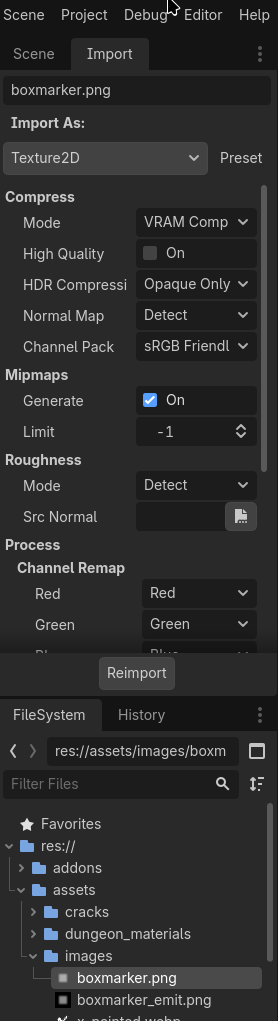
In the import settings try checking “High Quality”

This usually only happens if Godot decides the texture is used in 3D and should be VRAM compressed

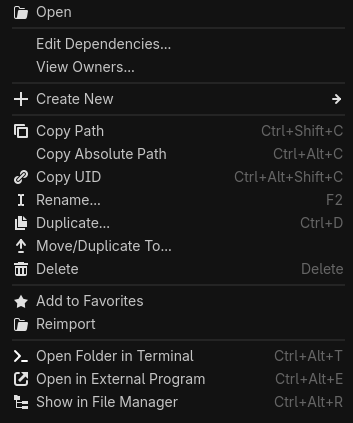
It’s not letting me open the project settings. Double clicking just opens it in the inspector and right clicking shows nothing of the sort.

It’s not a project setting, it’s another tab alike the Inspector is a tab so is the Import tab.

Sorry, I wasn’t clear when I wrote that,
When I double click it just opens the inspector on the side


And when I right-click I don’t see import settings

Double clicking and right clicking were how I’ve accessed it in the past but I was unable to find it there this time. I also tried looking at the import file but that wasn’t helpful since I wasn’t able to understand what was going on in there :\

I move my tabs around so I don’t recall exactly where it will be in the default editor layout

:0, I cut that part off when screenshotting aparently.
When I look at that area from double clicking on the png all I see is Inspector, Signals, and groups, as if it was a node.
The Import tab may be in a different area, I move my tabs around, it could be on the left or right side

Default it’s on the left.