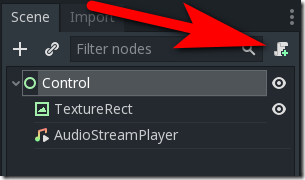
Open up the TitleScene in the 2D view if it isn’t already. Now we will attach a script to the root control in our scene. Select the root control, then click the + script icon to the right to create a new script.
Sorry for the silly question, but did you make the title scene itself, or is it loaded in from a premade tutorial?
If you created it, you can just change the node type to control. If you didn’t create it, you can do the same thing, but it would be good to know why there was a discrepancy between the tutorial and premade resource.
(sorry if my words don’t quite make sense today. I’m having a hard time phrasing this right.)
You have a title scene there. Did that scene come from a project you downloaded? Or did just the art come from a download, and you put together the scene so far yourself?
Okay. Yes that was my question, I apologize for the confusion.
Since you say the scene came from the project you downloaded, I’m not sure why they had it at a node2D in your version and a control node in their version.
It is possible to change node types once they’ve already been set up, but it makes sense that you want answers as to why it’s different as you’ve been following the tutorial.
As I’ve not done the tutorial, I cannot offer further advice. I apologize.
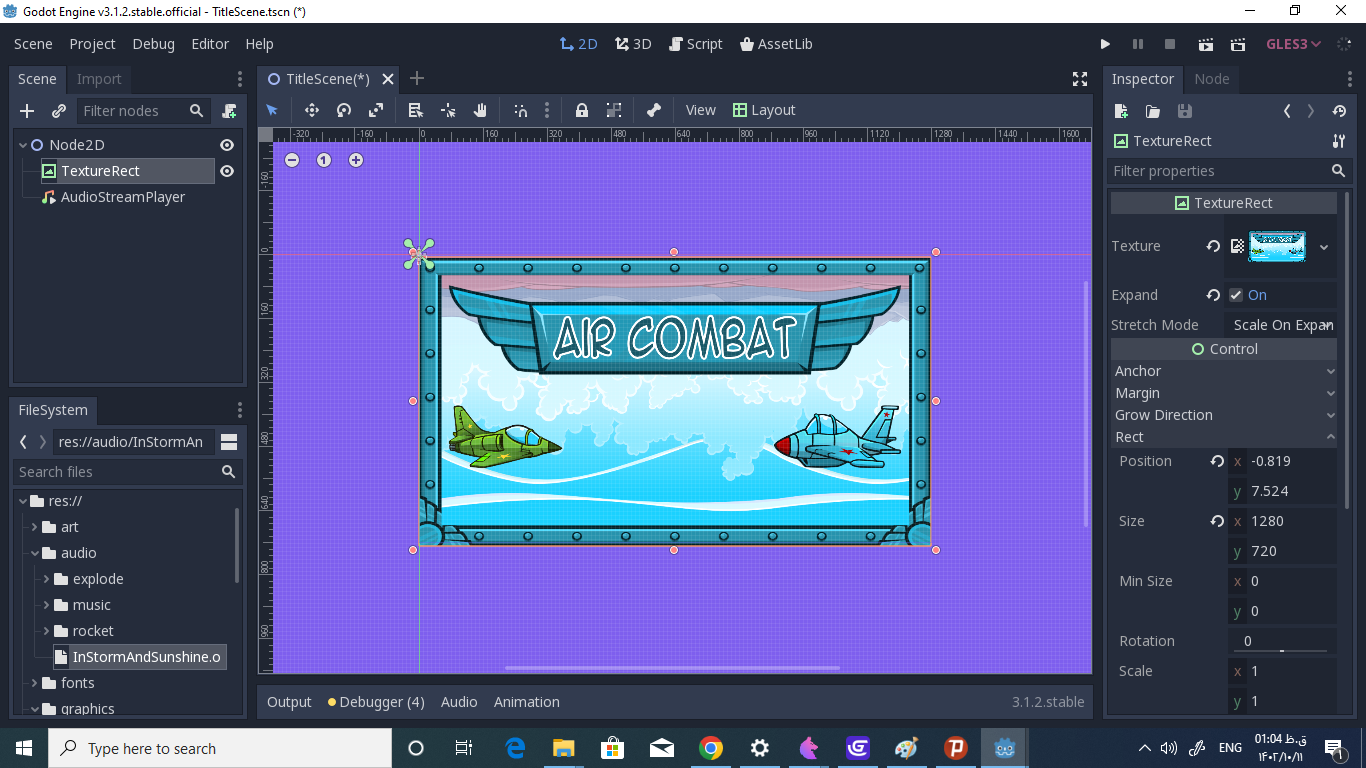
The very first node (parent node) in your node tree is of type Node2D which is represented by the blue circle. In the tutorial, it is supposed to be of type Control which is a UI node represented by the green circle.
You can always change a node type by right clicking>change node type>select Control.