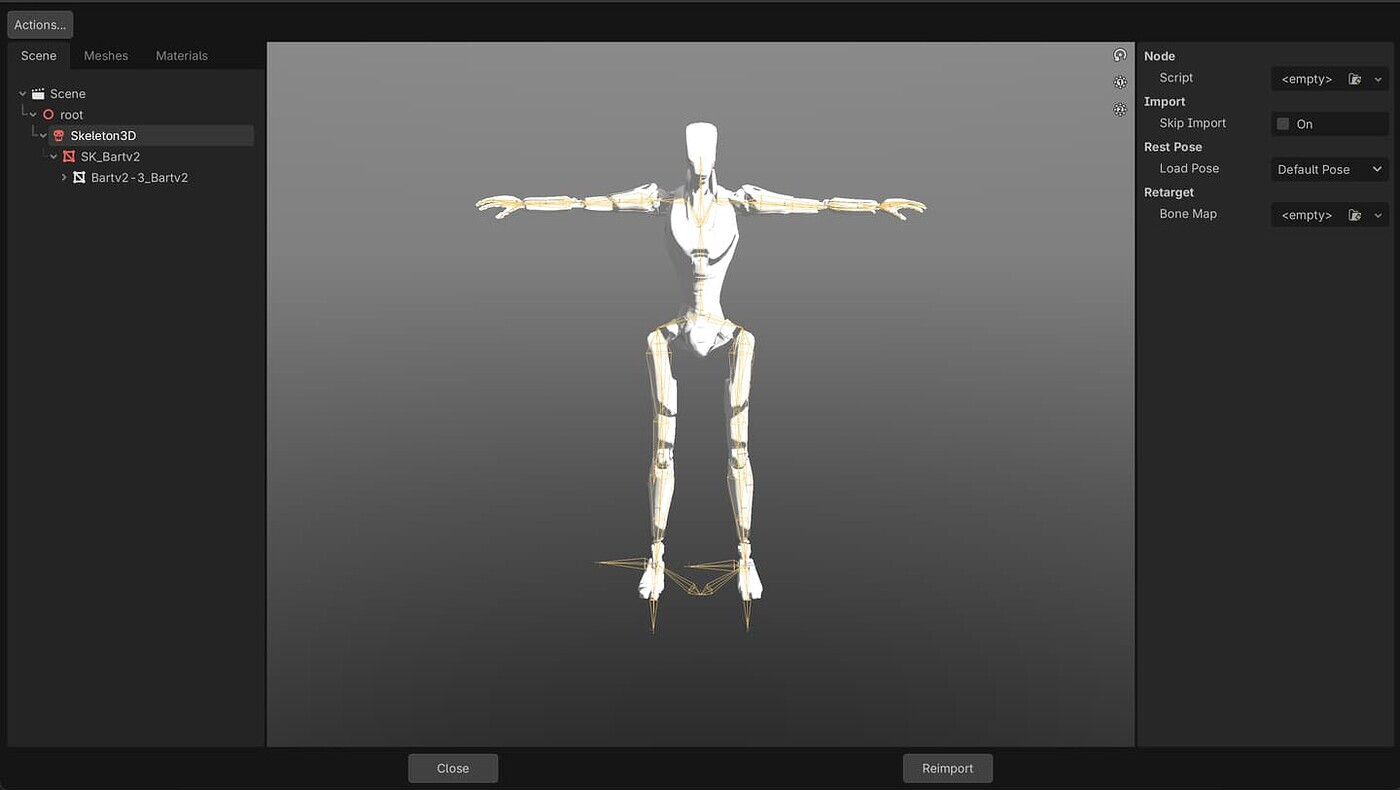
I had difficulty finding a simple, non-video form of this, so I wrote up a simple step-by-step guide for my forum. Reproduced below for your convienence.
To switch FBX from A pose to T pose:
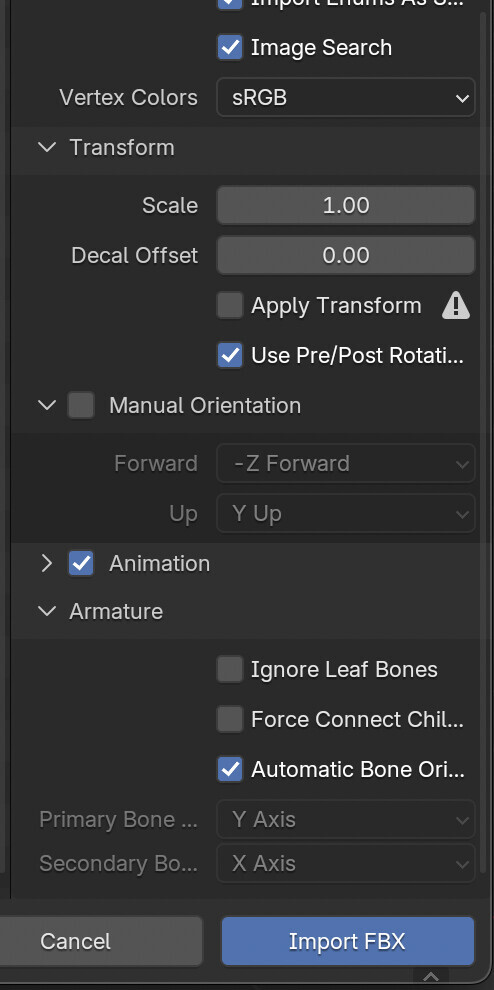
- Import FBX, under armature select ‘automatic bone orientation’
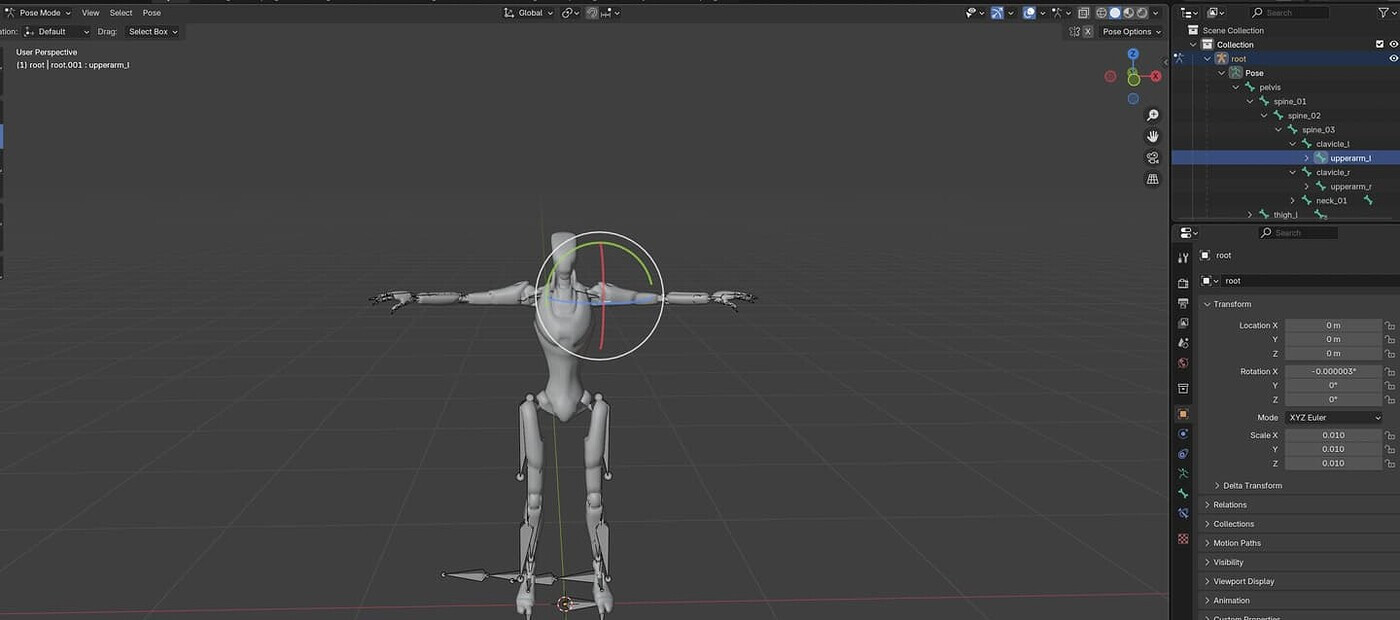
- Select the armature, switch to the pose mode, and select the arm upper arm joint. Rotate it -45/45 respectively.
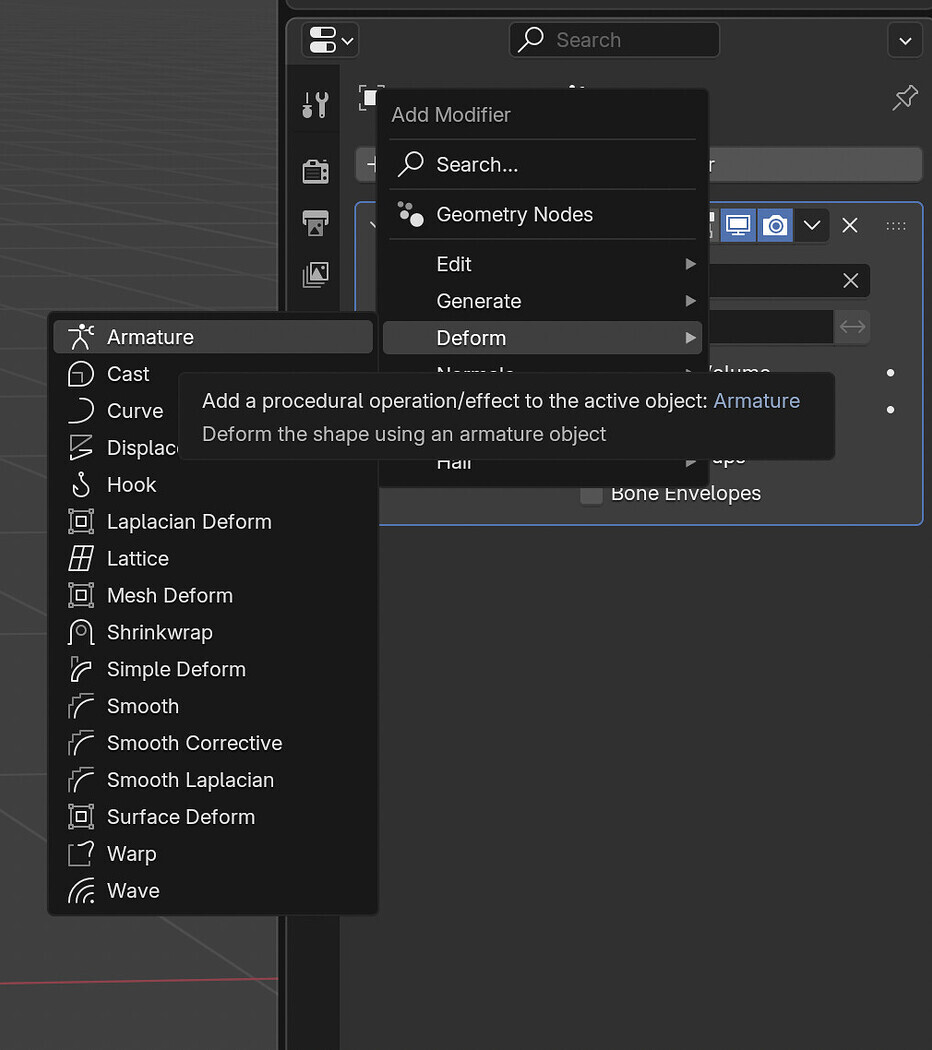
- Switch to Object mode, select the MESH and select Add Modifier:
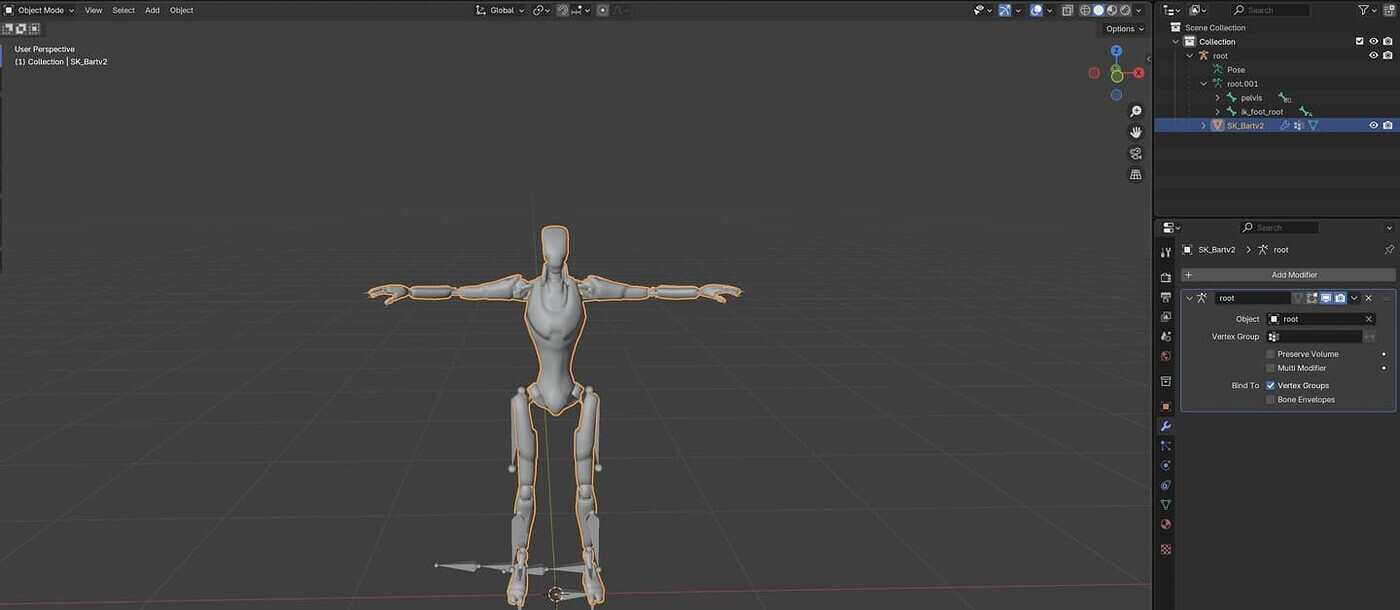
- Here’s where it gets interesting… Add a deform modifier to the armature:
It’s going to look just like this. Select ‘Preserve Volume’ and apply.
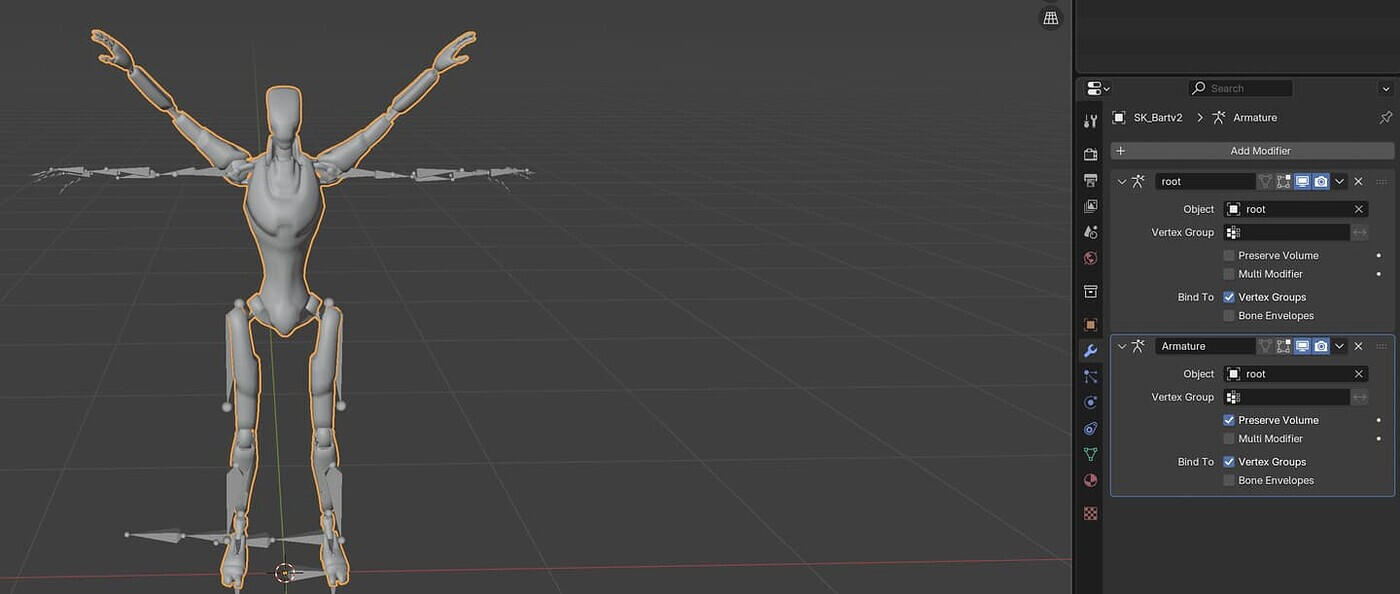
-
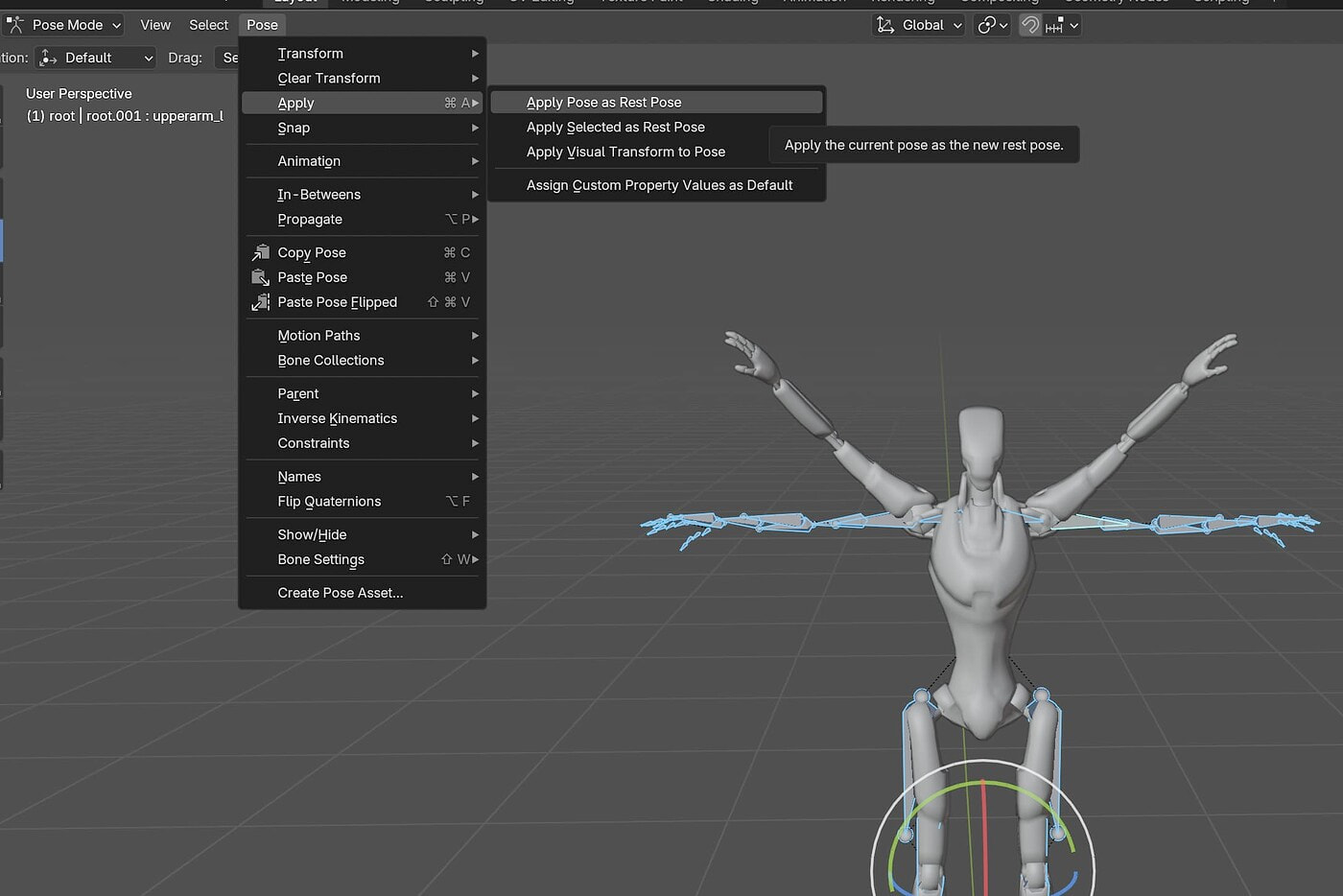
Select the armature again, select all, and switch to pose mode.
-
Select ‘Apply Pose as Rest Pose’
- It’ll now look correct, and sit in T pose.
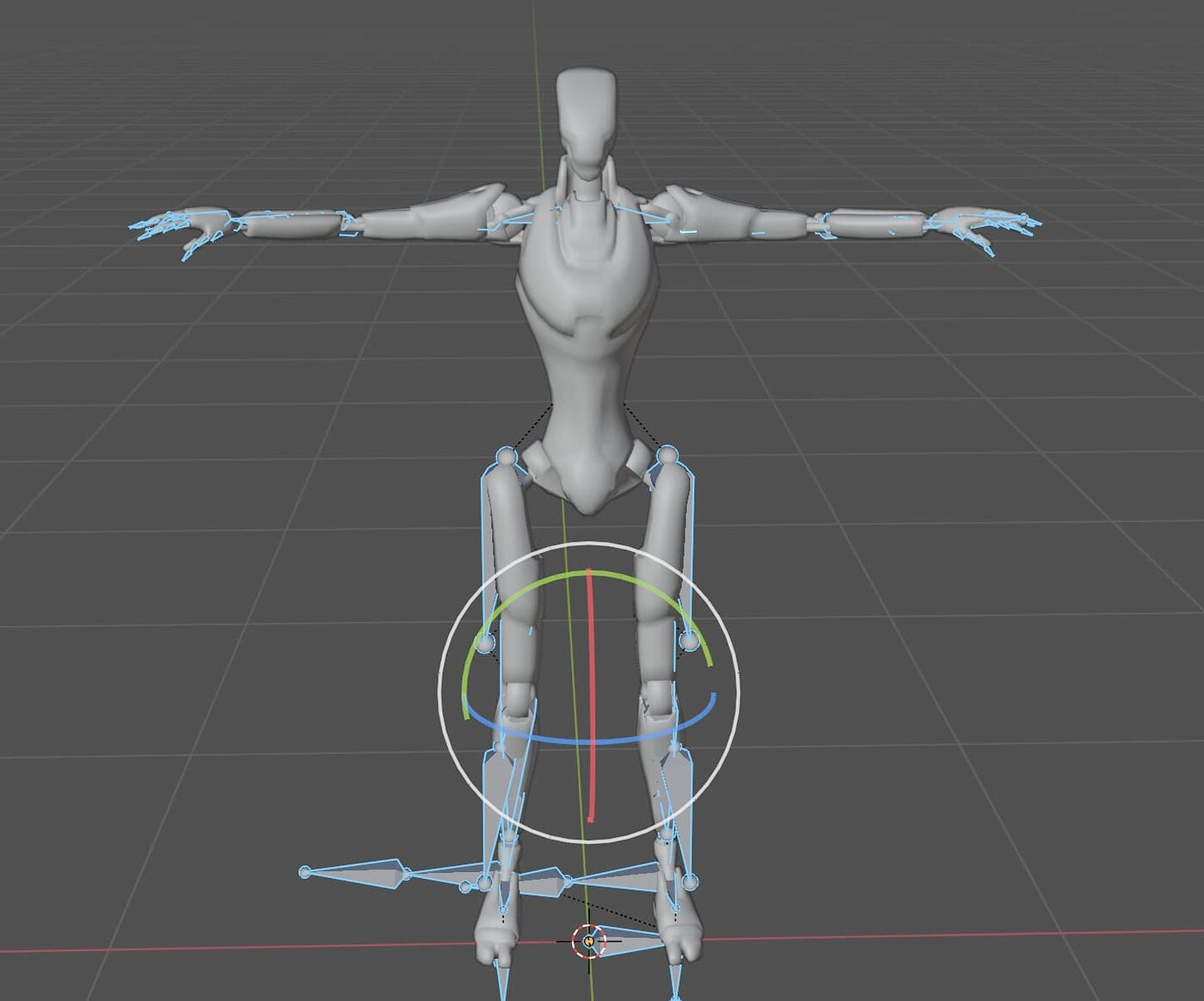
- Export as GLB/glTF/FBX, and re-import, the pose is now a T pose.