Godot Version
v. 4.5.1
Question
Hi, I have completed Godot’s official beginner’s tutorial. I decided to do a game that’s basically Point & Click, and it is supposed to look like a browser. It’s a small project to be shared with friends.
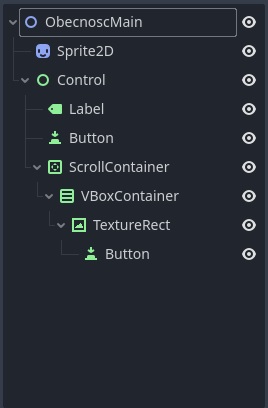
I am wondering where to start. Here’s the tree I got figured out from a different tutorial:
This gives me the main page, so to speak. I can scroll it and interact with a button. I am not sure how to connect the button so it switches to another webpage. This is most probably accomplished by signals?
My biggest issue is how to implement the other webpages. Initially, I thought I need to create a separate scene for each webpage. Then, I need to create graphics for each page (with same width for each, but varying lengths). Then, I would probably need to get the button to change between the scenes, or perhaps to implement the scene into ScrollContainer of the main scene (I want to keep a box with link and buttons above the webpage, just like in an actual browser).
I am very new to this, so I wanted to confirm if I’m on the right track, and if yes, then how can I accomplish the above targets?
If I am wrong, then how would you approach creating this sort of game?
You’re off to a decent start. There are a lot of ways to tackle this–you could have a fairly elaborate setup that would give you great amounts of flexibility in long run–but to start off, I think keep it simple until it feels like you need something more.
Assuming you don’t have an huge number of pages and they aren’t overly complex or resource intensive, I think it should be fine to create each page as a child scene under ScrollContainer. Just hide all but the first page to start things off. (In terms of working on this, I’d say just have a simple first and second page to test things out first).
Then you can create a script on the ScrollContainer with a function that will hide the current page scene and show the requested page scene. The function could be something like switch_page(page: String).
Then you can connect a button signal such as button_up to call this function. If you click on “Advanced” in the Connect Signal to a Method dialog, you’ll see the ability to add extra arguments to the function call. So this is where you can add a String argument and pass along the name of the page to “open” (i.e. hide the current page and show the requested one).
I’m just glossing over the steps you can take here to see if it gets you started (and to confirm you’re on a valid path). If you need more detail, let me know.