What are Drawing’s Transform Align, Billboard Mode in StandardMaterial3D, and Particle Flags in ParticleProcessMaterial respectively? Why are there so many settings that can modify and change directions, and do these have priorities? What are they usually used for?
I am a game VFX artist. I often create effects with particle systems and emit meshes using particle systems. Theoretically, I should use Billboard Mode in StandardMaterial3D, but the functionality of StandardMaterial3D cannot meet my needs. I only know how to use visual shaders—though I can find the corresponding node for Billboard Mode, I cannot expose it outside the shader for me to modify at any time. How can I expose it?
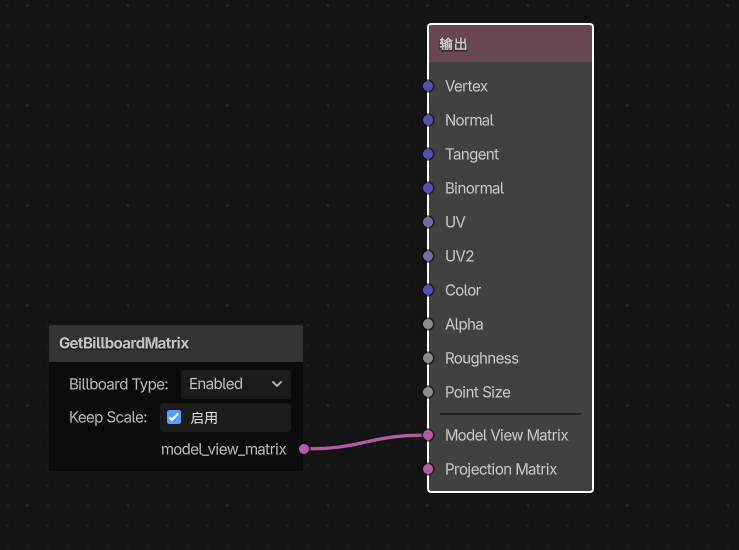
This is the Billboard Mode feature within the StandardMaterial3D material. Since the built-in functionality of the default StandardMaterial3D can’t meet my requirements, I have to use Visual Shader to manually connect nodes to recreate the exact effect I need. However, I’ve found that Billboard Mode has to be implemented separately within the shader—unlike in Unity, where this feature is natively built into the Particle System.
Right now, I can use this Visual Shader node (the one shown in the image above) to resolve the Billboard Mode issue, but I can’t expose this setting externally. It’s impractical for me to open the Visual Shader every time I need to modify it, nor is it feasible to duplicate the shader for every single Billboard Mode configuration.
Ok.. so This is helpful for making 3d visuals?? Did this not make lag ? How to manage this ? I had not touched 3d material working on 2d .. but still it’s becoming too Much laggy and device need shutdown sometimes or reboot. I think 3d will create Much pressure.. with particles and visual effects it’s become more costly for CPU?
You expose stuff using shader uniforms which are called “parameters” in the visual shader. Click “add node” in the visual shader and type “parameter” which will filter all parameter nodes you can create. Type in the name and it should appear under “shader parameters” in material’s properties in the inspector. Note that a parameter needs to actually participate in the network, otherwise it will be culled off.
The first one is used to create particles that always face the camera (e.g., glow effects). The second is often used to make speed lines, where the speed is locked to one of the X or Y axes, while the other axis rotates as the camera rotates. The third is for emitting meshes via particles—of course, in Godot, this functionality is placed under Draw Passes (its official naming).
However, when emitting meshes in Unity, you can import four meshes and set particles to randomly emit one of these four meshes respectively. I haven’t yet found out if Godot can achieve this. I only located a similar feature, but instead of random emission, it stacks multiple models together, and each particle emits this stacked model—which is clearly not the effect I want.
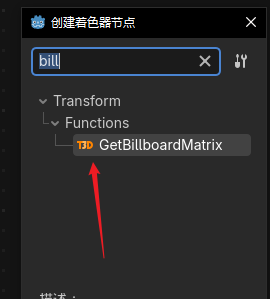
I can only find this node, and it does not support exposing parameters externally.
Right-clicking this node reveals no option to expose it to the outside (in the material inspector).
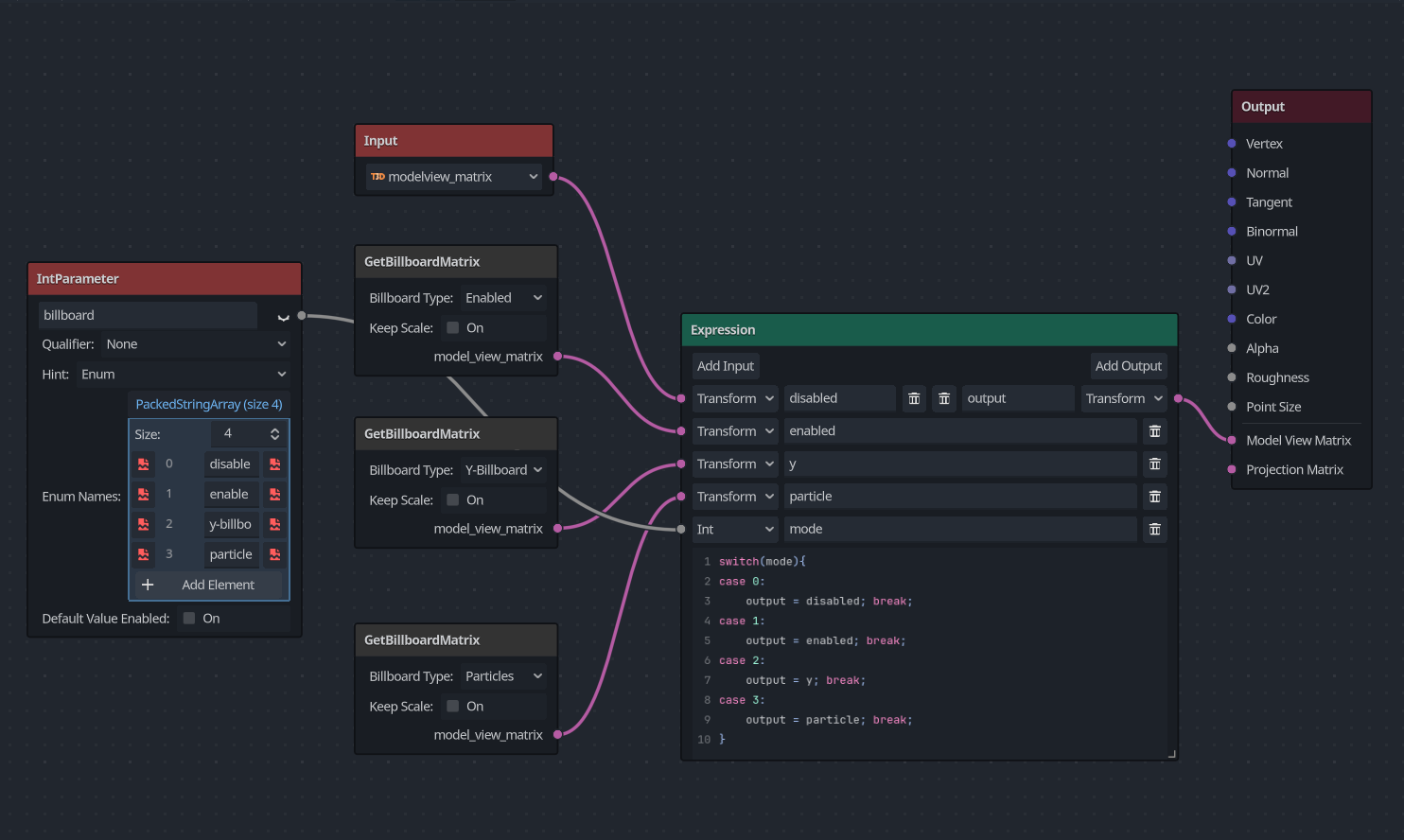
Add 4 billboard matrix nodes, each with different billboard type, then add an int parameter with enum hint, assign your enums and switch the billboard type using this int parameter.


 .. well good luck for your project you will achieve it