Depth test only against specific layer/object?

Godot Version

v4.6.dev6

Question

In my game I am working on a cursor that appears in 3D space using a Sprite3D node, it serves the purpose of showing the player in which direction they will attack. I want to be able to make it so that the cursor has no depth test against any level geometry to avoid clipping, but I also want it to be able to go behind the player instead of always being drawn on top (think of how it works in the game Death’s Door for example). What would be the way to achieve this effect?

Draw player after the cursor.

Mind elaborating? How exactly would I make it so that the player is drawn specifically after the cursor?

Force them both down the transparent pipeline and adjust render priority. Depending on your exact use case it may or may not be a viable approach.

Can you show some actual images or mockups of your exact use case? Looking at Death’s Door trailer, I don’t really see the effect you’re talking about.

Sure, here is a clip of how it works in Death’s Door.
If you’re using a mouse you get a cursor, it’s drawn on top of all level geometry but still has depth with the player, so it can go inside or behind the player. This is the effect I want to achieve.

Video doesn’t play for me. Says the browser doesn’t support the codec.

Other options you have are compositing and stencil buffer. The latter was added in 4.5 I think. I haven’t had a chance to look at how it’s implemented. Will take a look now…

1 Like

I was thinking that stencils may be the use case here, but I am a complete newbie when it comes to anything shader related and I don’t even know where to start here.

Here, I uploaded it on youtube so you can hopefully view it now and see what I mean better.

Not sure if this is the best solution, but you can use a SubViewport to achieve this.
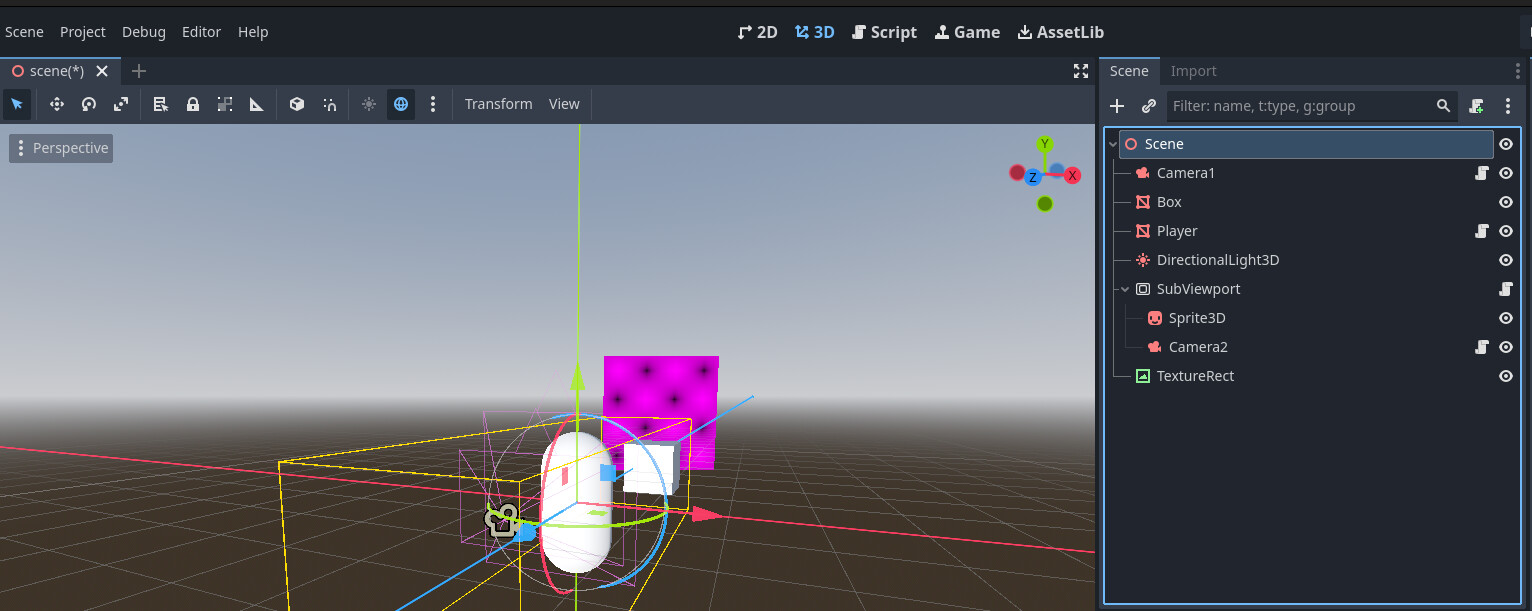
See this short demo here, the pink Sprite3D is rendered behind the Player, but in front of the Box.

This is the scene tree

The Player is in rendering layer 1, Box in layer 2, Sprite3D in layer 3.
Camera1 has Cull Mask 2, so renders just the Box.
Camera2 has Cull Mask 1 and 3, so renders Player and Sprite3D.
SubViewport has Transparent BG = true.
TextureRect has assigned a ViewportTexture of the SubViewport and has Anchors Preset = Full Rect.

SubViewport has this script attached to it just to scale itself to the same size as the window:

extends SubViewport
func _ready() -> void:
	size = get_window().size

Camera1 has this script attached to it, just to move around:

extends Camera3D

const SPEED: float = 5.0

func _process(delta: float) -> void:
	var direction = Input.get_vector("ui_left", "ui_right", "ui_up", "ui_down")
	var direction_3d = Vector3(direction.x, 0.0, direction.y)
	
	position += direction_3d * SPEED * delta

Camera2 has this script attached to it, just to copy the transform of the Camera1:

extends Camera3D

@onready var camera_3d: Camera3D = $"../../Camera1"

func _process(delta: float) -> void:
	transform = camera_3d.transform

Let me know if that setup works for you.

1 Like

Thanks for the input, not sure if this would be the best solution for me yet as it requires a second viewport and camera, so I would assume there could be some performance impact (as well as some concerns about how subviewports work in relation to the main viewport), but I will check it out just in case I can’t find a better solution, thanks.

I just realized my solution always draws the Player in front of the environment as well, so if the order from the Camera is:

  1. Box
  2. Player
  3. Cursor

It would show it in this order:

  1. Player
  2. Cursor
  3. Box

I’m not sure how to fix this, so maybe someone else can chip in with a different solution.
Probably stencils are the way to go in this case, but I’ve never worked with them.

1 Like

Ah, that’s unfortunate, thanks anyways.

Have you tried my first suggestion? If the sprite is vertically always at player’s floor plane - it may work fine.
Disable sprite’s depth test, set both transparency modes to alpha, and set player’s render priority to 1 (while keeping sprite’s at 0)

Note that any other environment geometry that goes to transparent pipeline will need to have lower render priority than the sprite in order to be drawn behind the sprite.

1 Like

Almost. This would work if it was just the player and the cursor that were transparent, but this will make it so that the player is displayed in front of all other transparent materials such as glass, and as you said those need a lower rendering priority to be rendered behind the cursor.

It also unfortunately messes up shadowing, and artifacts with some other parts of the player mesh that use alpha scissor mode.

Alright, looks like I figured it out with stencils, and it isn’t all that difficult.

I replaced the sprite material, gave it the alpha mode, and disabled depth draw on it, then using the custom stencil mode, I set the player materials to write, and the sprite material to read, I set them both to the same reference of 1, then I set the compare mode on the sprite material to greater, which gave the sprite depth test with the player. So far works pretty flawlessly from my testing, it displays in front of any other geometry.

Although note that this doesn’t perfectly replicate the effect seen in Death’s Door, since the cursor will always go under the player and not through the middle if the cursor is positioned higher than the floor.

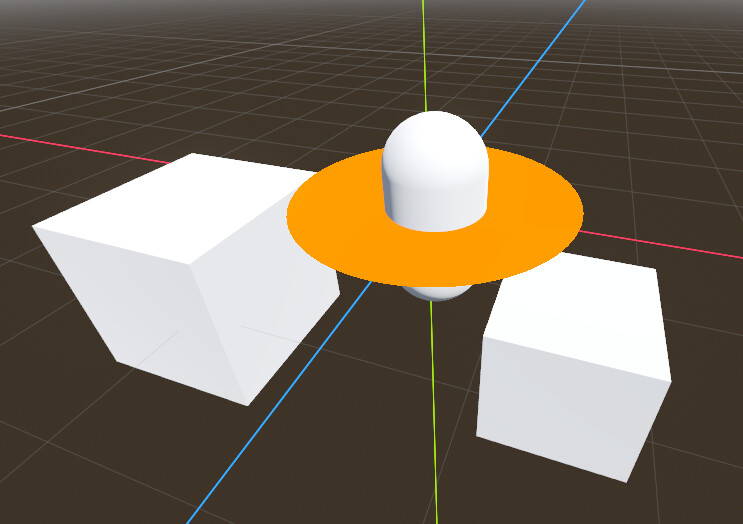
Try this stencil setup. It should look like it’s doing depth test with the player but ignoring depth test with everything else. I used a plane instead of sprite but it should work with a sprite as well.

Player material:

  • stencil: custom, write, always, 1

Sprite material

  • disable depth test
  • stencil: custom, read, greater, 1

This will work if the sprite plane is always below the player.
To make it work like in the video where the sprite can be positioned above the ground plane, parent an additional sprite or plane to the original sprite. Make it same size and position it tiny bit below the original sprite.

For that sprite:

  • set render priority one less than the original sprite
  • set transparency to 1.0 to make it invisible (note: it’s geometry instance transparency not material alpha)
  • stencil: custom, write, always, 0

2 Likes

Alright, this is exactly how I wanted this, thank you.
I already figured out how to make it go behind the player with stencils, but couldn’t figure out the intersection, so this helps greatly.

1 Like

Did you manage to set it up?

Here’s the tscn just in case. You’ll just need to assign some texture to marker plane. If you can’t make it work I can upload a project.

[gd_scene load_steps=9 format=3 uid="uid://dcvuco6n287b8"]

[ext_resource type="Texture2D" uid="uid://bcdjkjvutj65w" path="res://icon.svg" id="1_qsdps"]

[sub_resource type="StandardMaterial3D" id="StandardMaterial3D_5a1vy"]
albedo_color = Color(1, 1, 1, 0.4509804)
stencil_mode = 3
stencil_flags = 2
stencil_reference = 0

[sub_resource type="BoxMesh" id="BoxMesh_6ybkc"]

[sub_resource type="StandardMaterial3D" id="StandardMaterial3D_qsdps"]
transparency = 1
no_depth_test = true
shading_mode = 0
albedo_texture = ExtResource("1_qsdps")
stencil_mode = 3
stencil_flags = 1
stencil_compare = 4

[sub_resource type="PlaneMesh" id="PlaneMesh_gjevs"]

[sub_resource type="StandardMaterial3D" id="StandardMaterial3D_nhvxe"]
render_priority = -1
stencil_mode = 3
stencil_flags = 2
stencil_reference = 0

[sub_resource type="StandardMaterial3D" id="StandardMaterial3D_873d2"]
stencil_mode = 3
stencil_flags = 2

[sub_resource type="CapsuleMesh" id="CapsuleMesh_xmiln"]

[node name="stencil_test" type="Node3D"]

[node name="environment1" type="MeshInstance3D" parent="."]
transform = Transform3D(0.6153791, 0, 0, 0, 0.6153791, 0, 0, 0, 0.6153791, 1.4712219, 0.6799916, 2.172792)
material_override = SubResource("StandardMaterial3D_5a1vy")
mesh = SubResource("BoxMesh_6ybkc")

[node name="environment2" type="MeshInstance3D" parent="."]
transform = Transform3D(1.3129823, 0, 0, 0, 1.3129823, 0, 0, 0, 1.3129823, -1.285719, 0, 1.5172377)
material_override = SubResource("StandardMaterial3D_5a1vy")
mesh = SubResource("BoxMesh_6ybkc")

[node name="marker" type="MeshInstance3D" parent="."]
transform = Transform3D(1.7543327, 0, 0, 0, 1.7543327, 0, 0, 0, 1.7543327, 0.10877173, 0.18189462, 0.06839486)
material_override = SubResource("StandardMaterial3D_qsdps")
cast_shadow = 0
mesh = SubResource("PlaneMesh_gjevs")

[node name="below" type="MeshInstance3D" parent="marker"]
transform = Transform3D(0.9579392, 0, 0, 0, 0.9579392, 0, 0, 0, 0.9579392, 0.051135886, -0.04807715, -0.027579691)
material_override = SubResource("StandardMaterial3D_nhvxe")
transparency = 1.0
cast_shadow = 0
mesh = SubResource("PlaneMesh_gjevs")
skeleton = NodePath("../..")

[node name="player" type="MeshInstance3D" parent="."]
transform = Transform3D(1, 0, 0, 0, 1, 0, 0, 0, 1, 0.121715784, 0, 0.11442661)
material_override = SubResource("StandardMaterial3D_873d2")
mesh = SubResource("CapsuleMesh_xmiln")
1 Like

Yeah I got it in the end, copied the sprite and forgot to make the second one’s material unique, so accidentally gave them the same stencil settings.

1 Like