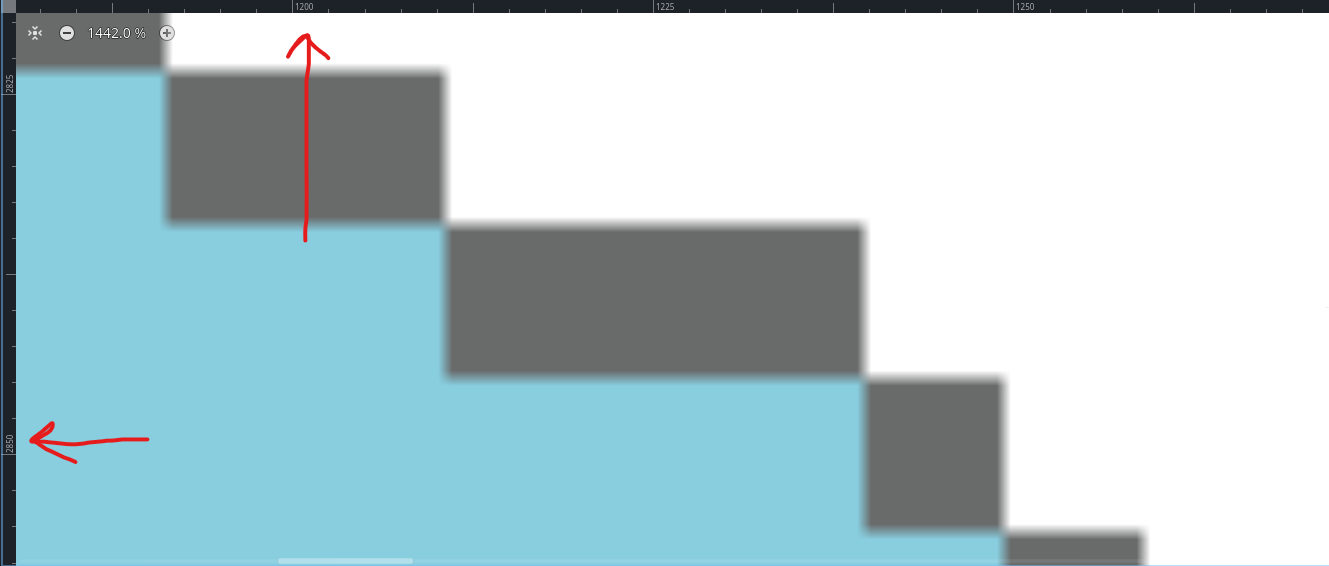
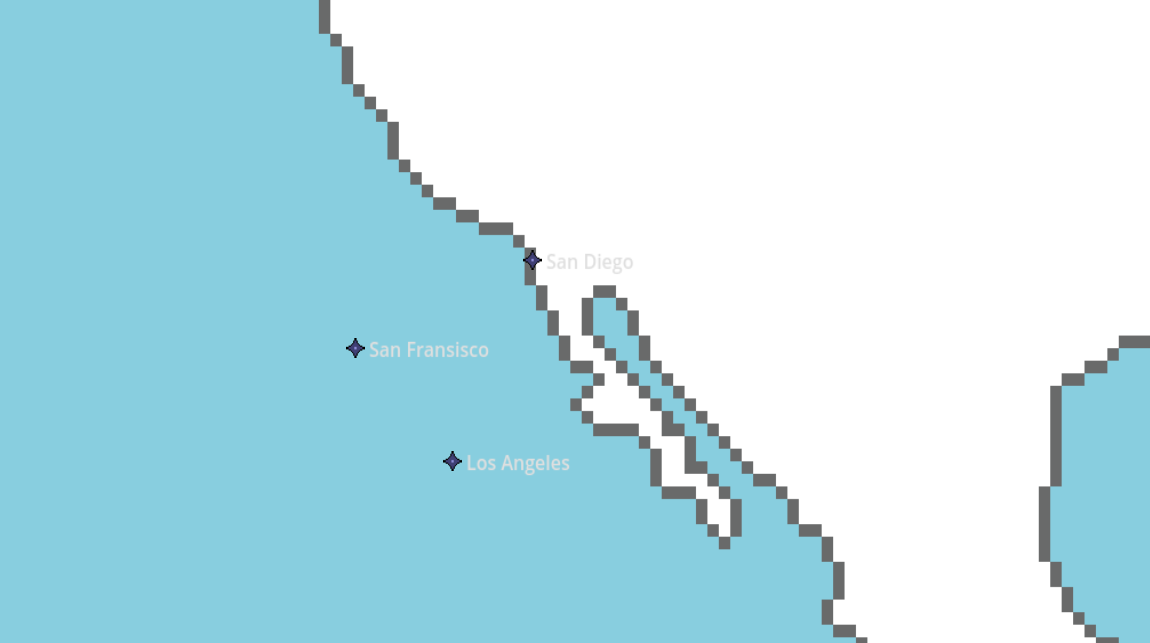
I’m trying to code my game where it plots buttons at my world map, but I don’t seem to be doing it correctly. I’m using the coordinates in the grid, but it leads to the wrong locations of each city:
Nope, they’re the child of the base node, but that’s it. Probably should’ve posted more of the code, shown below:
extends Node2D
const CITY = preload("res://sprites/city.png")
var cities_array = [
	"Los Angeles",
	"San Fransisco",
	"San Diego"
]
var cities_location_array = [
	Vector2(1215, 2835),
	Vector2(1130, 2745),
	Vector2(1285, 2675)
]
var current_city: String
# Called when the node enters the scene tree for the first time.
func _ready():
populate_cities()
func populate_cities():
for i in cities_array.size():
var btn = Button.new()
btn.icon = CITY
btn.text = str(cities_array[i])
btn.flat = true
btn.alignment = HORIZONTAL_ALIGNMENT_LEFT
btn.position = cities_location_array[i]
btn.pressed.connect(cargo_scene.bind(btn.text))
add_child(btn)
Your buttons are almost certainly not centered on the icon, so the position of the button is not what you’d intuitively think based on where the icon inside the button draws. I’d suggest (temporarily) putting an opaque stylebox on the button so you can see its extents and how it’s being placed relative to those.
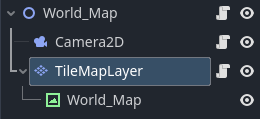
Understood, I appreciate your input. I thought about it some more and decided to use a TileMapLayer. So the TileMapLayer is the child of the main node, with the World Map as a child of the TileMapLayer node.
I then moved all the methods into the TileMapLayer script.
This helped because once I have the mouse in ‘select mode’, the screen displays the tile coordinates, then I just place the buttons on that tilemap coordinate system. Code below:
extends TileMapLayer

const CITY = preload("res://sprites/city.png")

var cities_array = [
	"Los Angeles",
	"San Fransisco",
	"San Diego"
]
var cities_location_array = [
	Vector2(78, 165),
	Vector2(73, 161),
	Vector2(80, 166)
]

# Called when the node enters the scene tree for the first time.
func _ready():
	populate_cities()

func populate_cities():
	for i in cities_array.size():
		var btn = Button.new()
		btn.icon = CITY
		btn.text = str(cities_array[i])
		btn.flat = true
		btn.alignment = HORIZONTAL_ALIGNMENT_LEFT
		btn.position = map_to_local(cities_location_array[i])
		btn.pressed.connect(cargo_scene.bind(btn.text))
		add_child(btn)

func cargo_scene(button_text: String):
	get_tree().change_scene_to_file("res://scenes/loading_cargo.tscn")
	WorldMap.current_city = button_text
I still use the WorldMap node to store global variables.
Just to make sure, those coordinates should be with (0,0) in the top left of the screen with the Y-axis pointing down. It’s possible that the issue is just that your Y-coordinates in your listed Vector2s should all be negative.