Hi, are there additional resources that could help beginners begin to understand the documentation? I’ve finished the Getting Started section in the Godot documentation, including the Learn GDScript from Zero application and the First 2D game section, but I still don’t understand the documentation.
Like I don’t understand the concepts and logic explained in documentation tutorials like Scene organization or internal/external classes. And I can’t understand the documentation enough to read it on my own and try to solve issues.
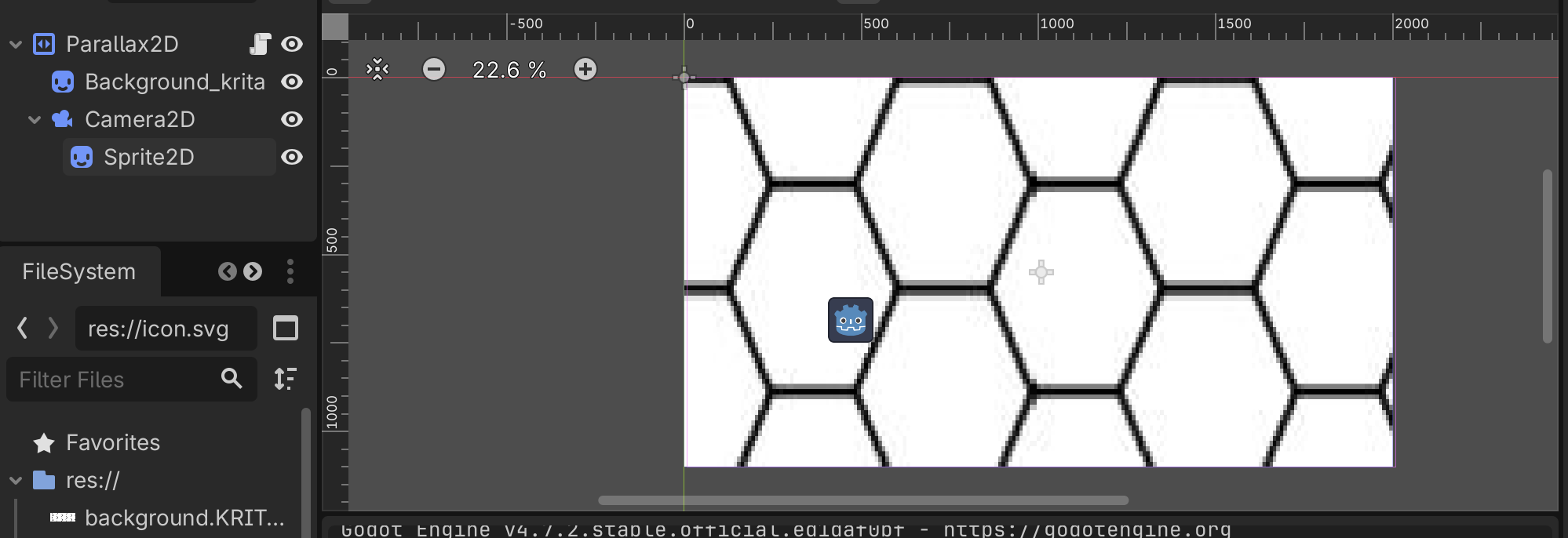
For example, I’m trying to make the black and white pattern below here:
But I don’t understand what node to add or what code to write. It says the scroll_scale property is key for movement, so I click on it here: 2D Parallax — Godot Engine (stable) documentation in English. , and copy the code into my parallax2D script so it looks like this:
extends Parallax2D


# Called when the node enters the scene tree for the first time.
func _ready() -> void:
	pass # Replace with function body.


# Called every frame. 'delta' is the elapsed time since the previous frame.
func _process(delta: float) -> void:
	set_scroll_scale(value: Vector2)
	Vector2 get_scroll_scale()
but nothing happens and I don’t understand how I’m supposed to use the code or read any of the documentation. Did I complete the tutorials wrong, like it says at the end of the Getting Started section that after completing the tutorials you can learn on your own through the documentation, but I’m unable to. I’ve tried reading Godot tutorial books but none of them seem to instruct on how to understand the documentation.
Scroll scale is a property, you can change it in the Inspector typically on the right side of the editor. If you want to change it in code you can use scroll_scale = your_value_here, but I don’t think you want to change it in code, just the Inspector.
The two functions under scroll_scale are it’s setter/getter function, you can largely ignore those two.
What do you expect to happen? It seems like you don’t have any other scripts so the camera shouldn’t move on it’s own, therefore the scroll_scale has nothing to scale and thus nothing happens, as intended. Also your camera shouldn’t be a child of the Parallax2D.
Wait should the camera be its own scene and have a script with the scroll_scale property? I’m sorry I’m just confused. And how may I gain the same understanding that you have on what needs to be done? Is there a documentation tutorial?
Depends on what you are trying to do. Usually your player would have it’s own scene with a camera as it’s child.
No. The Parallax2D has the scroll_scale property, you do not need a script to create this property.
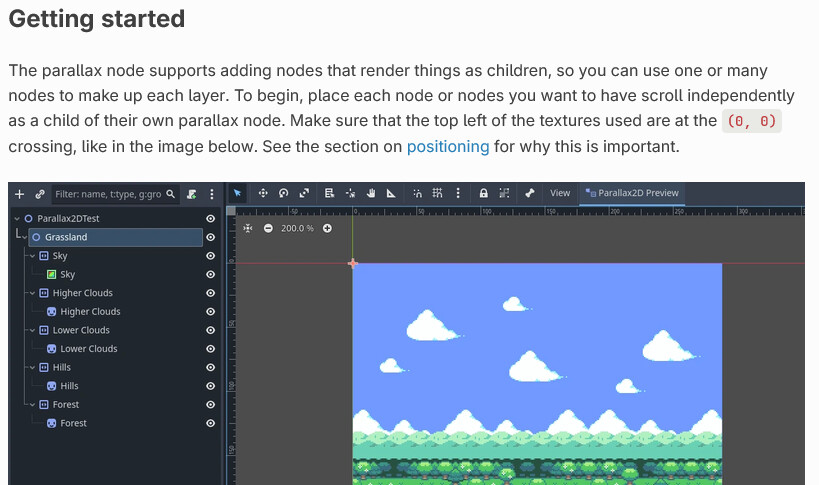
The Parallax2D documentation show off an example of a scene using Parallax2D. You would use this scene as part of another, if this is the background then you may have your level platforms and triggers, and the player scene in front of it
Notice each Parallax2D node has one single child, and each is a Sprite2D, this helps organize the scaling effects. You could add a Camera2D as a child but then it would also be affected by the Parallax2D which sounds bad, I haven’t tried it myself and I don’t think it’s worth exploring.
Did you complete the First 2D Game section of Getting Started? I know it doesn’t cover Parallax nodes specifically but it does touch on scene composition, especially having a distinct Player, Enemy, World or Main, and UI scene.
I have, but I still struggle with reading the documentation in general. I heard I need to have a strong foundation in object oriented programming before reading the documentation, though I’m unsure of what else.