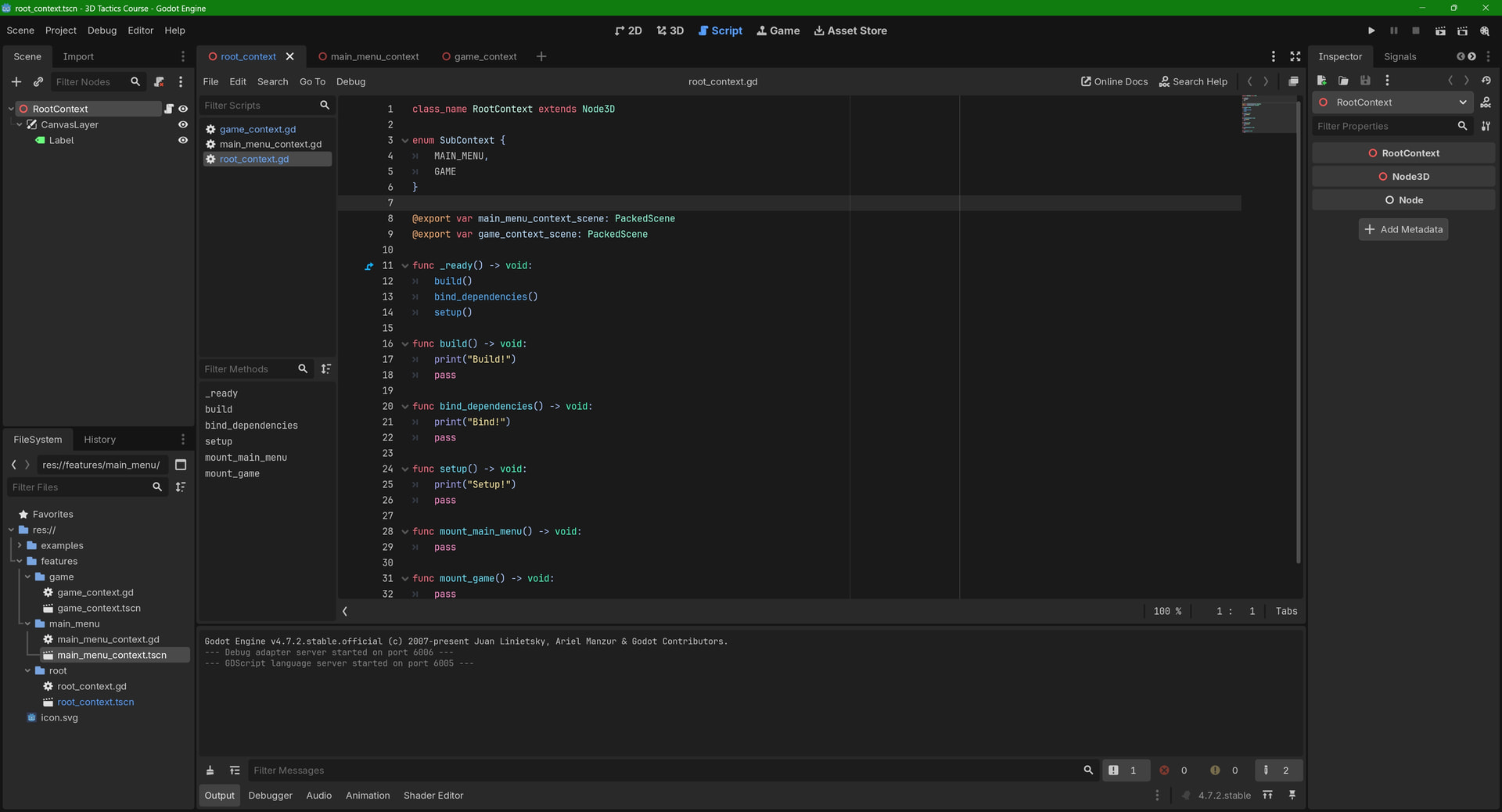
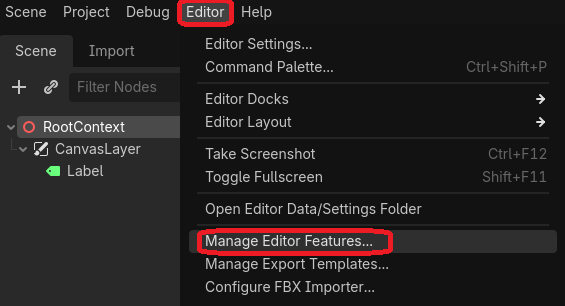
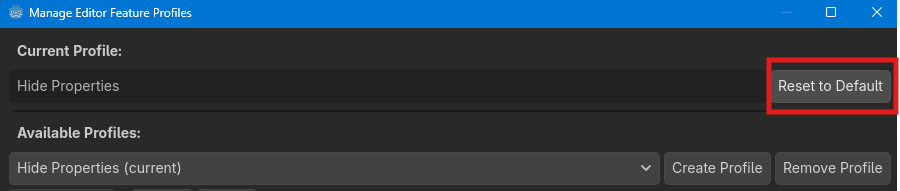
I'm following along with a tutorial to make a 3D Tactics game and I noticed that @export variables don't show in the Inspector which wasn't the case for another project I was working on last week. I checked all my old projects and made new test projects; all the old projects had working @export vars while none of the new ones do.
I’m extremely confused because it compiles fine which is usually the reason I’ve seen this happen before. I’ve tried reloading the project, closing and reopening the editor completely, restarting my PC, detaching and reattaching the script, moved from 4.7.1 to 4.7.2, deleted the .godot folder in my project so it recreates it. Still nothing.
I sometimes have this issue also. I don’t have an exact solution for it but did you try changing the script (with a deliberate syntax error so it’ll show an error), save it, and then change it back (without error) and save it again?
It’s very weird that there is not a single property to be seen in the inspector.
The inspector should display for the Node3D part various properties in the categories “Transform” and “Visibility” and for the Node part the categories “Process”, “Physics Interpolation”, “Auto Translate” and “Editor Description”.
Care to share your project as ZIP-file uploaded to Google Drive or something similar?
I have this happen occasionally too. Usually just clicking on another node and back again fixes it. Somewhere or somehow the engine seems to fail to update the inspector tab. I have never pinned it down though as to how to reproduce it. Just thought I would add this.